To configure the widget, go to settings
Next, you need to click on Add
A new script will be displayed (by default for lead)
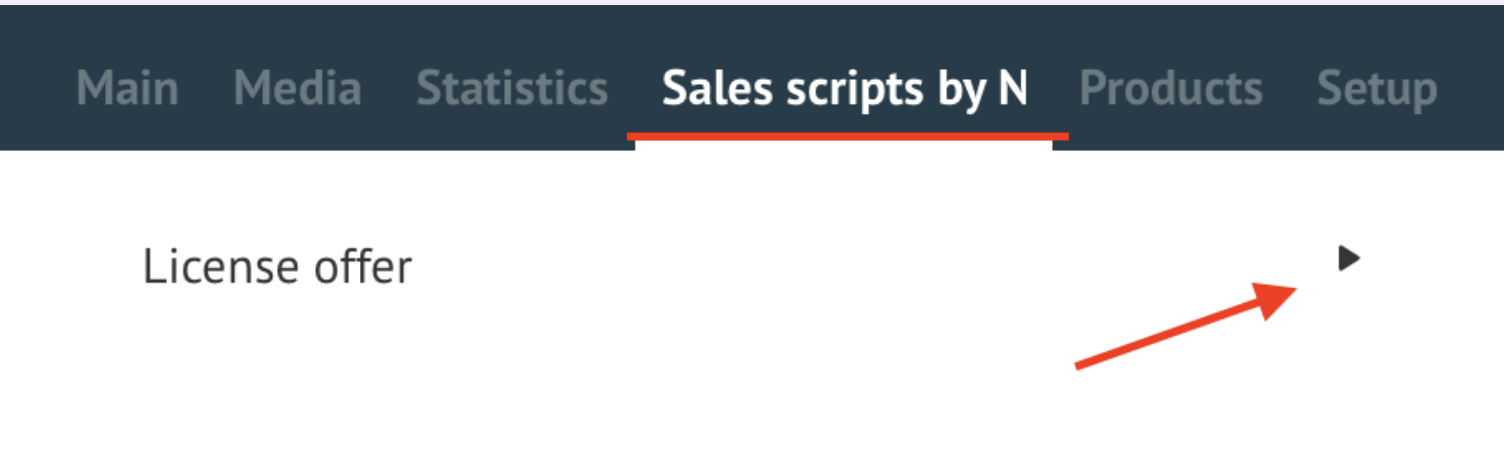
In order to open the script, click on the arrow.
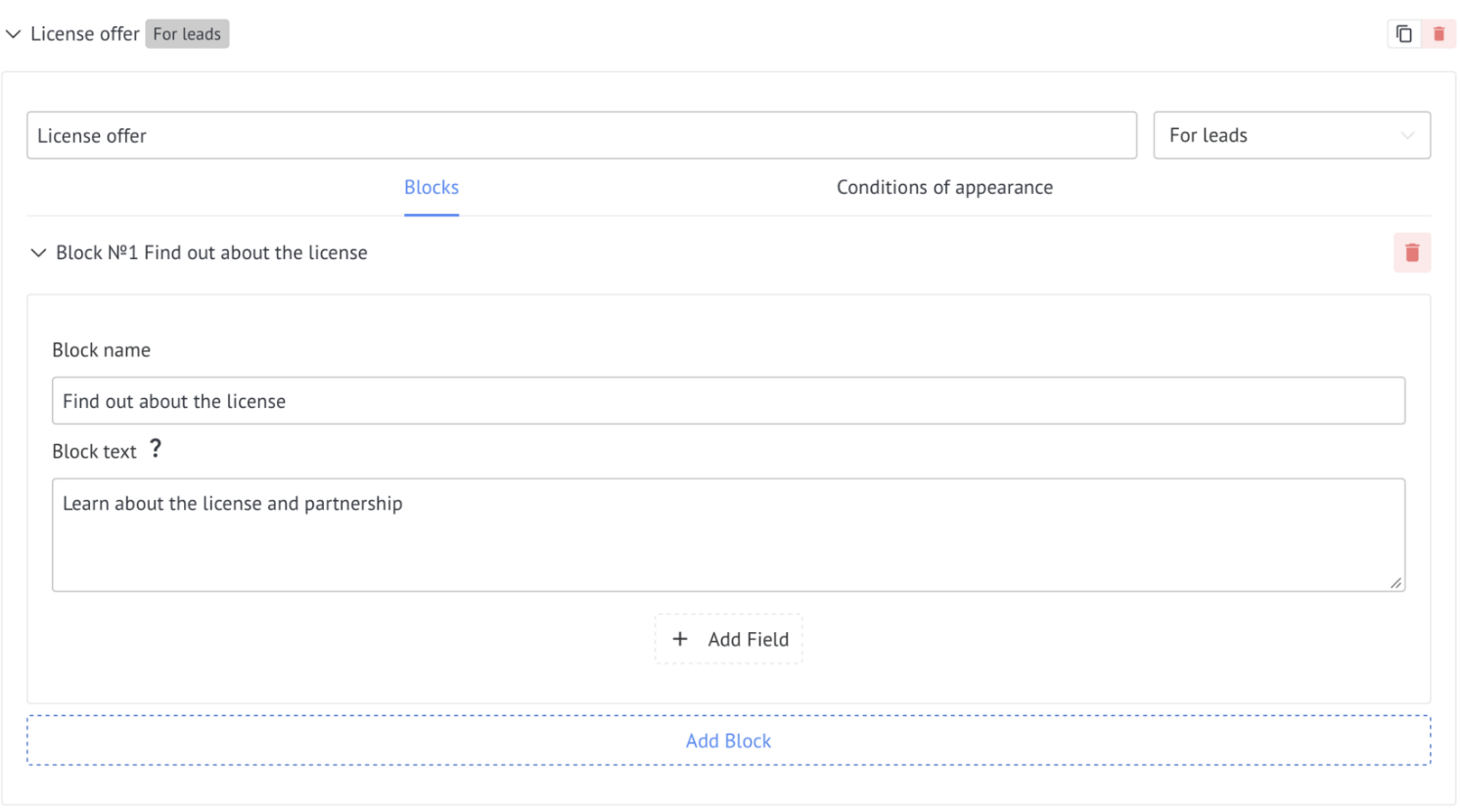
The settings window opens. In the field, enter the name of the script you need to enter the name
Next, you need to add the open Block 1 block.
Enter the block name and description
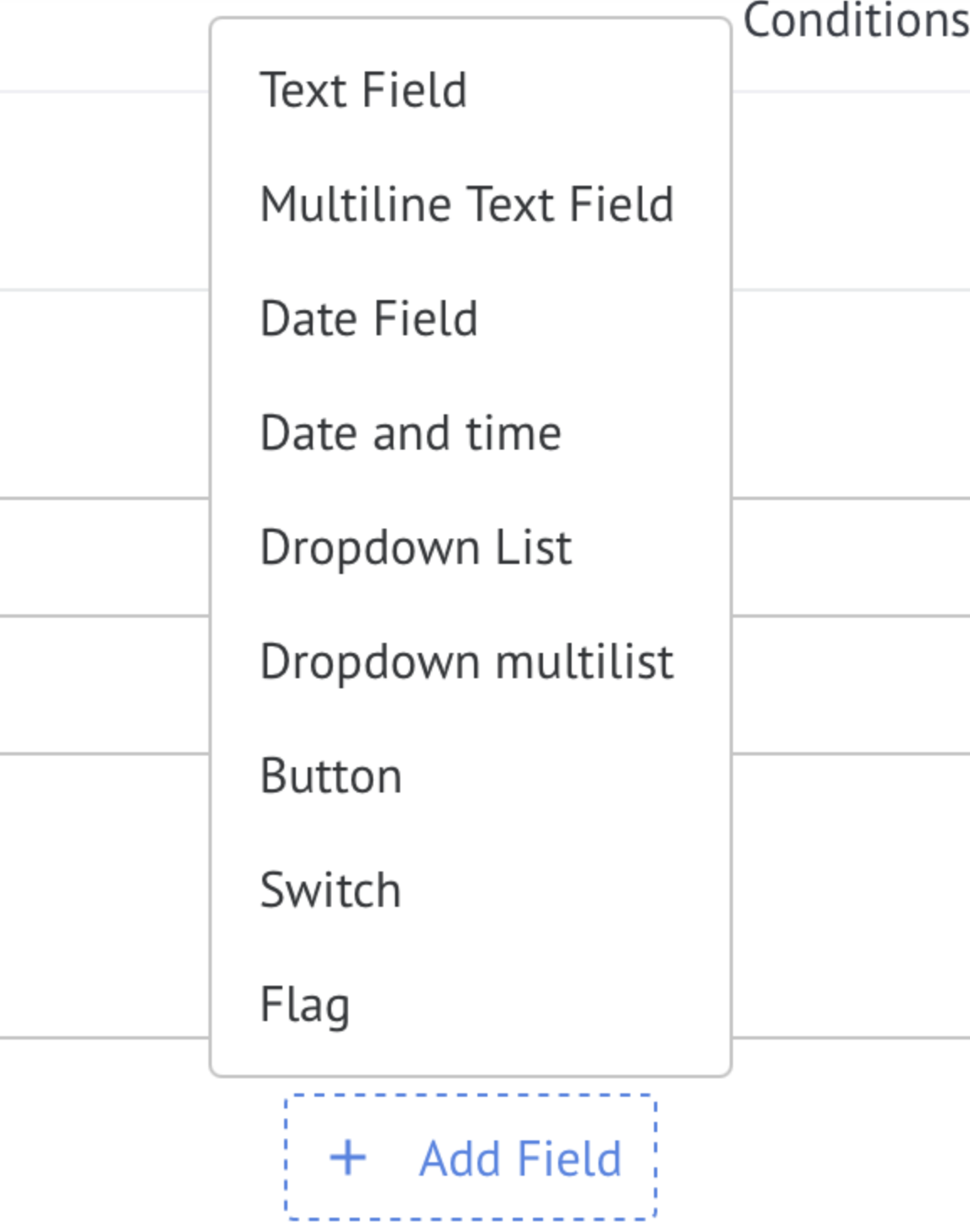
1. Text field - you can select a field with the text type and a number from the Lead/Contact entities/ The company that fills up at the end of the conversation
2. Text area - you can select a field with the text area type from the Lead/Contact entities/ The company that fills up at the end of the conversation
3. Date - you can select a date type field from the Lead/Contact entities/ The company that fills up at the end of the conversation
4. Add a drop-down list - you can select a field with the type text, number, list, multi-list of Lead/Contact entities/ The company must be filled in with pre-prepared data
5. Add a button - the button is used to move to the next block or launch the bot after completing the dialog.
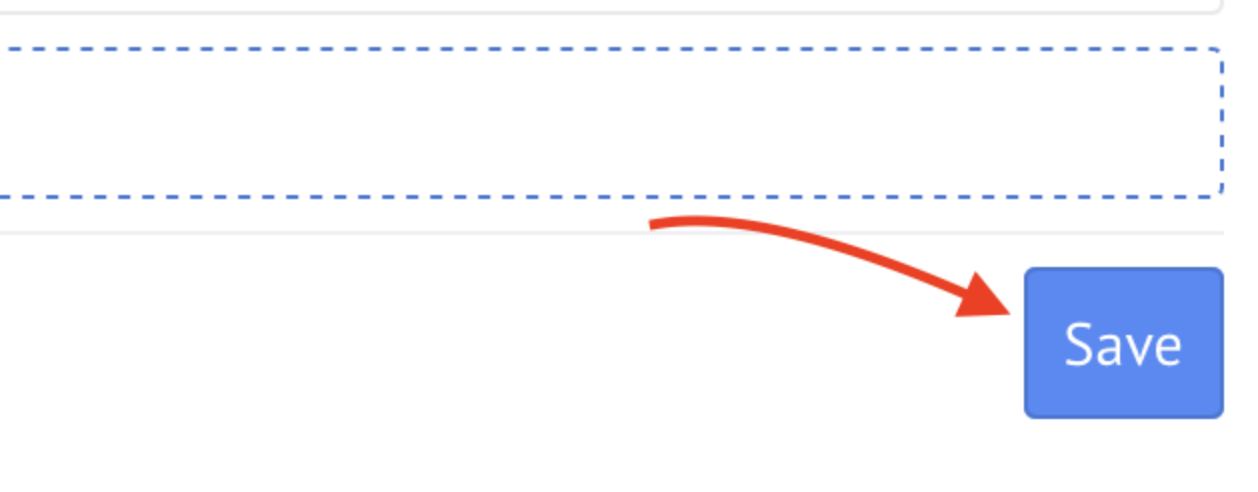
After creating the script, click on Save
After creating the script, you can edit it, but be sure to click on Save later.
To run the script when talking to the client, go to the Scripts tab in the lead and select the desired script.
Click Start a conversation
After the end of the conversation, you need to click :
End the conversation - all fields that were filled in during the conversation will be recorded
End the conversation without filling in the fields - the fields will not be filled in