Integrations

Sync lists with Google Sheet

Automatically sync Kommo list values with Google Sheets

Features

List synchronization
Automatic update
Adding new values
Scheduled synchronization
History of changes

Installation and setup guide

Detailed guide for working with widget "Sync lists with Google Sheet"

Widget setup

After installation, go to settings
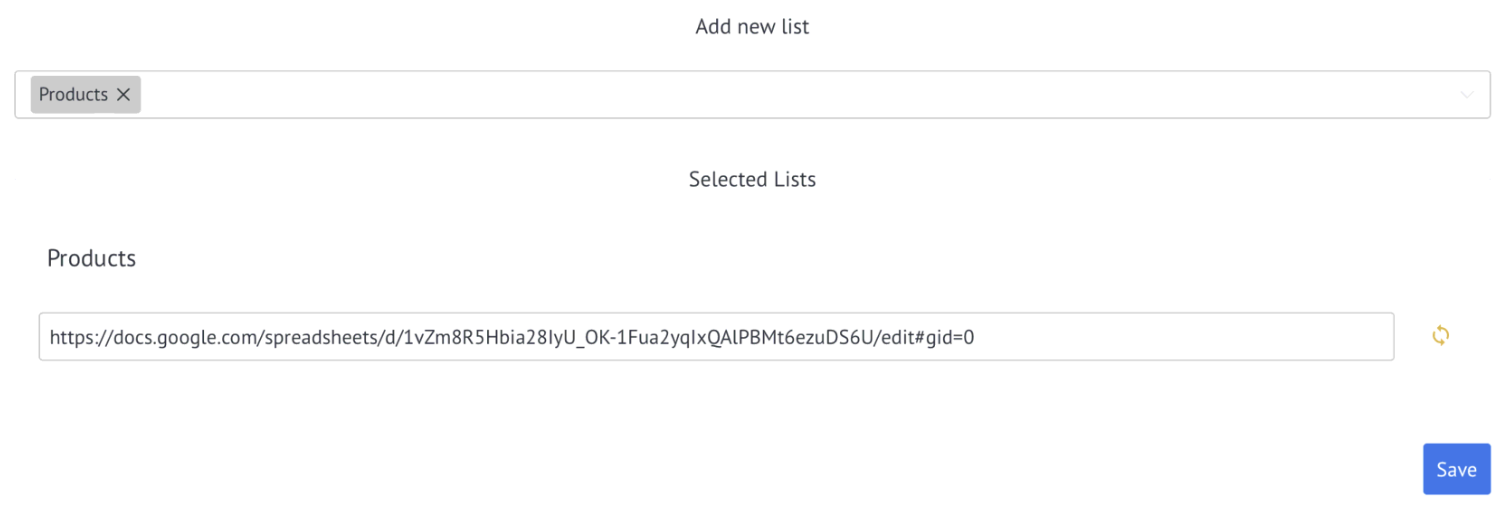
In the drop-down list, select a list (from the List section)

After putting a link to the Google spreadsheet
If there are old ones in the selected list and you need to upload them to the spreadsheet, click on the synchronization icon
Click Save

Important
How to set up a table for Synchronization?

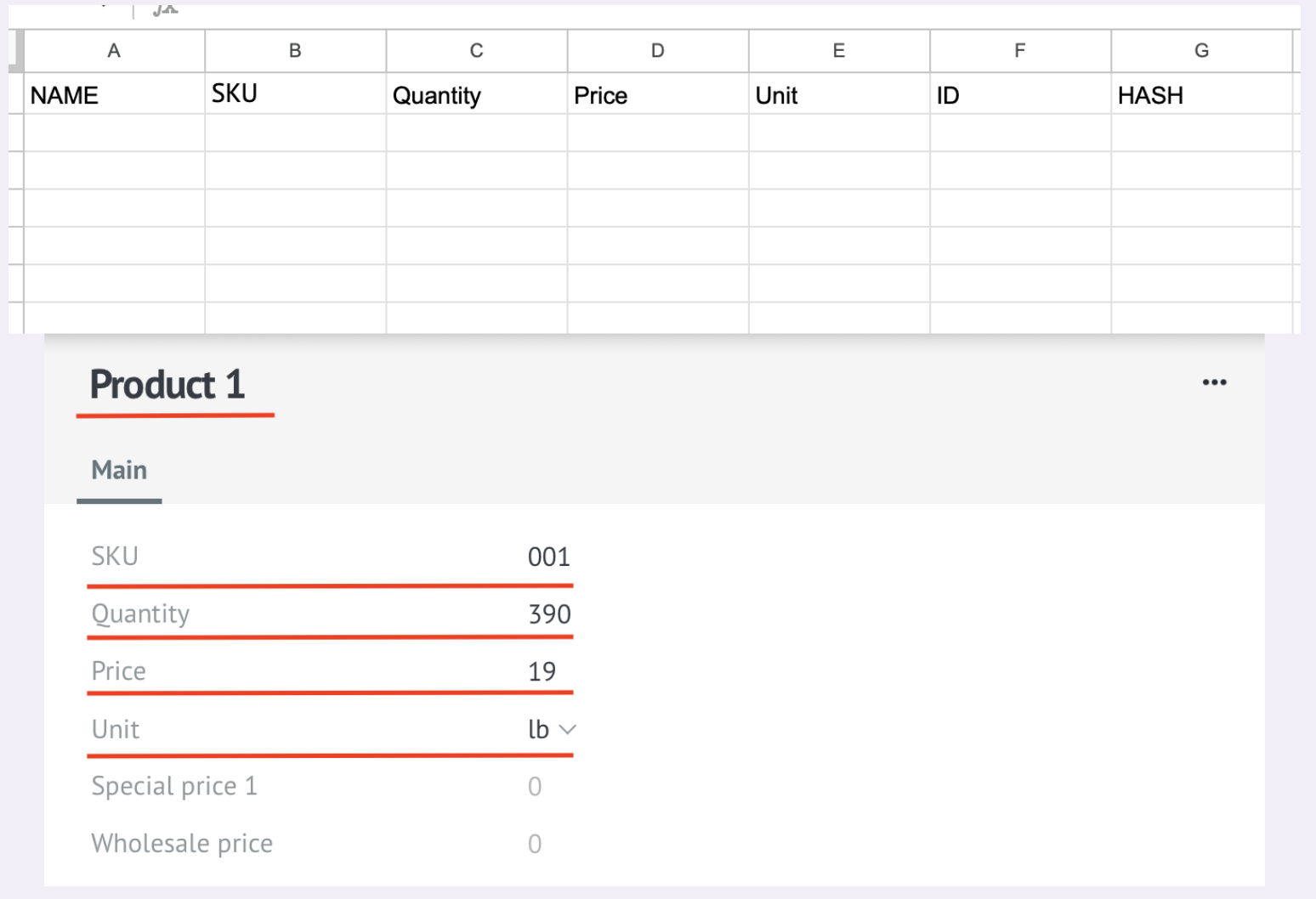
In the table you must enter the names of the fields that need to be synchronized.
Important! ID and HASH columns are added automatically and cannot be deleted. If necessary, the NAME column is also added automatically.

Important: in the access settings you need to indicate that anyone with a link can edit or give access to our [email protected], as well as the service account [email protected]