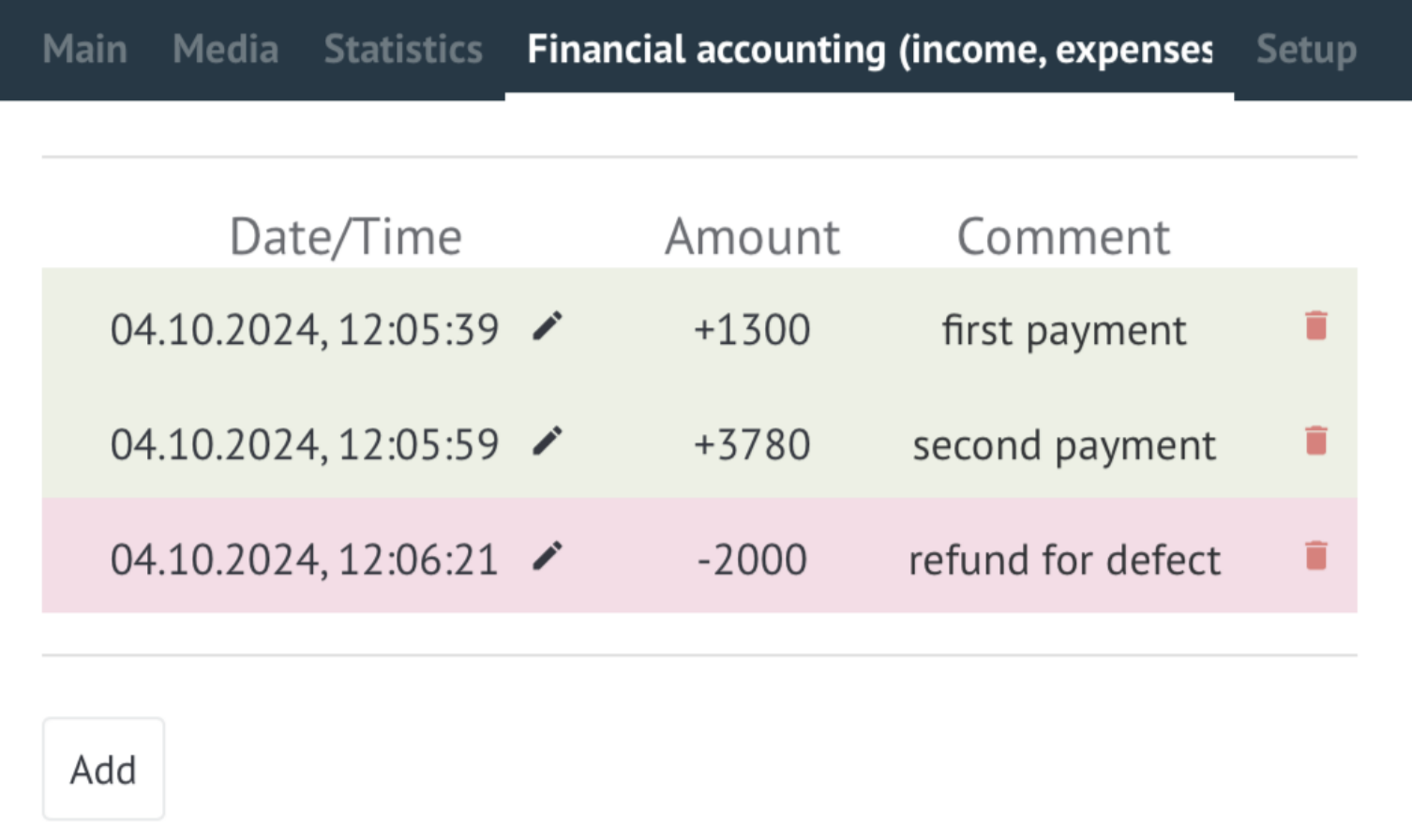
To add expenses/receipts, go to the Finance tab in the lead
Then click on the Add button
- Select the Expense or Receipt category
- Enter the amount
- Enter A comment
- Click on add
After the receipt or expense in the lead, a note will appear
Project finance and budget management
Detailed guide for working with widget "Financial accounting"
To add expenses/receipts, go to the Finance tab in the lead
Then click on the Add button
After the receipt or expense in the lead, a note will appear
In the pipeline, click Customize
select stage → Add trigger
in search write Financial accounting → Add

select the moment when the trigger is triggered for the lead amount:

lead type:

lead comment:

When payment is received, the invoice is recorded by the widget
To view statistics for the period, you need to go to the Analytics tab and select Financial Accounting
select the desired period and build a chart
upload received data to Excel
The function of displaying the debts of counterparties allows you to track the current debt for all counterparties. The information is presented in the form of a table with key financial indicators. The main goal is to provide a prompt overview of debt obligations, simplify payment control and analyze the financial discipline of counterparties.
To build a table, you need to go to the Analytics section and select Financial accounting
Select a period and click on Build chart
A graph will be built that can be uploaded to Excel