Integrations

Applications from the site in Kommo

AI integration of website forms with Kommo. Artificial intelligence automatically understands the structure of any forms and creates leads without manually setting up field mapping

Features

AI automatically recognizes form fields
Smart extraction of phone, email, TIN
Self-study on the first application
Hints in clear language
JS code for the site and Webhook

Installation and setup guide

Detailed guide for working with widget "Applications from the site in Kommo"

AI capabilities of the widget

The main feature of the widget is artificial intelligence, which automatically understands the data structure of any form.

  • No manual mapping - no need to manually map form fields to Kommo fields
  • Smart recognition - AI extracts phone, email, name, TIN and other data from any form structure
  • Self-learning - after the first application, AI remembers the scheme and processes subsequent applications automatically
  • Hints in clear language - just describe what should be in the field, the AI ​​will understand it itself

You just need to specify the fields and give hints in plain language - AI will do all the work of recognizing and mapping the data

Widget setup

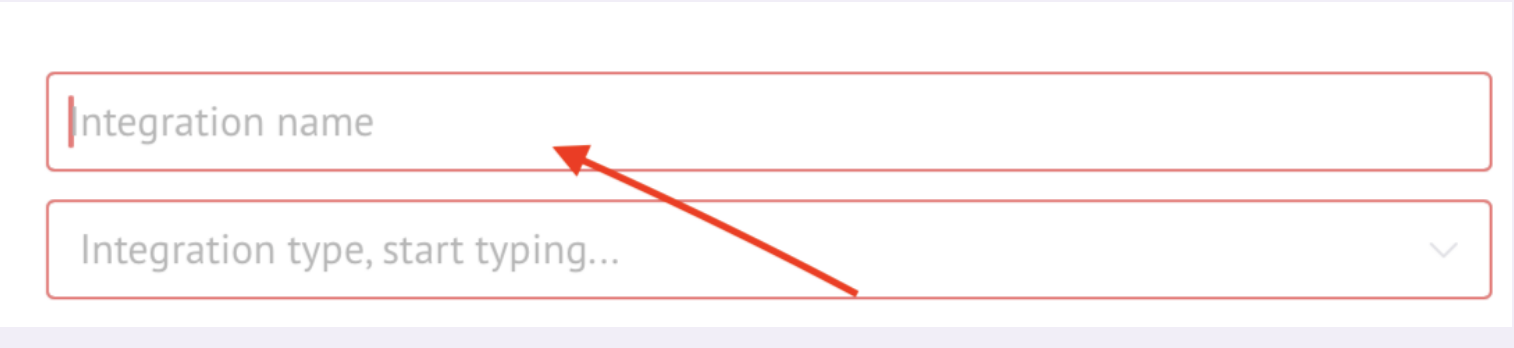
After installation, go to the widget settings and click “Add integration”

Enter the name of the integration - leads will be created with this name

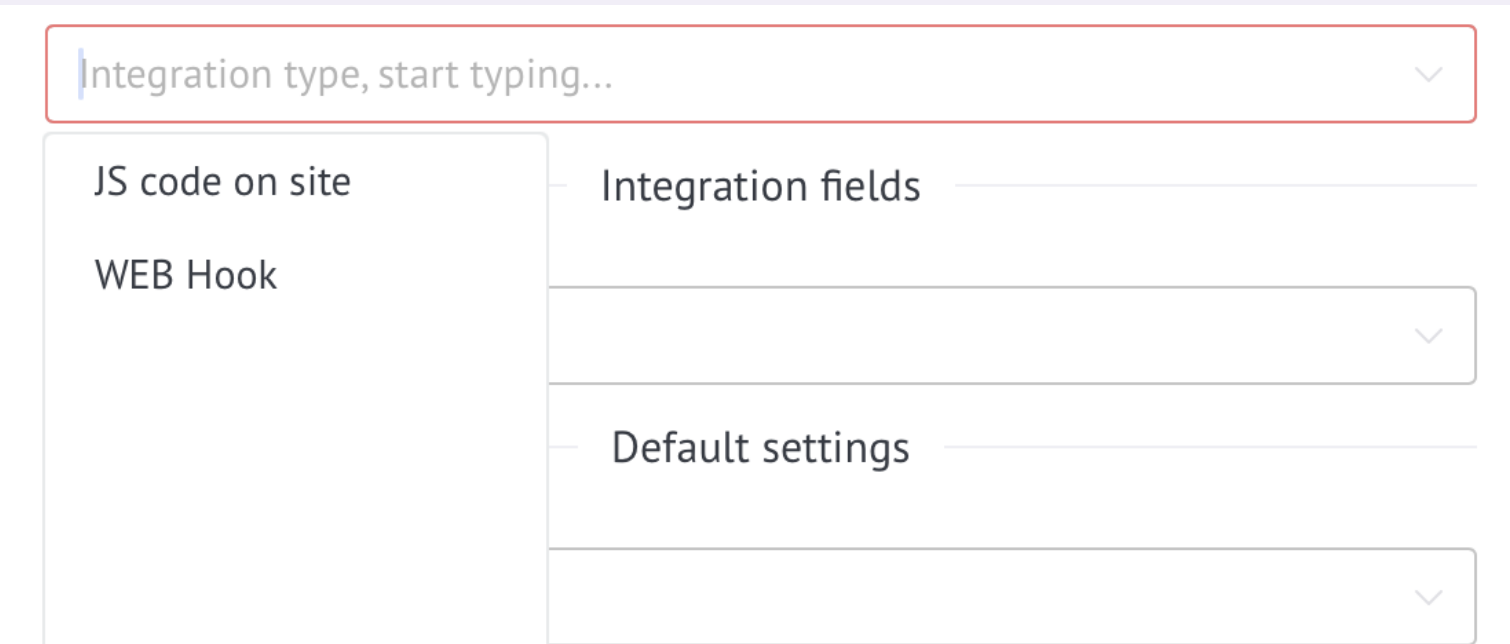
Select the type of integration:
JS code for the site - paste the resulting code into the HTML before the closing tag </body>
Webhook - paste the URL into the field to send your system hooks

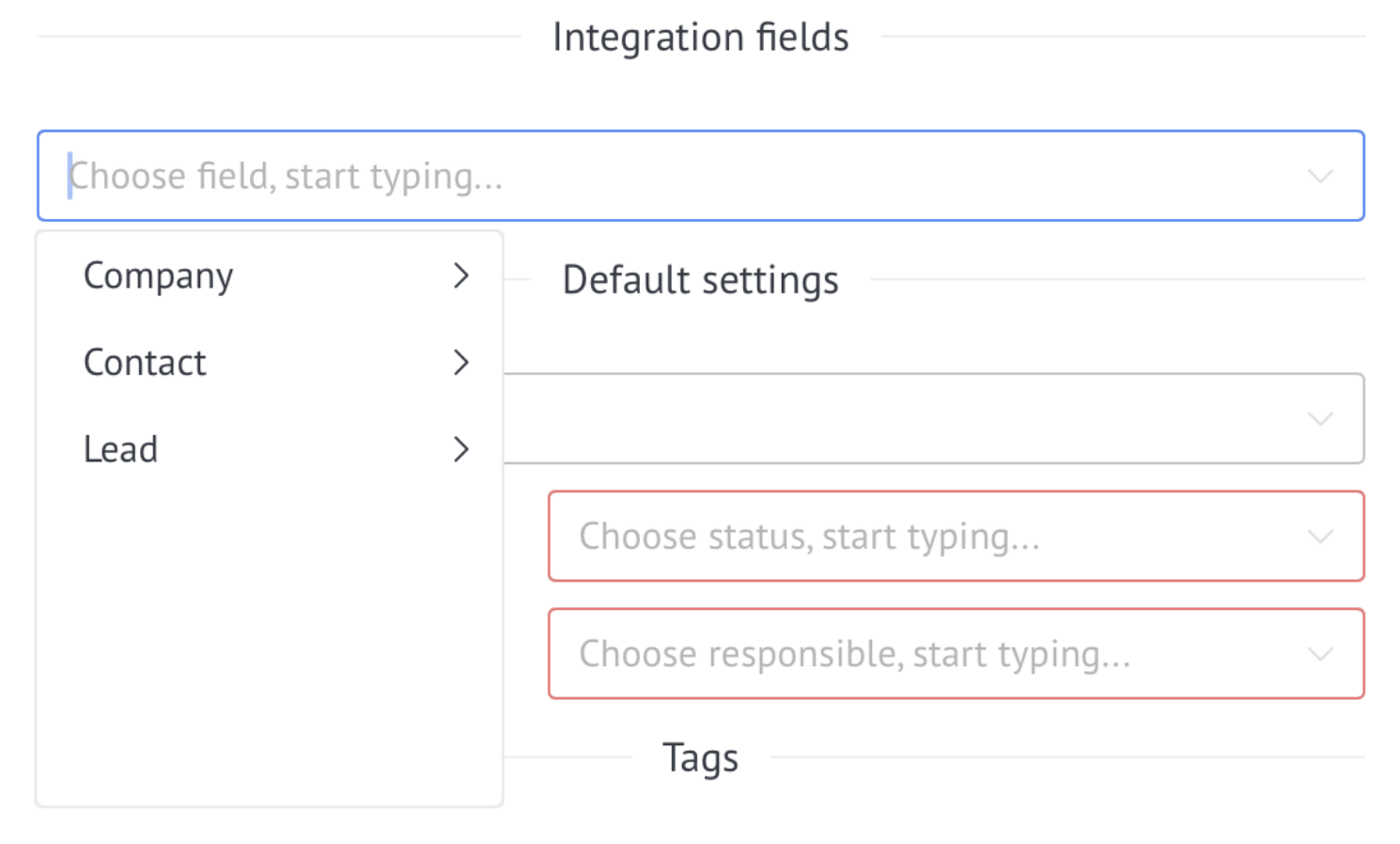
Select Kommo fields that should be filled with data from the form

Important: among the mapped fields there must be at least a contact phone or email. Without this, the request cannot be processed correctly.

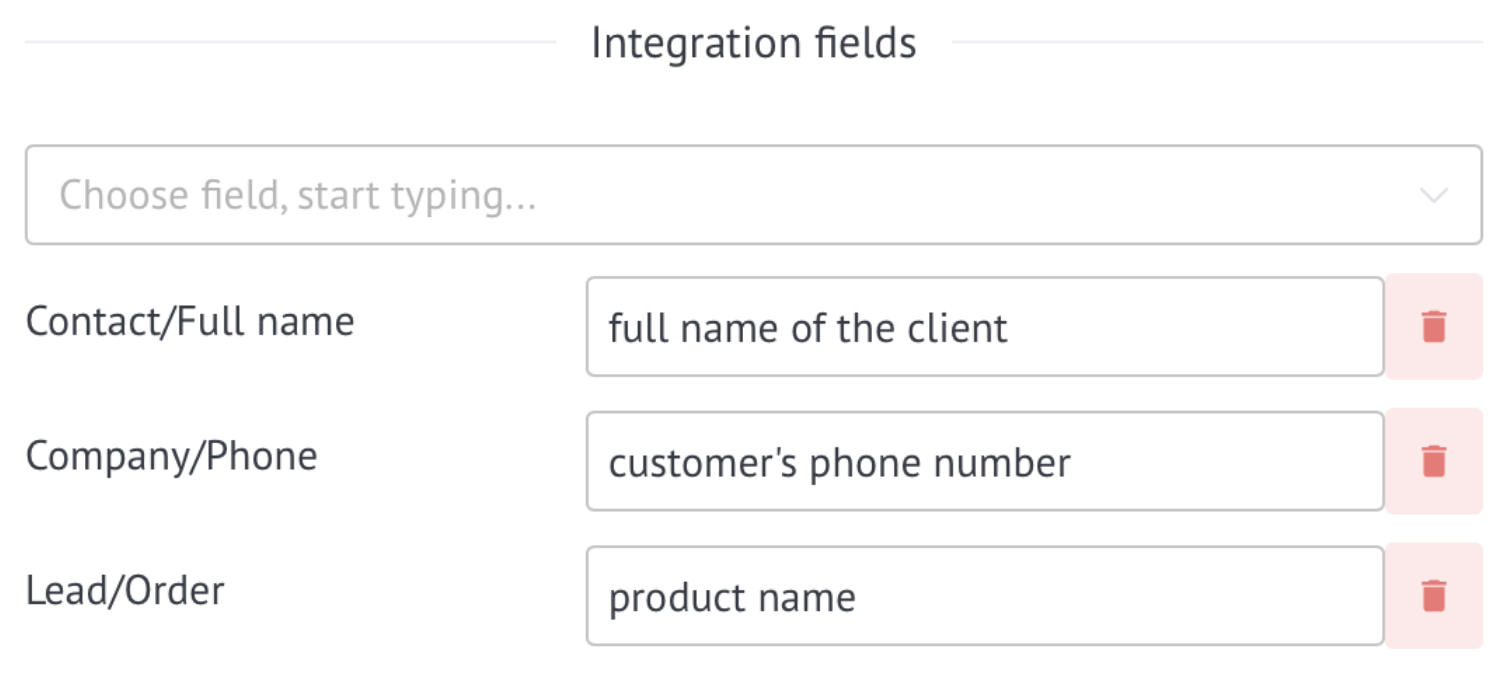
Add hints for AI - describe in plain language what data should be included in the field. AI itself will determine the connection with the form fields

For example: for the “Phone” field, write the hint “client’s phone number”, for “Email” - “e-mail”. AI will understand and find this data in any form

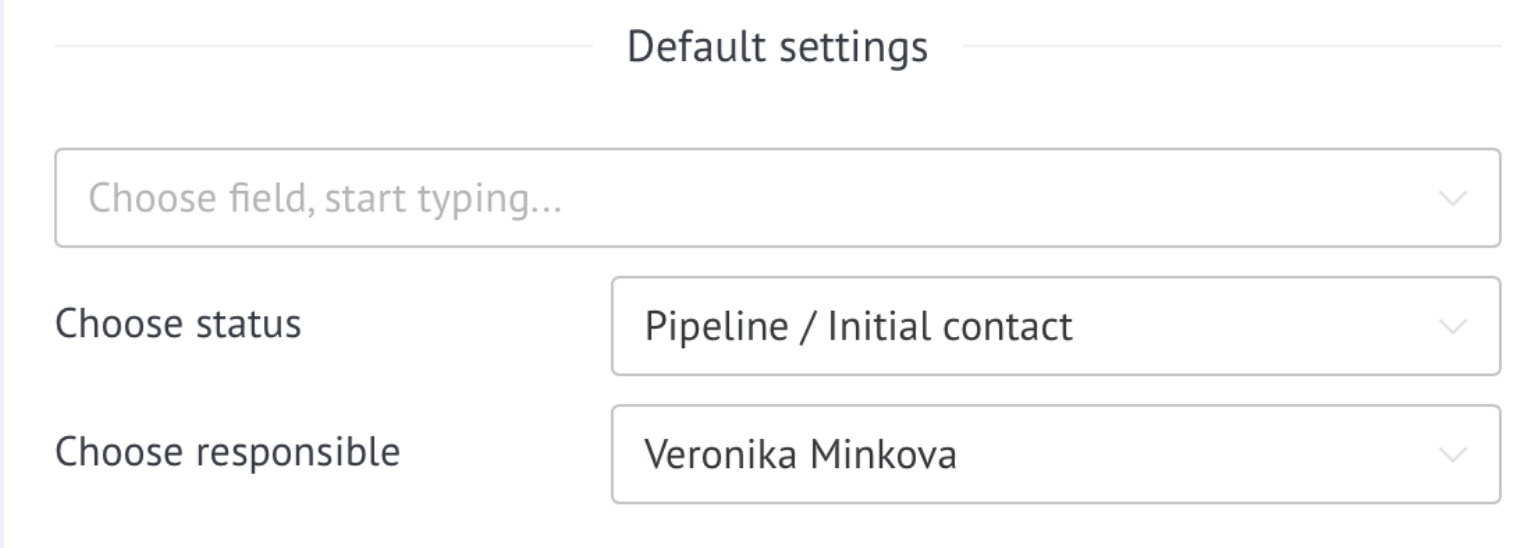
Select a pipeline and stage - where leads will be created
Select a person responsible - who to assign new leads to

If necessary, specify additional fields with fixed values ​​(tags, source, etc.)

After the first application, AI will create a mapping scheme - you will see how the form data is associated with the Kommo fields. All subsequent applications will be processed according to this scheme automatically

If the AI ​​has identified the connections incorrectly, click Reset Integration Scheme, clarify the prompts and submit the test request again

Tip: fill out the test form with realistic data (real phone format, email) - this way the AI ​​will more accurately determine the structure