Payments

PayPal

PayPal integration for international payments

Features

International payments
25+ currencies
Payment from a PayPal account
PayPal payment protection

Installation and setup guide

Detailed guide for working with widget "PayPal"

WIDGET SETTINGS

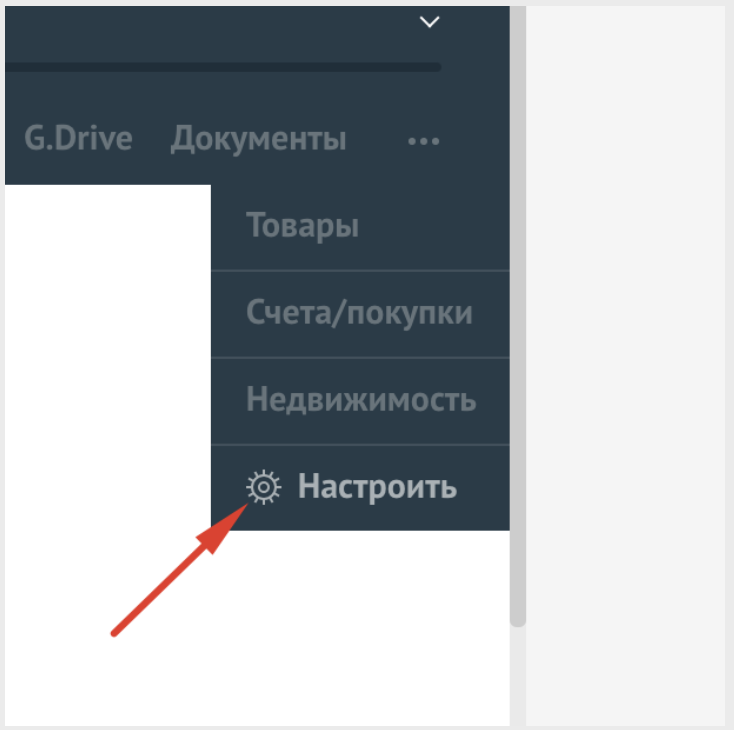
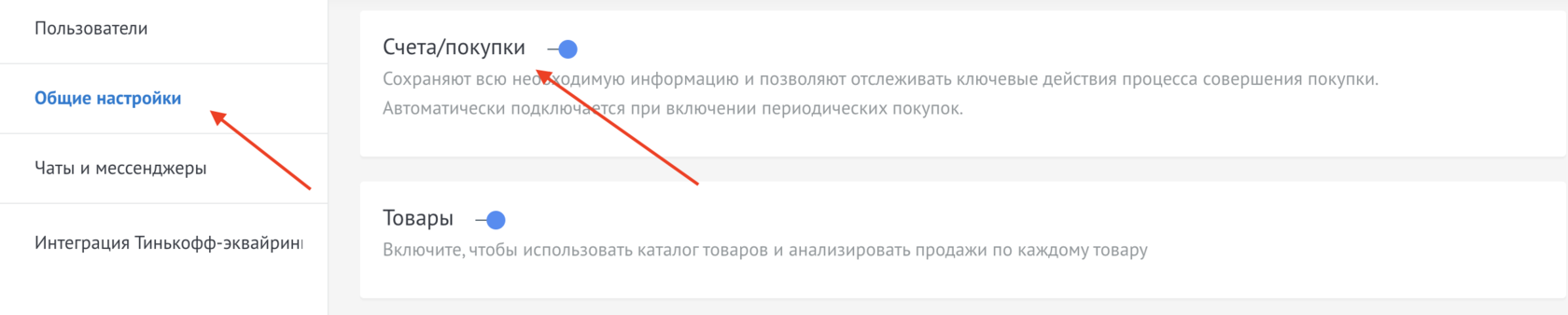
Before you start, you need to go to settings and enable work with Accounts/Purchases
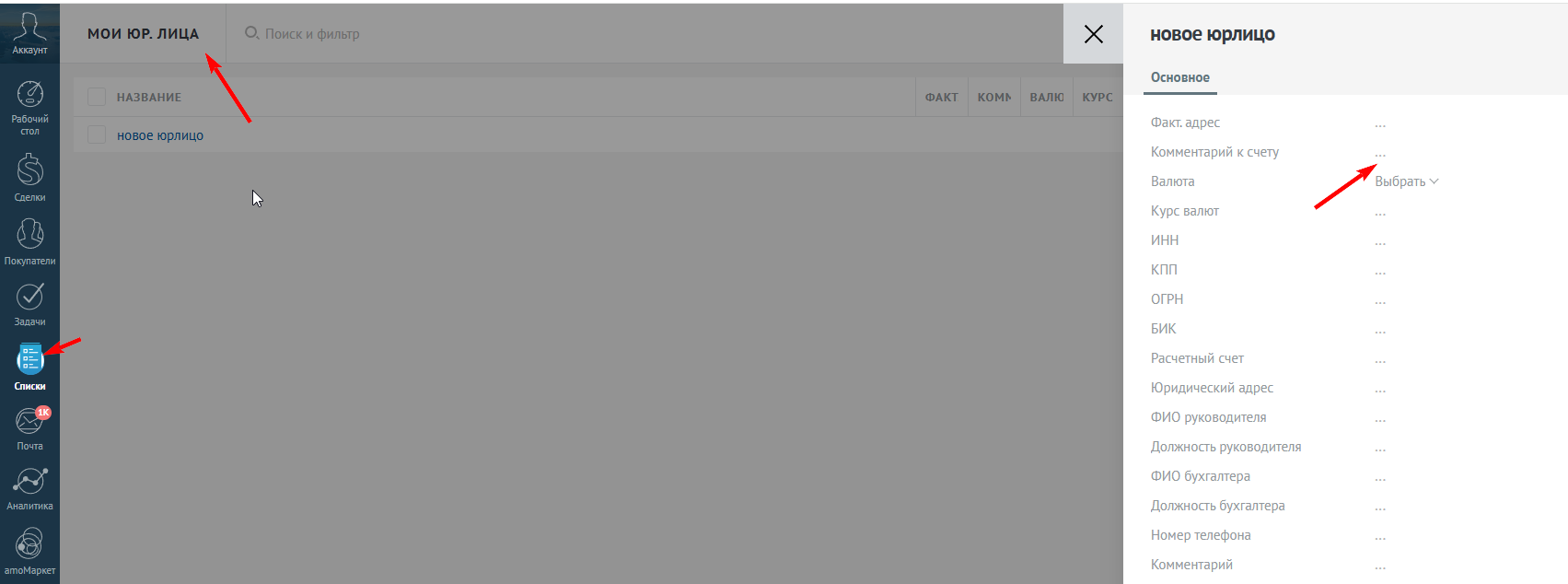
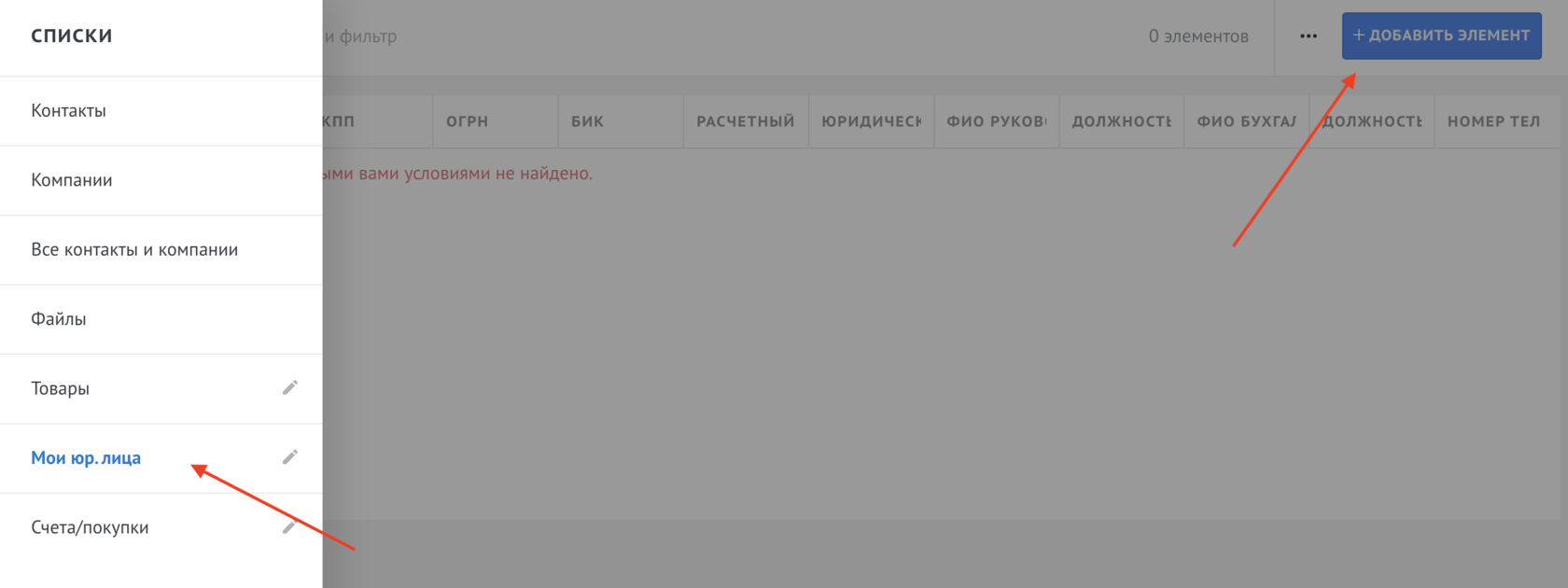
Next you need to go to Lists, My legal entities list and Add element
Add the required number of legal entities
Or Add a legal entity in the widget settings

Adding legal entity faces in widget settings

Next go to widget settings
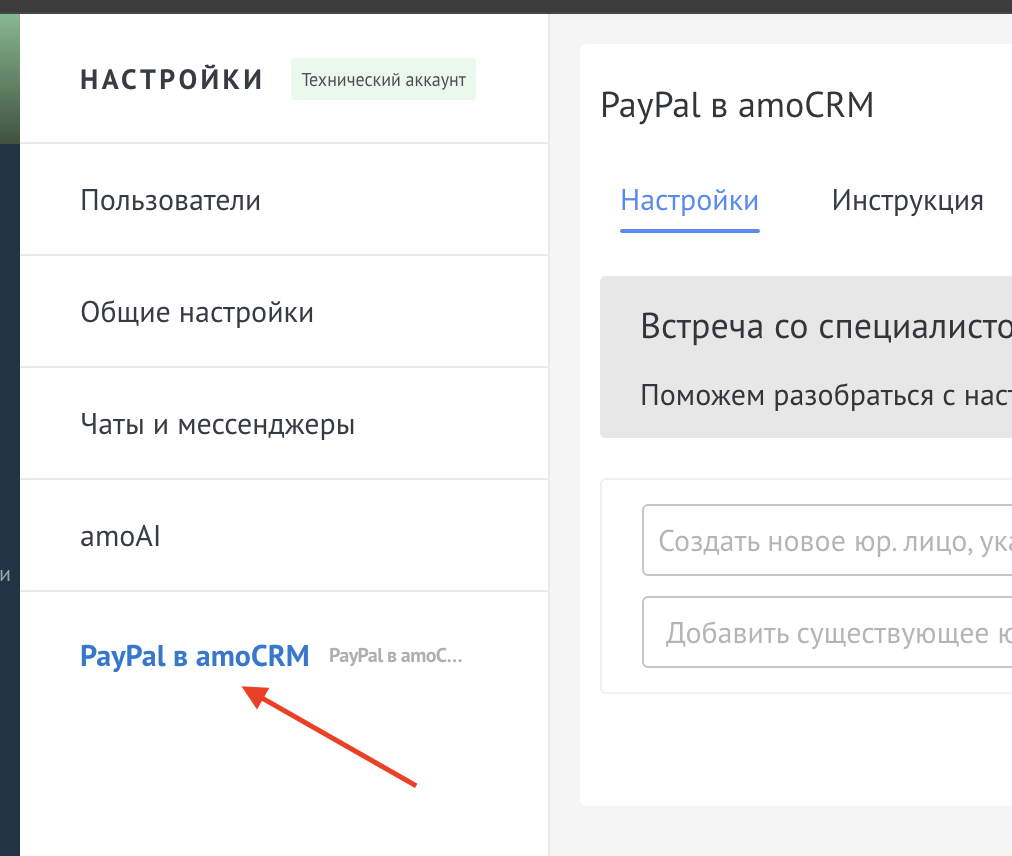
Select the desired legal entity in the drop-down list

Enter Client ID and Secret and click Login
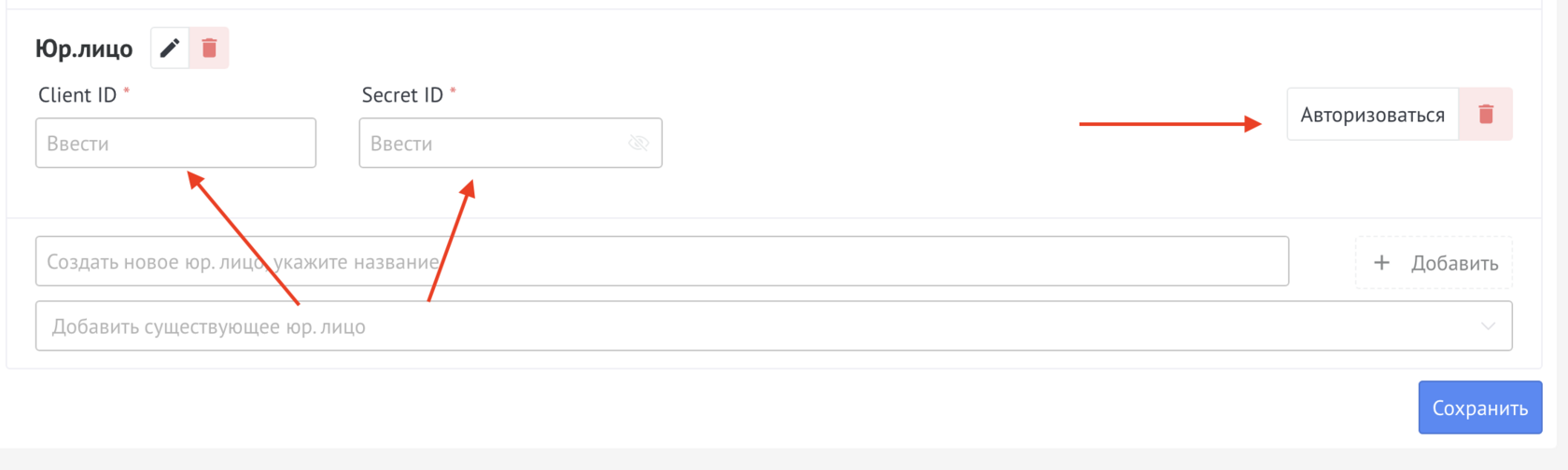
In order for one of the Legal Entities to be automatically added to the account, you need to make it the default by clicking on the checkbox

Invoices

Invoices are created and deleted in the lead card. The tab sits in the «…» menu of the lead and is named «Invoices/purchases». There is no separate option for invoices in the widget settings.

How to create an invoice

  1. Open the lead card.
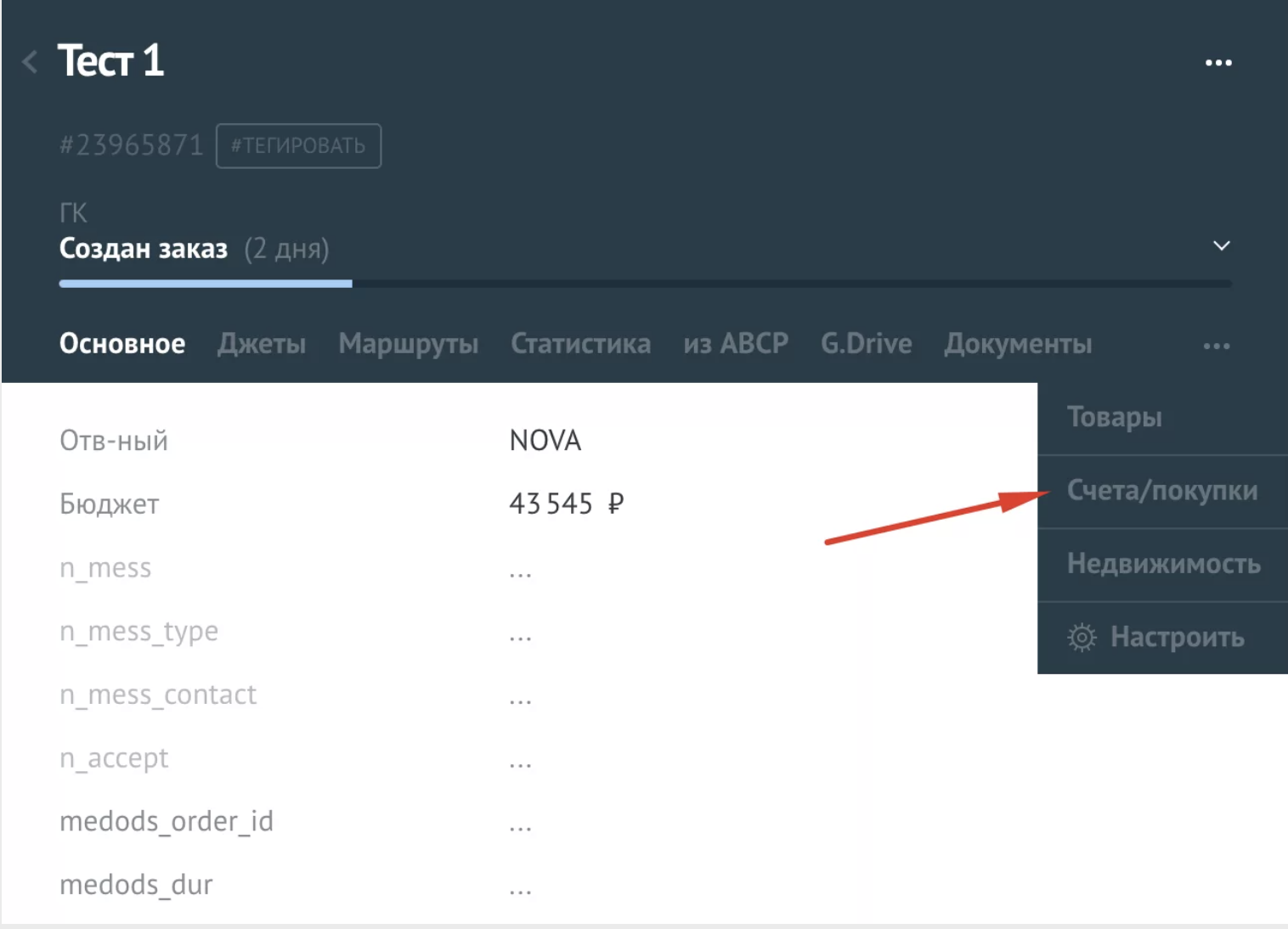
  2. Open the «…» menu and choose «Invoices/purchases».
  3. Click «+ Add».
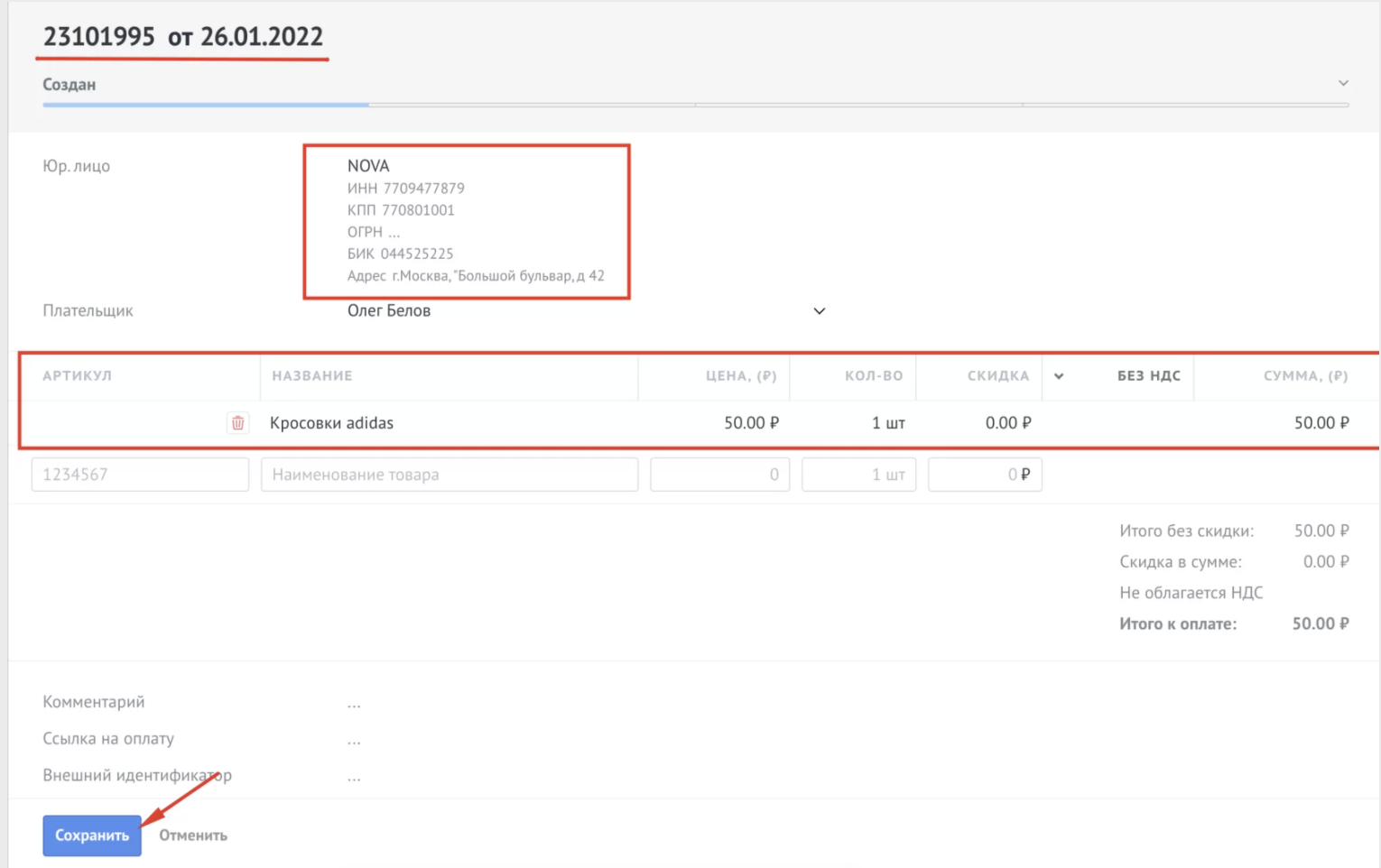
  4. Fill in the payer, the supplier, and the line items, then save the invoice.
The lead «…» menu with Invoices/purchases and the + Add button

Payment link

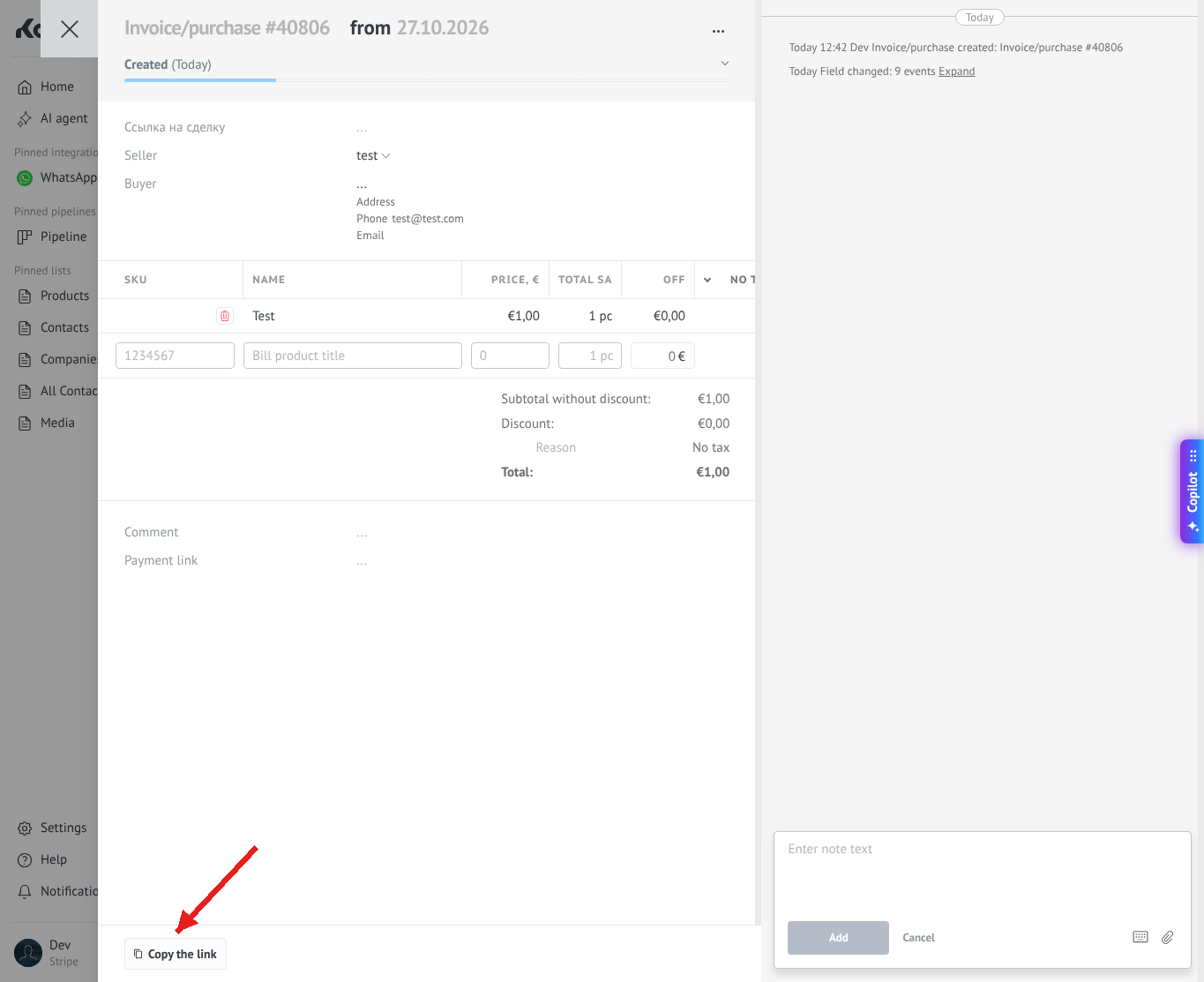
At the bottom of the new invoice, click «Copy the link» and send the link to the client. The client opens this link to pay.

New invoice form with the Copy the link button at the bottom

How to delete an invoice

Open the invoice on the Invoices/purchases tab and click Delete. An invoice cannot be deleted from the widget settings.

Create an account

First you need to set up an invoice for the product
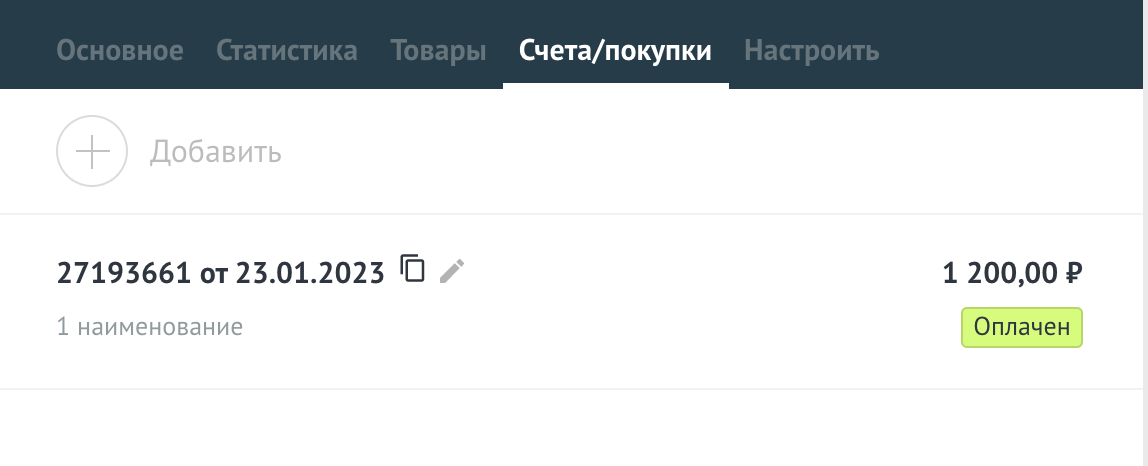
1. Go to lead and find Invoices/purchases, click and press Add.

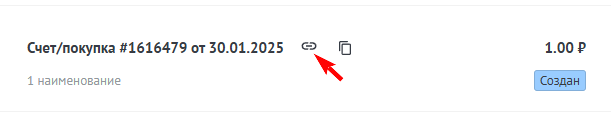
Next you can copy the link and transfer it to the client for payment, this can be done in two ways:
1. Copy link in invoice

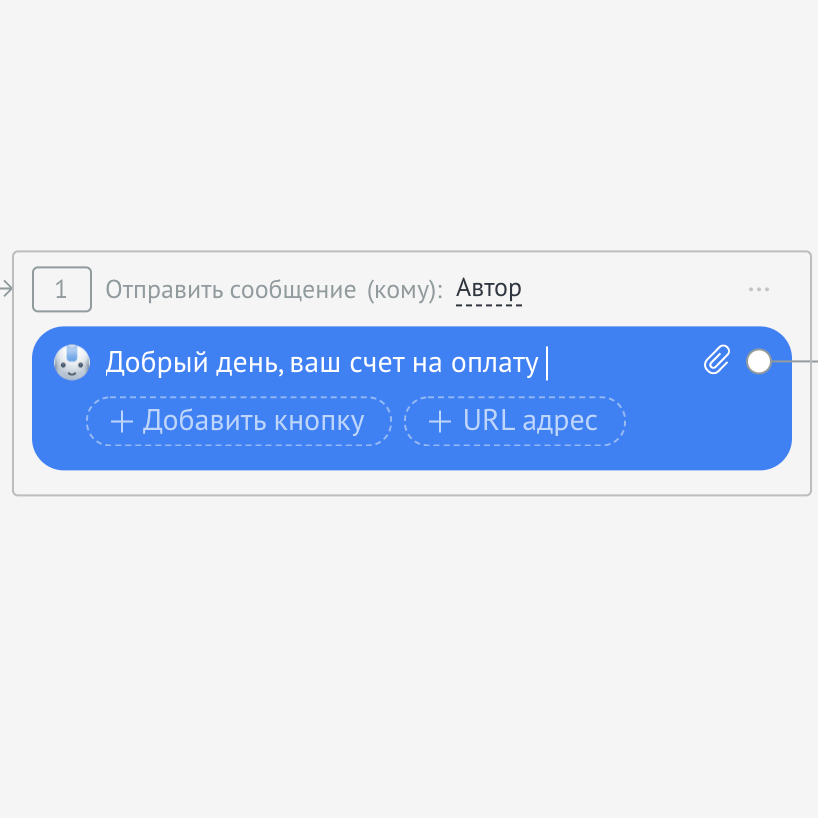
You can also send a link to your invoice via SalesBot
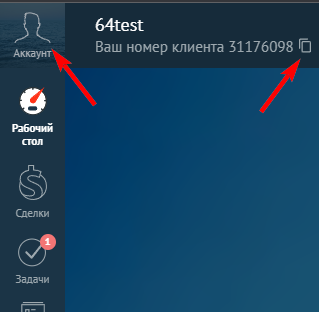
1. Copy your account ID (you can find it by clicking on your profile avatar
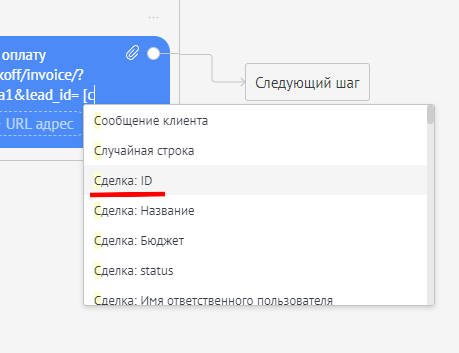
2. Open the bot to send a message with a link and addhttps://sp1-nova.ru/api/pay/?account_id=your_id_from_step1&lead_id= after the sign = write [ select the [Lead: ID] field and remove the extra space after the sign =

After which you will receive a link like https://sp1-nova.ru/api/pay/?account_id=123&lead_id=[Lead: ID]

Automatic creation of a link with an entry in the field

Before setting up automatic link creation:
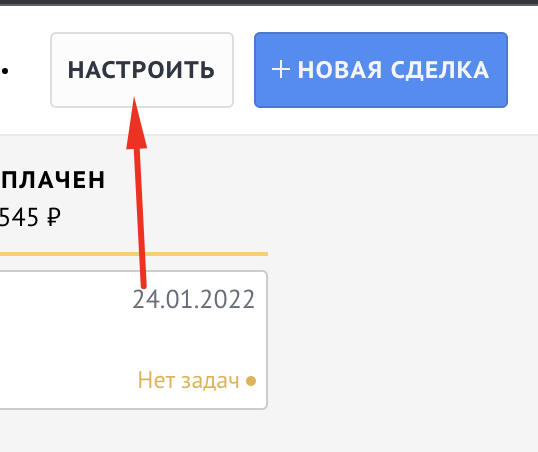
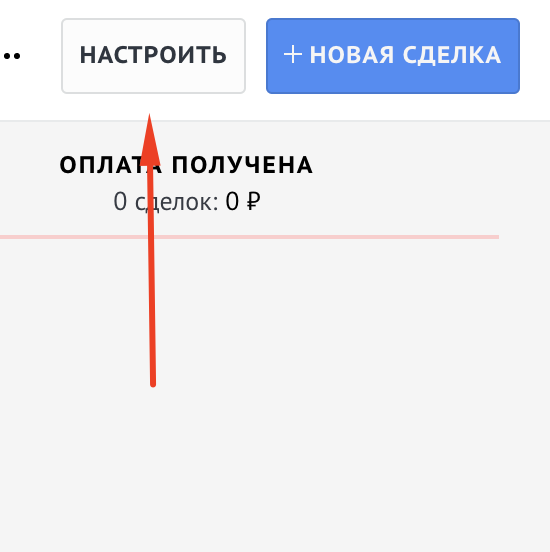
1. Enter the lead and click Configure
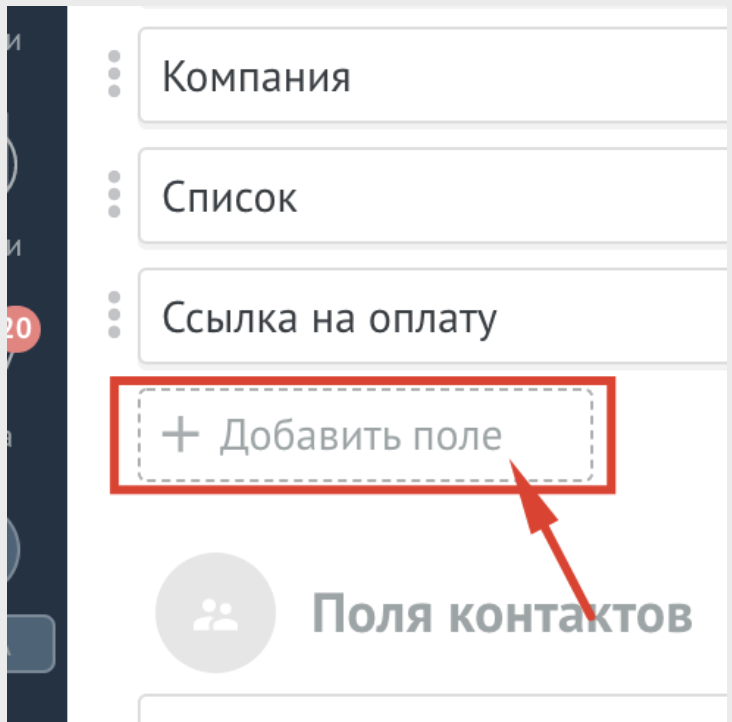
2. Click Add Field
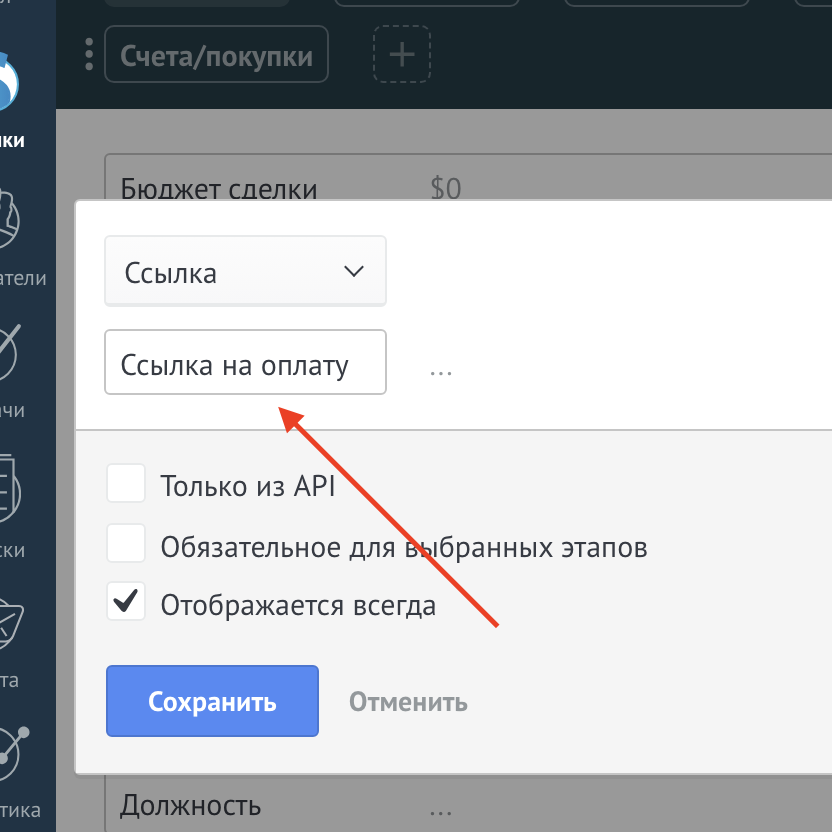
3. Select Link in the drop-down field, enter Payment Link, click Save

Next we go to pipeline
1. Click Configure
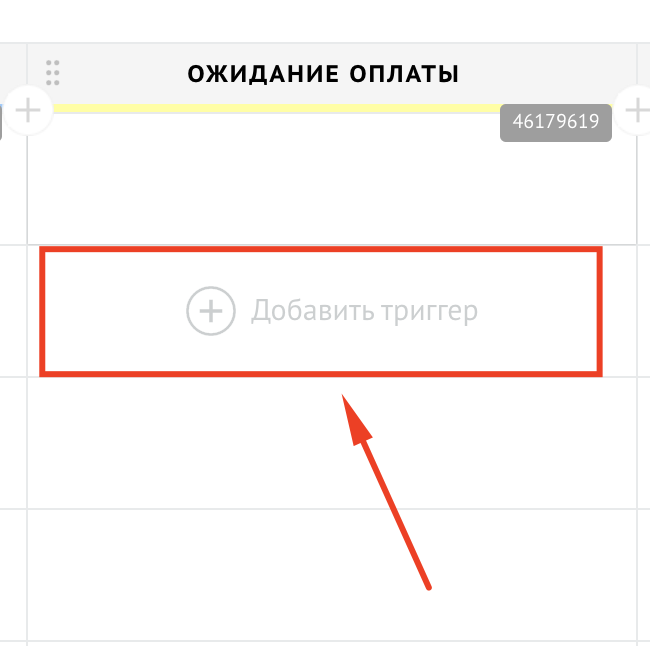
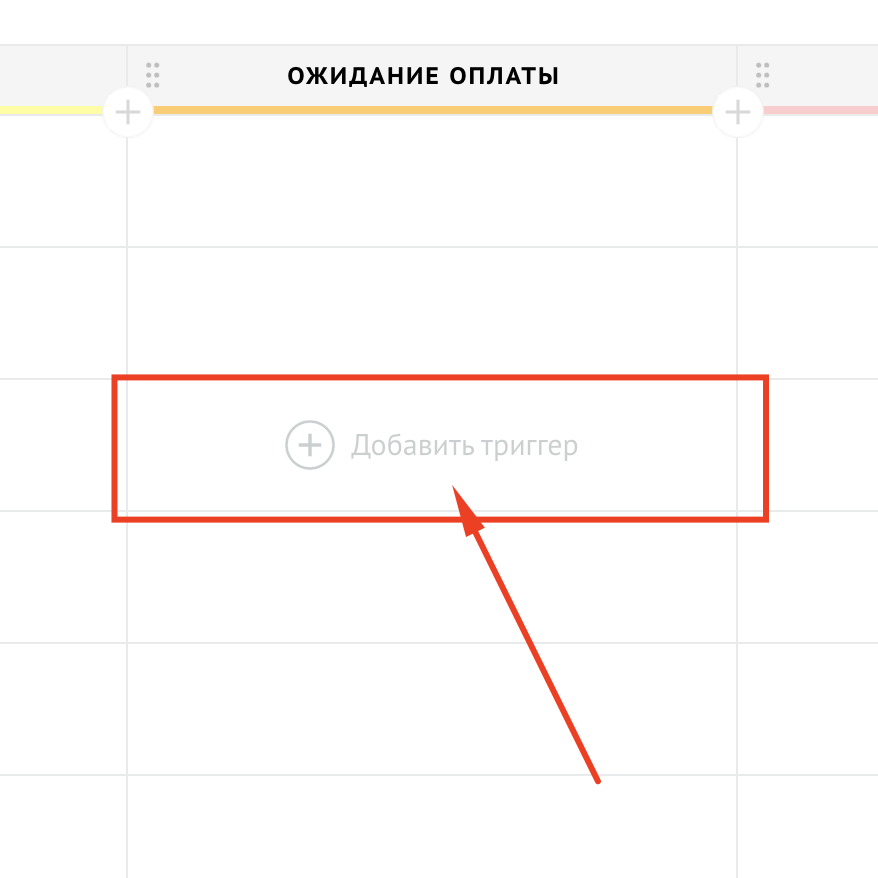
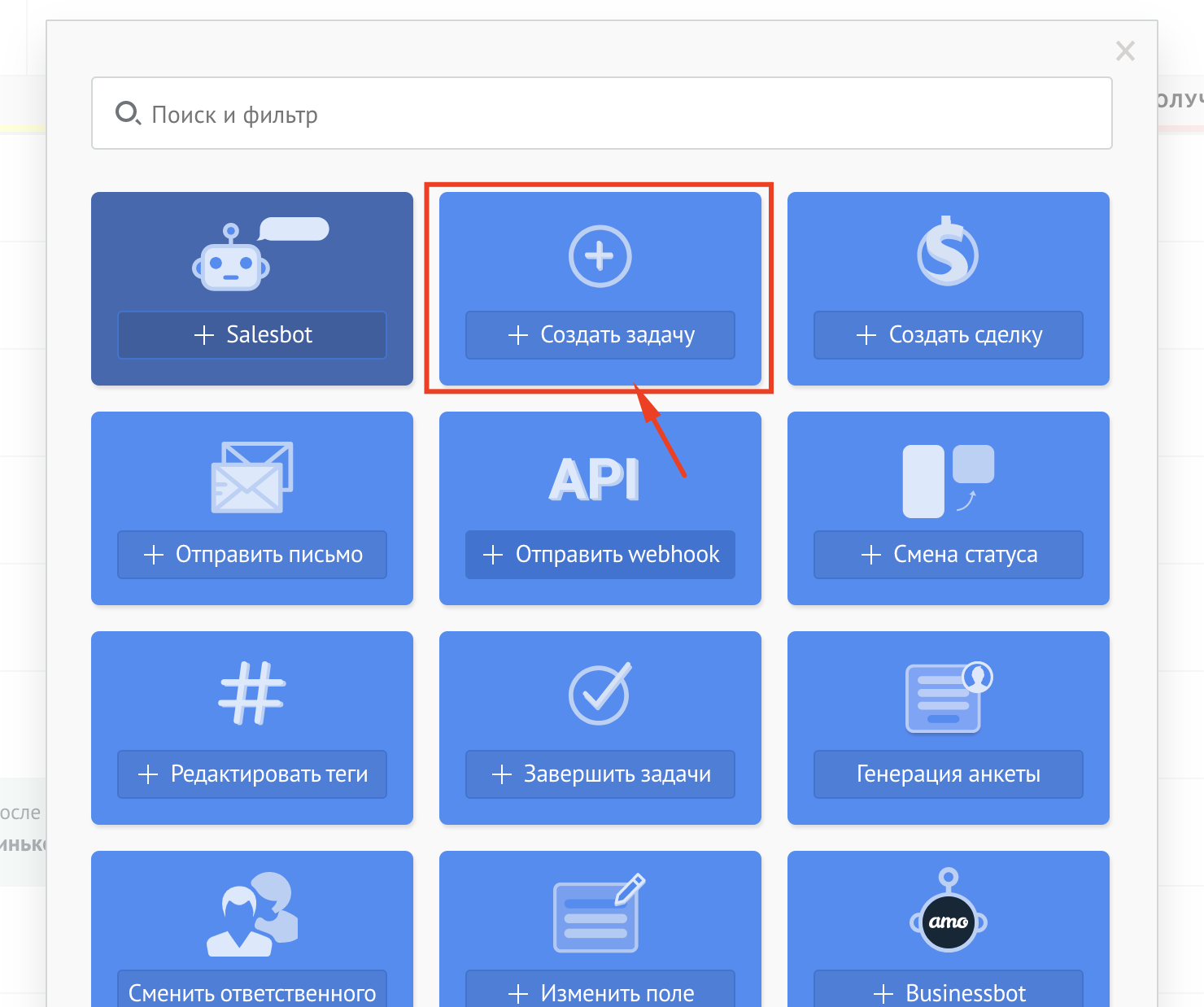
2. Click Add trigger
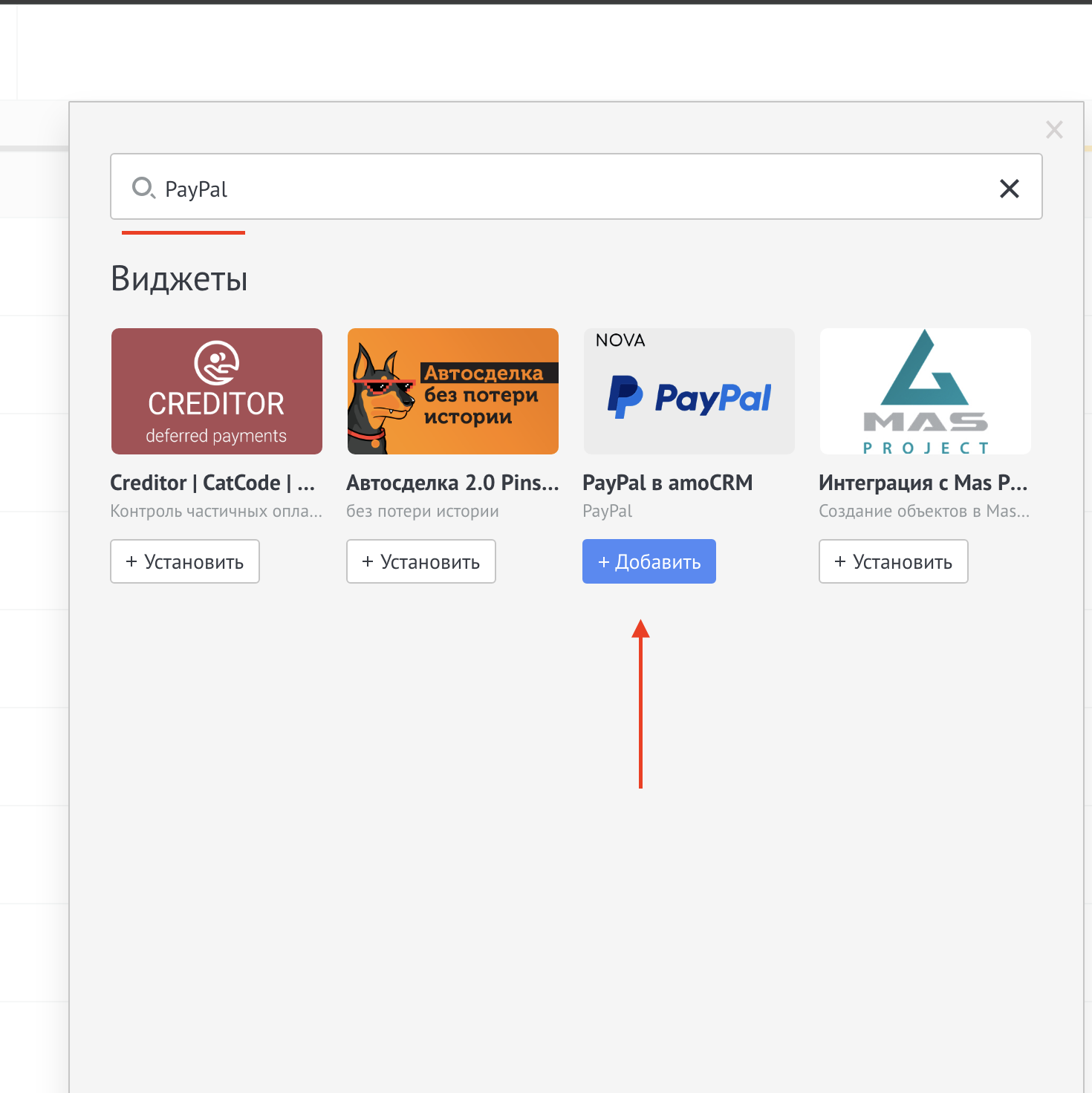
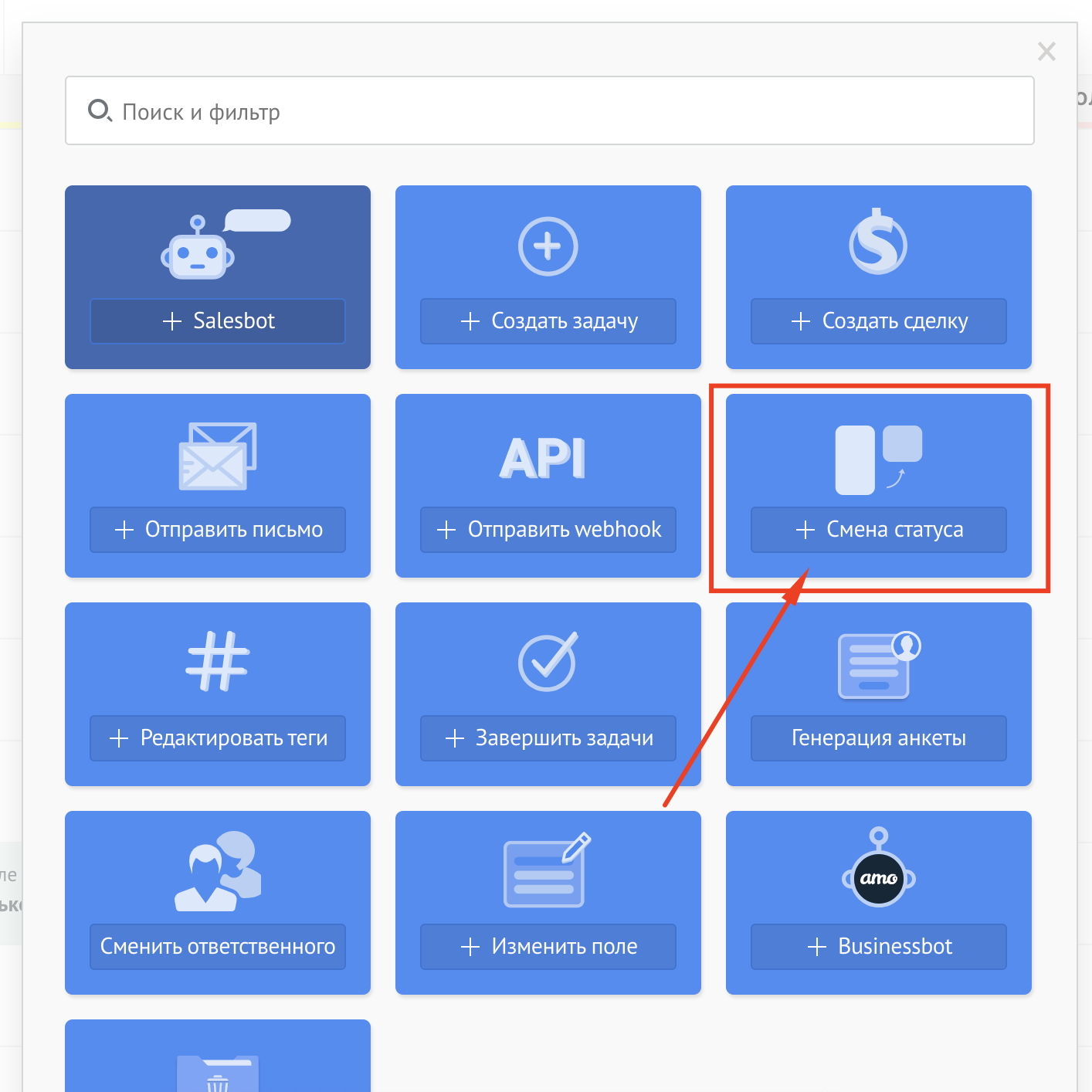
3. In the search, enter PayPal and Add widget

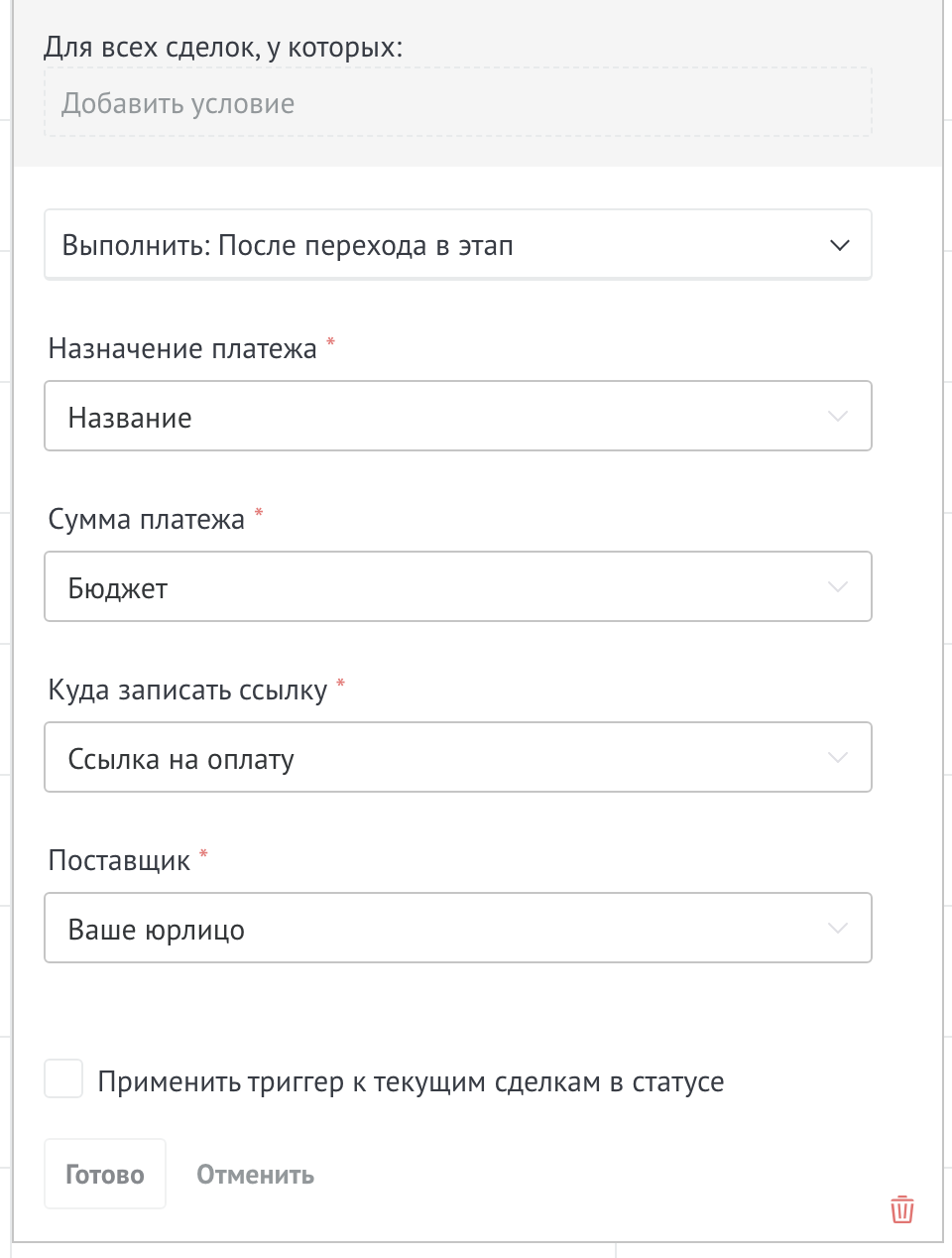
Select in widget settings
1. Execute: When moving to stage
2. Select Payment purpose
3. Select Payment Amount
4. Selectthe field in which the link will be written
5. Click Finish
And click Save to pipeline settings

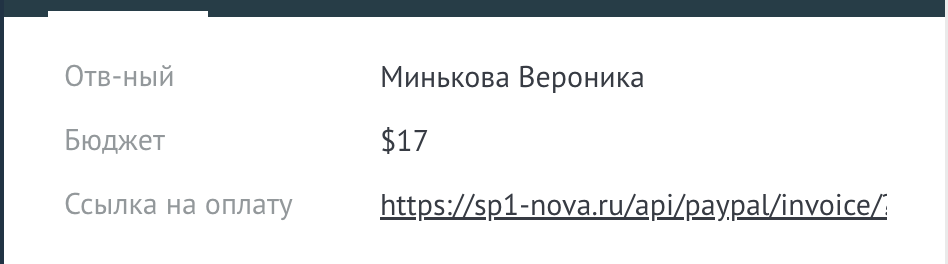
After the lead reaches the stage where you have configured the widget, a link to the invoice will appear in the lead, which you can transfer to the client

Actions upon receipt of payment

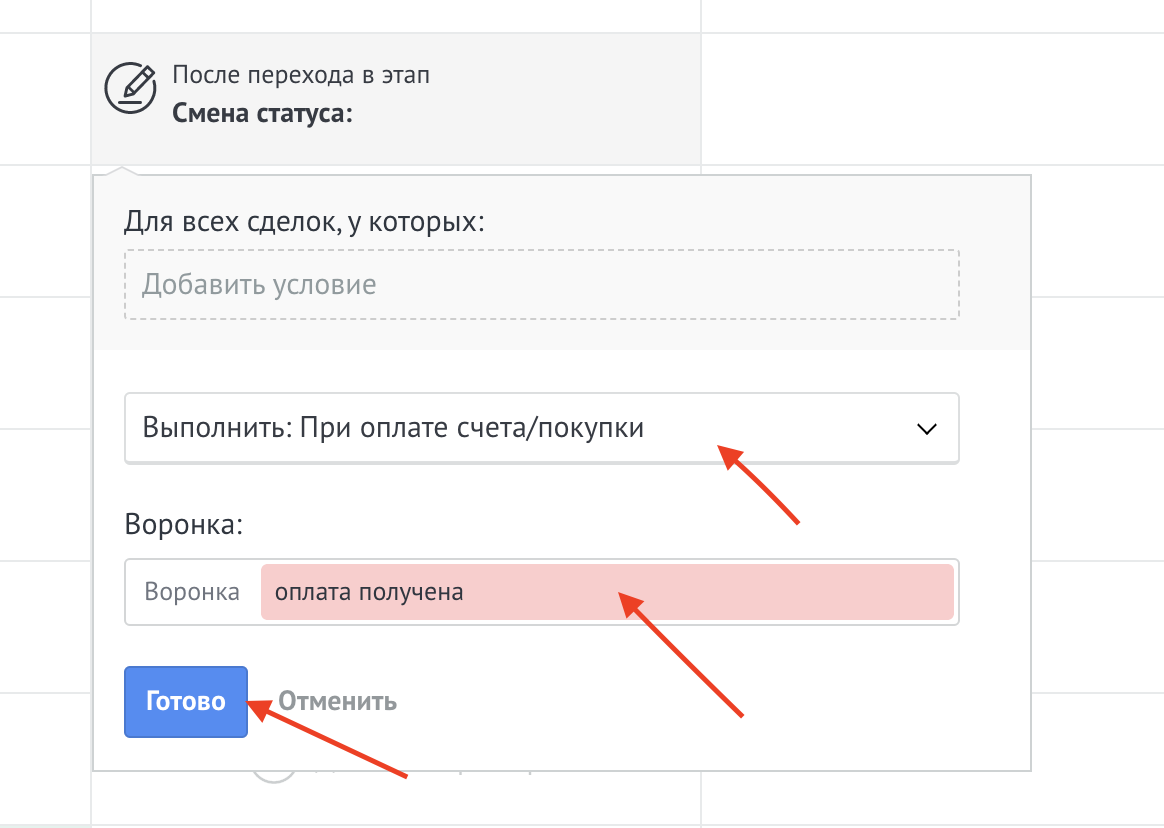
After receiving payment, you need to perform some actions, for example, transfer the lead to another stage, how to do this?

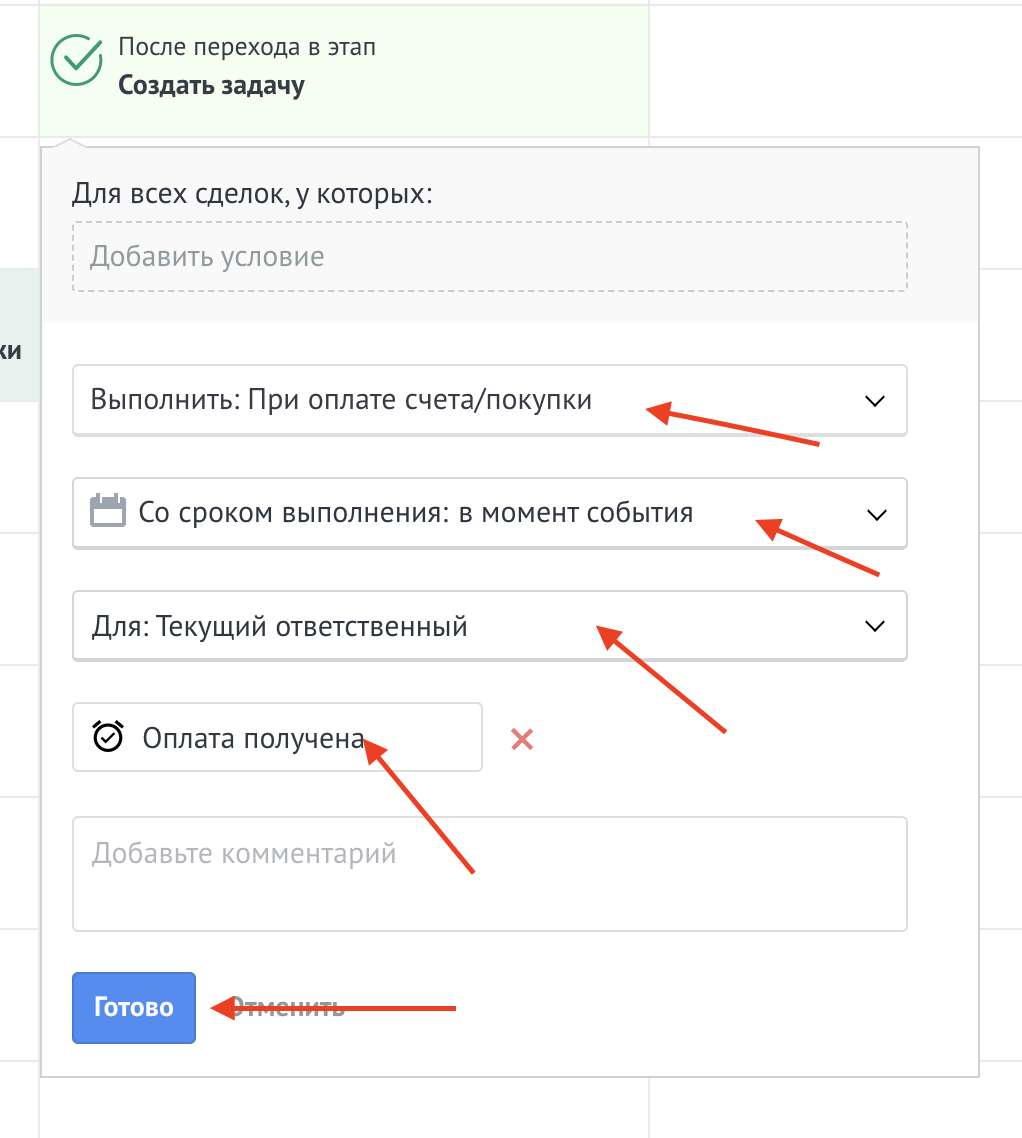
After payment in the lead, the invoice status changes to “Paid”, we take it as a condition for setting up the trigger

To create a task for the responsible manager, add the Create task trigger

Be sure to click Save

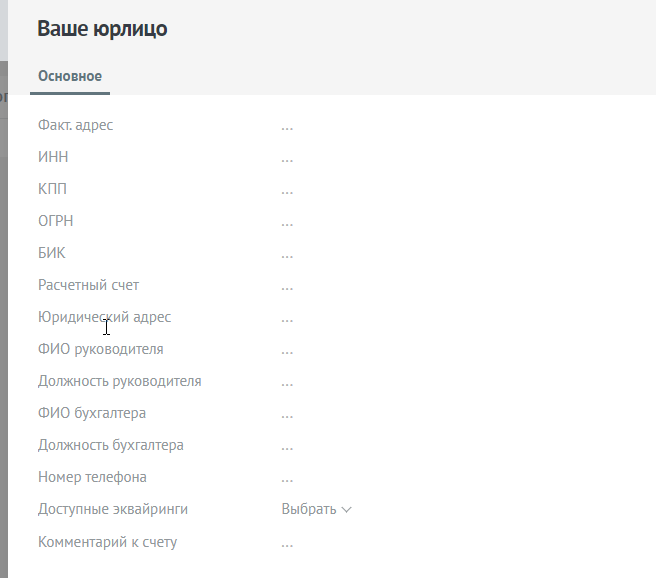
How to add recipient details to an invoice

You need to add a legal entity to the list of my legal entities Kommo https://www.kommo.ru/support/lists/list-of-invoices-and-purchases and fill in the appropriate fields.

Sending a link to a client via messenger

In lead sources, click on Add

Select a messenger

Click Install, enter the bot token and click Save

Click Next step and select Stop bot

Direct link to the last account in the lead

You can use a direct link to send to the client. This link will automatically open the last created account in the lead:

https://sp1-nova.ru/api/pay/?account_id=YOUR_ACCOUNT_ID&lead_id=[Lead: ID]

Where account_id is the ID of your Kommo account.

How to find account_id: in the Kommo address bar your domain looks like NAME.kommo.ru, and account_id can be found in the account settings or in the API request URL.

After the client has made the payment, you can send him a message stating that the payment has been completed

1. In the lead, click Setup
2. In the Payment received status, click on Add trigger
3. Select Salesbot

You can select a ready-made bot from the list or create a new one

PayWall NOVA

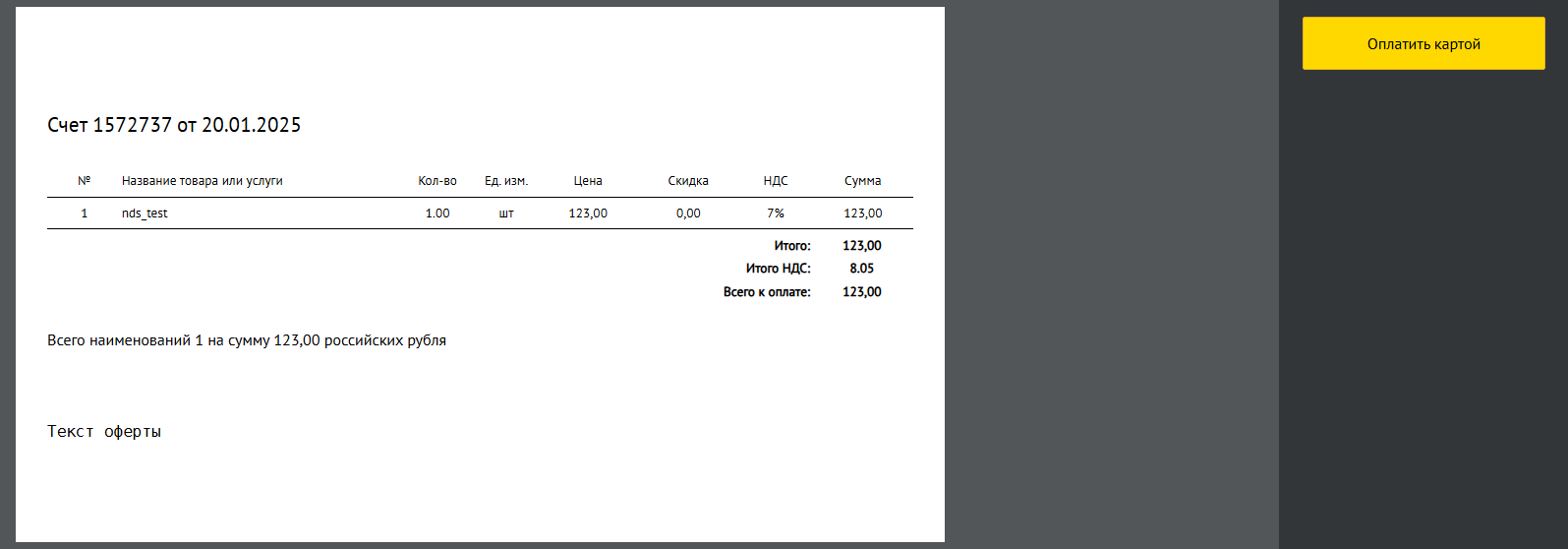
You can use PAYWALL from NOVA where invoice items will be displayed, as well as the text of the offer and a button to proceed to payment

To do this, you need to fill out the Comment field on the invoice, which is in the list of my legal entities Kommo https://www.kommo.ru/support/lists/list-of-invoices-and-purchases