Interface

Other deals

Display all transactions of a contact or company in a card

Features

All contact/company transactions
Filtering by funnels
View status and amount
Quick access to trades
Purchase history

Installation and setup guide

Detailed guide for working with widget "Other deals"

How does the widget work?

The More Deals widget automatically collects and displays all deals associated with a contact or company in the current deal. This is a powerful tool for managers that allows you to see the full history of interaction with a client without having to open a contact or company card.

Working principle:

1. Automatic search for related deals - the widget analyzes all contacts and companies associated with the current deal. When opening a deal, the widget starts a search in the background.
2. Collection of information on connections - the system finds all transactions in your CRM where the same contacts or company are present. The search is carried out across all funnels and statuses.
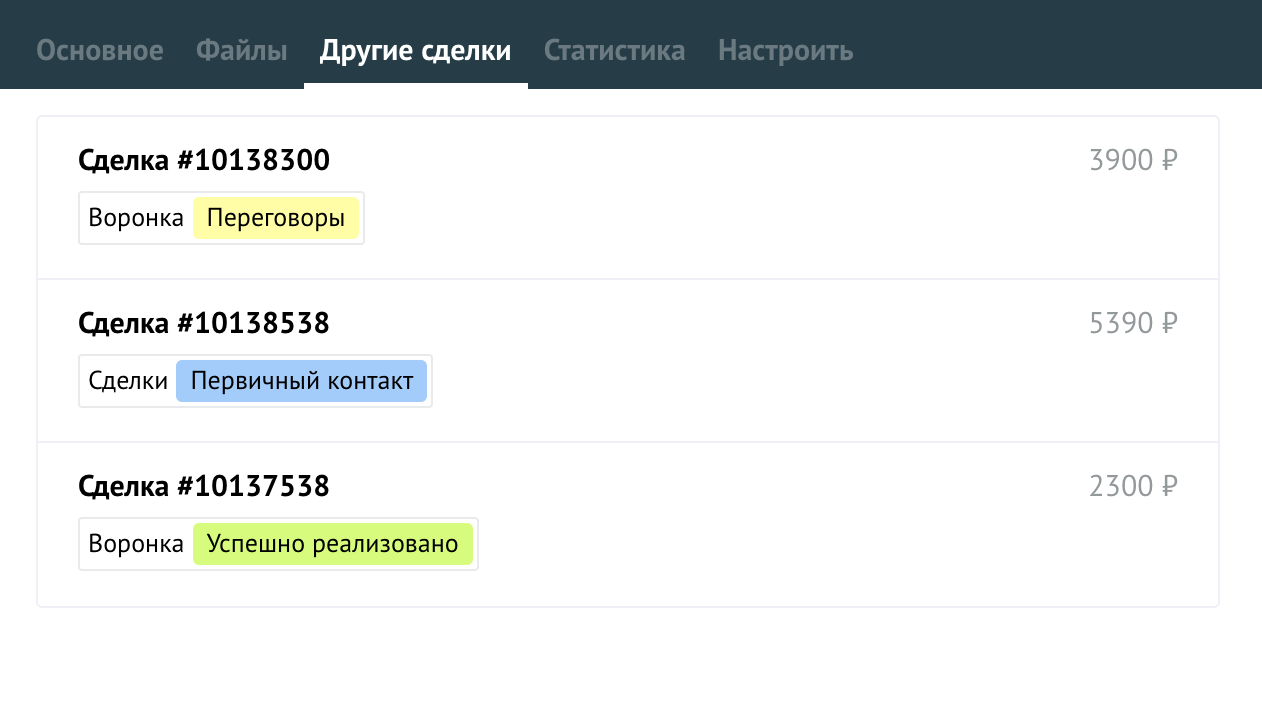
3. Display in a structured form - found transactions are grouped and displayed in a separate tab with custom fields. You see the title, status, funnel, amount and other selected fields.
4. Quick access and navigation - each transaction in the list is a clickable link, which allows you to instantly go to its card for detailed study.

Technical implementation:

Search by connections - the widget uses the Kommo API to search for deals by contact and company IDs
Exclusion of the current deal - the current open deal is not displayed in the list of “other deals”
Display of all statuses - deals are shown at any stage: from the initial contact to successfully completed ones and even closed
Support for multiple connections - if there are several contacts in a deal, the widget will find deals for each of them
Auto-update - when connections change (adding/deleting a contact or company), the list is updated automatically

What the manager sees:

The widget interface displays:
Full list of deals - all found deals of the contact and/or company
Deal name - the exact name of each related deal
Sales funnel - in which funnel the deal is located
Stage/Status - current status of the transaction (in progress, successful, refusal, etc.)
Transaction Amount - budget or cost of the transaction
Creation Date - when the transaction was created
Responsible - who is leading this transaction
Additional fields - any custom fields selected in the settings
Features and capabilities

Main features of the widget:

View all transactions of a contact/company - the widget displays the full history of transactions associated with the client, including active, completed and closed transactions
Flexible display settings - choose what information to show for each transaction: funnel, status, amount, creation date, responsible, custom fields and other parameters
Detailed status information - you can see at what stage each deal is, in what funnel it is located and who is leading it
Display of financial information - the budget of each related deal is shown, which helps to assess the overall value of the client
Instant transition - clicking on any deal in the list opens its card in a new tab or in the current one window
Organized interface - all data is neatly organized in a separate tab "Other transactions" in the deal card
Separate viewing - the ability to separately enable display of company deals and contact deals, or show both types simultaneously
Working with multiple connections - if there are several contacts in a deal, the widget will show transactions for all related parties

Advantages of use:

Complete customer purchase history - you see the entire path of interaction with the client in one place, from the first touch to the last transaction
Context for decision making - you understand what goods/services the client has already purchased, which helps to form personalized offers
Identification of repeat sales and up-sell - it is easy to identify regular customers and offer them additional products or services
Significant time savings - no need to go to the contact or company card to view other transactions, all data is at hand
Analysis of client activity and value - quick assessment of the number, status and total amount of all client transactions
Conflict prevention - managers see that a colleague is already working with this client, that helps to avoid duplication of work
Improving the quality of service - understanding the history of interaction helps to build better communication with the client
Transparency of the sales department - managers can see the full picture of work with each client

Practical use cases:

1. Repeat sales and cross-selling - having seen successful past transactions, the manager can offer additional products or services that the client has not yet purchased
2. Working with VIP clients - quickly identify clients with a large number of transactions or a high total purchase amount for special attention
3. Analysis of conflict situations - if a problem arises, you can look at the history of interaction and understand whether there were previously difficulties
4. Coordination between managers - see what transactions colleagues are conducting for this client, who is responsible, at what stage of the work
5. Assessment of solvency - analysis of the amount and number of successful transactions helps to assess the client’s reliability
6. Determination of purchasing patterns - identifying seasonality, frequency and preferences in customer purchases
7. Preparation for meetings - before a call or meeting, the manager can quickly study the client’s history
8. Training new employees - a new manager who receives a client can quickly study the history of interaction

Features of the widget:

Free widget - does not require payment, is available immediately after installation
Does not load the system - works effectively even with a large number of transactions
Intuitive interface - does not require training, is immediately understandable
Flexible configuration - each user or administrator can customize the displayed fields for your tasks
Compatibility - works with all versions of Kommo
Up-to-date data - information is updated every time a transaction card is opened

Widget setup

Configuring the widget is done in a few simple steps and allows you to adapt the display of information to your needs.

Step-by-step instructions for setting up:

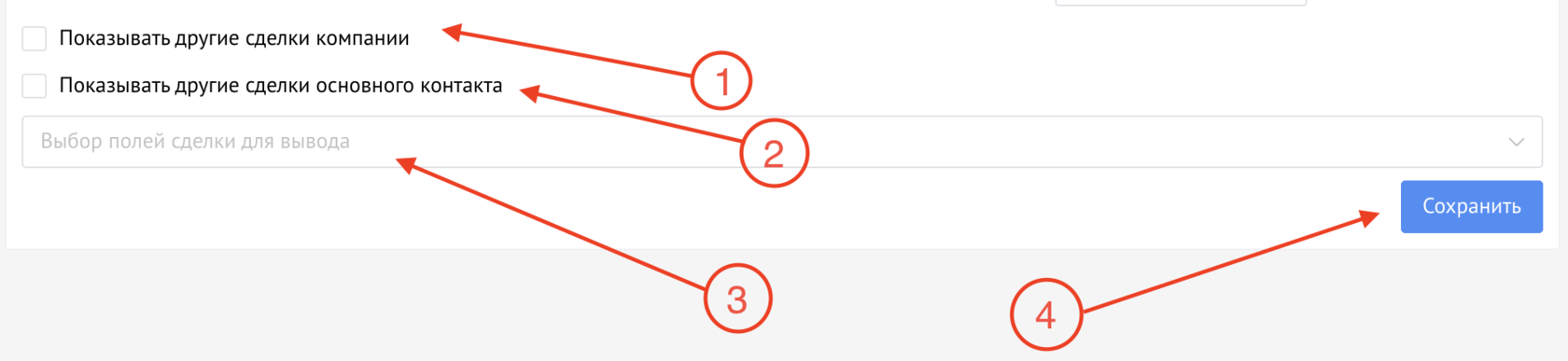
Step 1. Opening the widget settings
Go to the "Settings" section → "Integrations" → find the "Other transactions" widget → click the "Configure" button

Step 2. Selecting a display type
Show other transactions of the company - check this box if you want to see all transactions related to the company from the current transaction. This is useful for B2B sales, where the history of interaction with the company is important.
Show other transactions of the main contact - check this box if you want to see all transactions of a specific contact person. This is useful for B2C sales or when the client’s personal history is important.
You can enable both options - the widget will show transactions by both company and contact.

Step 3. Selecting fields to display
In the “Selecting deal fields for display” drop-down list, select the information you want to see for each related deal:
Deal name - always displayed by default
Funnel - in which sales funnel the deal is located
Status/Stage - the current stage of the deal in the funnel
Budget/Amount - the financial value of the deal
Date of creation - when the deal was created
Responsible - who is leading the deal
Custom fields - any additional fields created in your CRM

Step 4. Saving settings
After selecting all the necessary parameters, click the “Save” button. The settings will apply to all transactions in your CRM.

Setup recommendations:

For B2B companies - it is recommended to enable "Show other transactions of the company", since the history of work with the organization as a whole is important
For B2C companies - it is recommended to enable "Show other transactions of the main contact", since purchases are tied to a specific person
For universal sales - enable both options for complete paintings
Selecting fields - start with a basic set (funnel, status, amount), then add additional fields as needed
Do not overload the interface - select only those fields that are really needed for work, so that the information remains readable

Widget settings Other deals

How to use?

After installing and configuring the widget, you can immediately start using it. Working with the widget is very simple and intuitive.

How to use:

1. Open the deal card
Go to any deal that has linked contacts or a company.

2. Find the "Other transactions" tab
A new tab "Other transactions" will appear in the transaction card. It is located next to the other tabs of the deal card.

3. View the list of deals
The tab will display a list of all related deals with the fields selected in the settings. Each transaction is shown as a separate line with complete information.

4. Go to the desired deal
Click on any deal in the list to open its card for detailed study or editing.

What you will see on the tab:

List of all related transactions - displays all transactions of the contact and/or company (except the current one)
Structured information - data for each transaction is organized in a convenient table
Selected fields - displays the fields that you specified in the settings
Current data - information is loaded in real time when you open a tab

Practical tips:

Before calling the client - open the “Other transactions” tab to understand the history of interaction
When working with objections - look at successful past transactions, this will help in argumentation
When forming an offer - study what the client bought before in order to offer relevant ones products
When transferring a client - a new manager can quickly study the entire history on one tab
When assessing a client - look at the number and amounts of transactions to determine its value

Important points:

• If the deal does not have associated contacts or companies, the tab will be empty
• The current open deal is not displayed in the list of “other deals”
• If the tab is empty, but there are contacts/company, then they do not have other deals yet
• Data is updated every time you open the tab, so you always see the latest information
• Access rights to view transactions are respected - you will only see those transactions to which you have access in CRM

Other deals tab in the deal card

Frequently Asked Questions

Question: Why are other deals not displayed?
Answer: Possible reasons:
• There are no contacts or company attached to the current deal
• Linked contacts/company really do not have other deals
• Checkboxes for displaying deals are not enabled in the widget settings contact/company
• You do not have access rights to view other deals
Check the widget settings and the presence of connections in the deal.

Question: Is it possible to configure the widget separately for each user?
Answer: The widget settings are common for the entire Kommo account. All users see the same set of fields. However, each user sees only those transactions to which he has access according to his rights in CRM.

Question: Are closed and lost transactions displayed?
Answer: Yes, the widget displays all transactions regardless of their status: active, successfully completed, closed as “not implemented” and any others. This allows you to see the full history of interaction with the client.

Question: How often is the data in the widget updated?
Answer: Data is loaded every time you open the “Other transactions” tab. If you have made changes to the relationship (added a contact or company), simply refresh the page or close and reopen the deal.

Question: Is it possible to edit a deal directly from the widget?
Answer: No, the widget is only intended for viewing information. To edit a deal, you need to click on it in the list - its full card will open, where you can make changes.

Question: What happens if there are several contacts in a deal?
Answer: If displaying contact deals is enabled in the settings, the widget will find and display all deals for each of the linked contacts. If the same deal is associated with multiple contacts from the current deal, it will be shown once.

Question: Is the widget free forever?
Answer: Yes, the “Other Deals” widget is completely free and has no paid plans. You can use it without restrictions.

Question: Is it possible to sort or filter the list of deals?
Answer: In the current version, the widget displays all found deals in chronological order. For detailed analysis, it is recommended to use standard Kommo reports or go to the contact/company card.

Question: Does the widget affect the speed of Kommo?
Answer: No, the widget is optimized and does not slow down the system. Data loading occurs only when you open the "Other transactions" tab, and does not affect other CRM functions.

Question: Is it possible to view other deals from a contact or company card?
Answer: The widget only works in deal cards. In contact and company cards, the list of deals is already available by default in Kommo. The widget was created for the convenience of viewing this information without exiting the current transaction.