The widget creates a secure MCP server so that external AI clients (Claude, ChatGPT, Cursor, Gemini and others) can securely request data from your Kommo.
Artificial intelligence
MCP connector for Kommo
Connects Claude, ChatGPT, Cursor, Gemini, Grok and other AI to Kommo. The AI reads and updates leads, contacts, companies, tasks and notes.
Features
Read, update and delete leads, contacts and companies
Tasks, notes, custom fields, tags and catalogs
Connect Claude, ChatGPT, Cursor, Gemini and other AI
Installation and setup guide
Detailed guide for working with widget "MCP connector for Kommo"
CONTENTS
About the widget
Release connection data
In the widget settings, the profile has an MCP address. It is inserted into the AI client.
Create a profile in the widget settings. The profile will have an MCP address. It is enough: the login takes place via OAuth when the client opens this address.
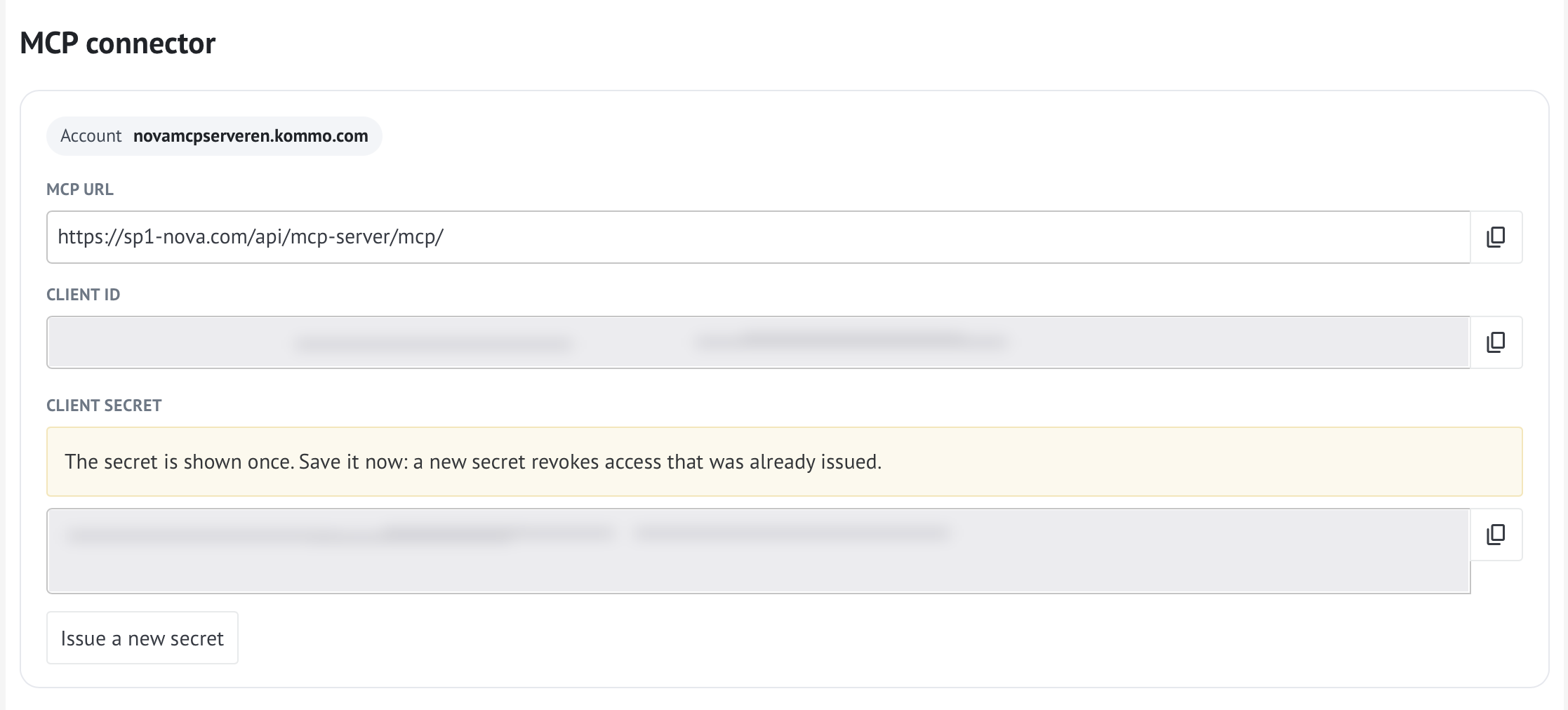
MCP profile address
Each profile has its own address. For Kommo it is on sp1-nova.ru, for Kommo - on sp1-nova.com. Copy it from the settings, do not assemble it manually.
Setting up the AI client
Insert the MCP address into the AI client settings and go through OAuth.
Paste the MCP address into your AI client settings. The process is slightly different depending on the service:
- Claude: Settings → Connectors → Add custom connector. Paste the server address and leave the published identity as Claude. Give permission to access Kommo data.
- ChatGPT: in MCP settings, create a custom MCP server and paste the address.
- Cursor: Add the server to the mcp.json file and provide the address.
- Gemini: Insert the address as instructed by your MCP host.
After pasting the address, the client will open authorization (OAuth) and request permission to access Kommo data. For detailed steps for different clients, see the Chats, Editors, and Agents and Automation sections below.
Access check
After authorization, check that the AI client sees the available tools (functions). The widget provides a set of actions: searching for leads and contacts, uploading statistics on pipelines, reading correspondence history, generating summaries. Make sure all the necessary tools are active.
Sometimes, after widget updates, access marks may be reset - periodically check that all tools have a permission (for example, “Always allow”).
Important nuances
- Access mode. By default, the widget provides read-only access (search, analytics, reports). AI does not automatically perform direct recording (creating, editing, deleting records in CRM). If you need recording capabilities, enable the appropriate methods in the widget settings.
- Safety. The profile address is issued individually. Deleting a profile revokes access.
- Data structure. If your account uses custom fields (for example, the lead source is stored not in a standard field, but in a separate one), indicate this in the widget settings. This way the AI agent will correctly understand the structure of your data.
Frequently asked questions and solutions
- Error during authorization. Check that the entire address has been copied and that the widget is active in Kommo.
- AI doesn't see tools. Make sure that the widget settings for these tools are set to Always allow.
- Data is not updated. Check the expiration date of the OAuth token—if necessary, the widget should automatically renew it.
If any difficulties arise at any stage, write to support - we will help you figure it out!
Functions
AI calls functions itself. Lists of leads, contacts, companies, customers, and the event feed can be filtered. Lists return up to 250 records per page, the default is 50. You cannot delete a Pipeline or create a user with these functions. If some functionality is missing, AI launches a wishlist. A bug or error is sent via bug_report.
Lists of leads, contacts, companies, customers, and the event feed can be filtered. A lead can be filtered by name, pipeline and stage, created, closed and next-task dates, source, unsorted category, owner, creator, editor, tasks, budget, labor cost, loss reason, tags, products, conversations, main contact, company, and custom fields. A contact or company can be filtered by name, created and updated dates, pipelines of linked leads, including records without leads, owner, author, tasks, tags, and fields. A customer can also be filtered by the next purchase date and amount, status, LTV, number of purchases, and average check. An event can be filtered by date, author, type, and the value before and after. A contact phone and email are still found by the search string.
Leads, contacts, companies and buyers
| Function | What it does |
|---|---|
| leads_list | Lead list. Can be filtered by stage, date, owner, fields, and other list conditions |
| leads_get | One lead by id |
| leads_create | Create leads |
| leads_update | Update leads |
| leads_delete | Delete leads by id |
| contacts_list | Contact list. Can be filtered by date, linked leads, owner, and fields |
| contacts_get | One contact by id |
| contacts_create | Create contacts |
| contacts_update | Update contacts |
| contacts_delete | Delete contacts by id |
| companies_list | Company list. Can be filtered by date, linked leads, owner, and fields |
| companies_get | One company by id |
| companies_create | Create companies |
| companies_update | Update companies |
| companies_delete | Delete companies by id |
| customers_list | Customer list. Can be filtered by purchase date, status, amount, and fields |
| customers_get | One customer by id |
| customers_create | Create customers |
| customers_update | Update customers |
| customers_delete | Delete customers by id |
| customers_enable | Enable the Customers section. Mode: segments or periodicity |
| invoices_enable | Enable Invoices/purchases. A second list is not created |
| invoices_list | Invoices of a lead or customer, one page |
| invoices_get | Invoice by id, including the payment link |
| invoices_create | Create an invoice and attach it to a lead or customer |
Hooks
You can attach a Grok routine to the hook address: for example, to a new incoming message (add_message) or a new lead (add_lead). Other AI providers have the same technique - routine, automation or webhook, which accept HTTP POST. amo can't add a title. webhooks_add_bearer registers a hook on sp1-nova.ru (for Kommo - sp1-nova.com), and sp1 forwards the same POST to your address with the Authorization: Bearer header. If the address already exists, amo replaces its entire events. Deleting removes the address from all events. No more than 100 hooks per account.
Events: responsible_lead, responsible_contact, responsible_company, responsible_customer, responsible_task — change of responsible person; restore_lead, restore_contact, restore_company - restoration; add_lead, add_contact, add_company, add_customer, add_talk, add_task - adding; update_lead, update_contact, update_company, update_customer, update_talk, update_task - change; delete_lead, delete_contact, delete_company, delete_customer, delete_task - deletion; status_lead — change of lead stage; note_lead, note_contact, note_company, note_customer - note; add_message - incoming message, add_outgoing_message - outgoing message, add_chat_template_review - WhatsApp template for approval. For a list: add_catalog_{id}, update_catalog_{id}, delete_catalog_{id}.
| Function | What it does |
|---|---|
| webhooks_list | Account webhooks. destination keeps a single URL |
| webhooks_add | Subscribe a URL to events. An existing URL is replaced entirely |
| webhooks_add_bearer | Webhook via sp1-nova.ru that adds Authorization: Bearer on your URL |
| webhooks_delete | Delete a webhook by its exact URL. A proxied hook accepts the sp1 URL or your URL |
Tasks and notes
| Function | What it does |
|---|---|
| tasks_list | Task list |
| tasks_create | Create tasks |
| tasks_update | Update tasks |
| tasks_delete | Delete tasks by id |
| notes_list | Notes on leads, contacts, companies or customers. With a card id, only that card |
| notes_create | Create notes |
| notes_update | Update notes. Each item needs the note id and the card entity_id |
| notes_delete | Delete notes by id |
Pipelines, tags and custom fields
| Function | What it does |
|---|---|
| pipelines_list | Pipelines and stages |
| pipelines_get | One pipeline by id |
| pipelines_statuses | Stages of a pipeline |
| pipelines_create | Create pipelines. name, sort, is_main and is_unsorted_on are required. Stage color must be from the amo palette |
| tags_list | Tags of an entity, one page. page starts at 1, up to 250. Continue while _links.next is present |
| tags_delete | Delete tags by id |
| custom_fields_list | Custom fields |
| custom_fields_create | Create custom fields |
| custom_fields_update | Update custom fields |
| custom_fields_delete | Delete custom fields by id |
Directories and connections
links_link attaches another card to a lead, contact, company, or customer. The same call attaches a list item, including a product. For it, to_entity_type is catalog_elements, and to_entity_id is the element id from catalog_elements_list. The same list searches with query by name and filled fields. metadata needs catalog_id from catalogs_list and quantity, how many units to attach. price_id is optional. links_unlink removes this link: metadata still needs catalog_id.
| Function | What it does |
|---|---|
| catalogs_list | Catalog list |
| catalog_elements_list | Catalog elements, one page. query searches by name and filled fields. page starts at 1, up to 250. Continue while _links.next is present |
| catalog_elements_create | Create catalog elements |
| catalog_elements_update | Update catalog elements |
| catalog_elements_delete | Delete catalog elements |
| links_list | Links of a card, one page. page starts at 1, up to 250. Continue while _links.next is present |
| links_link | Link records to a card. List item and product: to_entity_type catalog_elements, metadata with catalog_id and quantity |
| links_unlink | Unlink records. List item and product: to_entity_type catalog_elements and metadata.catalog_id |
Users
| Function | What it does |
|---|---|
| users_list | Account users |
| users_get | One user by id |
Events
| Function | What it does |
|---|---|
| events_list | Event feed: calls, stage and owner changes. Can be filtered by date, author, and type. Up to 100 per page |
| events_get | One event by id |
| Function | What it does |
|---|---|
| mail_mailboxes | Connected mailboxes |
| mail_threads | Mail threads. Folders: inbox, sent, drafts, spam, trash. Up to 50 |
| mail_messages | Messages of one thread |
| mail_send | Send a message from an account mailbox, without attachments. If there are no mailboxes, connect one in amo mail |
Messages in a lead
| Function | What it does |
|---|---|
| lead_messages_list | Client chat messages in a lead. The reply includes channel, for example telegram. Several chats require chat_id |
| lead_messages_send | Send text to the client in the chat channel, for example telegram. This is not mail and not a note |
Files, bot and notifications
| Function | What it does |
|---|---|
| files_list | Account files, one page. An empty drive is an empty list. page starts at 1, up to 250 |
| files_upload | Upload a file, up to 100 MB. Can be linked to a lead, contact, company or customer |
| files_delete | Delete a file by uuid |
| bots_list | Bot list: id, name and type. Needed to run a bot |
| salesbot_run | Run a bot. Take bot_id from the bot list |
| inbox_notify | Notification in the bell. Type: error or call |
Wishlist
| Function | What it does |
|---|---|
| wishlist_list | Ideas for the MCP connector. Search by text, filter by status |
| wishlist_add | A new idea when the function does not exist. The text is moderated |
| wishlist_vote | A vote for an existing idea. One account, one vote |
| bug_report | A widget bug or error: link, steps, expected and actual result |
Chats
The MCP address is taken from the widget settings. Next, the client opens the OAuth login.
Claude
- Open claude.ai and go to Customize → Connectors.
- Click Add custom connector.
- Paste the MCP address from the widget settings.
- Confirm your login when the login window opens.
- On Free you can connect one connector. Claude Code with the same account will pick it up himself.
ChatGPT
- Open chatgpt.com/plugins.
- Click Add, then Create custom MCP server. On some accounts the button is also called Create MCP App.
- This is your connection. There is no need to publish the application to the market.
- Paste the MCP address from the widget settings.
- Confirm access to Kommo.
- Reading available on Plus, Pro, Business, Enterprise and Edu. Recording in Kommo - for Business, Enterprise and Edu.
Gemini
- Open gemini.google.com → Connected Apps → Custom apps.
- Add your server.
- Paste the MCP address from the widget settings.
- Confirm your entry.
- You need a personal Google account in the USA, over 18 years of age and an English interface.
Grok
- Open grok.com/connectors and select Custom.
- Paste the MCP address from the widget settings.
- Confirm your entry.
- Available on all plans. An administrator adds a connector to a team.
Perplexity
- Open Connectors → Custom connector and select Remote.
- Paste the MCP address from the widget settings.
- Confirm your entry.
- You need a Pro, Max or Enterprise plan.
Mistral
- In Mistral Work, open Connectors → Add Connector.
- Paste the MCP address from the widget settings.
- The server is added by the account administrator.
- Confirm your entry.
Editors
Same MCP address. OAuth login opens upon first connection.
Cursor
- Open Customize → MCPs or add the server to the mcp.json file.
- Specify the MCP address from the widget settings.
- When you connect for the first time, Cursor will open an input. Confirm it.
VS Code
- Run the MCP:Add Server command.
- Specify the remote server: MCP address from the widget settings.
- Login via OAuth takes place in Local harness.
- Tools appear in agent mode.
JetBrains
- Open Junie → Authorize or MCP Settings.
- Paste the MCP address from the widget settings.
- Confirm your entry.
- AI Assistant does not have OAuth login; it will not connect to this server.
Zed
- Open Settings → AI → MCP Servers and add Remote.
- Paste the MCP address from the widget settings.
- Click Authenticate and confirm your login.
Windsurf
- In Devin, add the server to mcp_config.json or with the devin mcp add command.
- Specify the MCP address from the widget settings.
- When you launch it for the first time, the login will open. Confirm it.
Cline
- Open MCP Servers → Remote Servers.
- Server type select streamableHttp.
- Paste the MCP address from the widget settings.
- Confirm your entry.
Agents and automation
MCP address from widget settings. Transport - Streamable HTTP.
Claude Code
- Run claude mcp add and specify the MCP address, or use the connector already added to claude.ai.
- Confirm your entry.
- The connector from the site is picked up if the login is not via an API key.
Codex
- Run codex mcp add.
- Specify the MCP address from the widget settings.
- Confirm your login upon first launch.
- One config works in the CLI, in the editor extension and in the ChatGPT application.
Gemini CLI
- Run gemini mcp add.
- Specify the MCP address from the widget settings.
- Confirm your entry.
- A regular Google account is not suitable: you need Code Assist or an API key.
Qwen Code
- Open settings.json.
- Write the MCP address into the httpUrl key. The url key means old SSE and will not work here.
- Confirm your entry.
OpenCode
- Open opencode.json.
- Add a server with a type field and a remote value. Without type, the server will not boot.
- Paste the MCP address from the widget settings.
- Confirm your entry.
Kiro
- Add the server to mcp.json: MCP address from widget settings.
- Confirm your entry.
- There is no MCP in the mobile application.
GitHub Copilot CLI
- In chat, run the /mcp add command.
- Specify the MCP address from the widget settings.
- This is a user config, not a repository file.
- Confirm your entry.
Warp
- Open Settings → Agents → MCP servers.
- Add server: MCP address from widget settings.
- Confirm your entry.
- The cloud agent does not pass this OAuth. Connect a local agent.
Goose
- Open Extensions → Add custom extension and select Remote.
- Specify the type streamable_http.
- Paste the MCP address from the widget settings.
- Confirm your entry.
LM Studio
- Open Program → mcp.json.
- Add remote server: MCP address from widget settings.
- Choose a model that can call tools.
- Confirm your login on the first call.
Raycast
- Run the Install MCP Server command.
- Paste the MCP address from the widget settings.
- Confirm your entry.
- You need a Pro, Pro+ or Max plan.
Copilot Studio
- In the agent, open Tools → Model Context Protocol.
- In the wizard, specify the MCP address.
- Author's license required. Confirm your entry.
n8n
- Add an MCP Client node to the AI agent.
- Transport select Streamable HTTP, authorization – OAuth2.
- Paste the MCP address from the widget settings.
- Pass OAuth2 login.
Open WebUI
- The administrator opens Admin → Integrations → External Tool Servers.
- Adds server: MCP address from widget settings.
- Login takes place separately for each user.