Interface

All company contacts

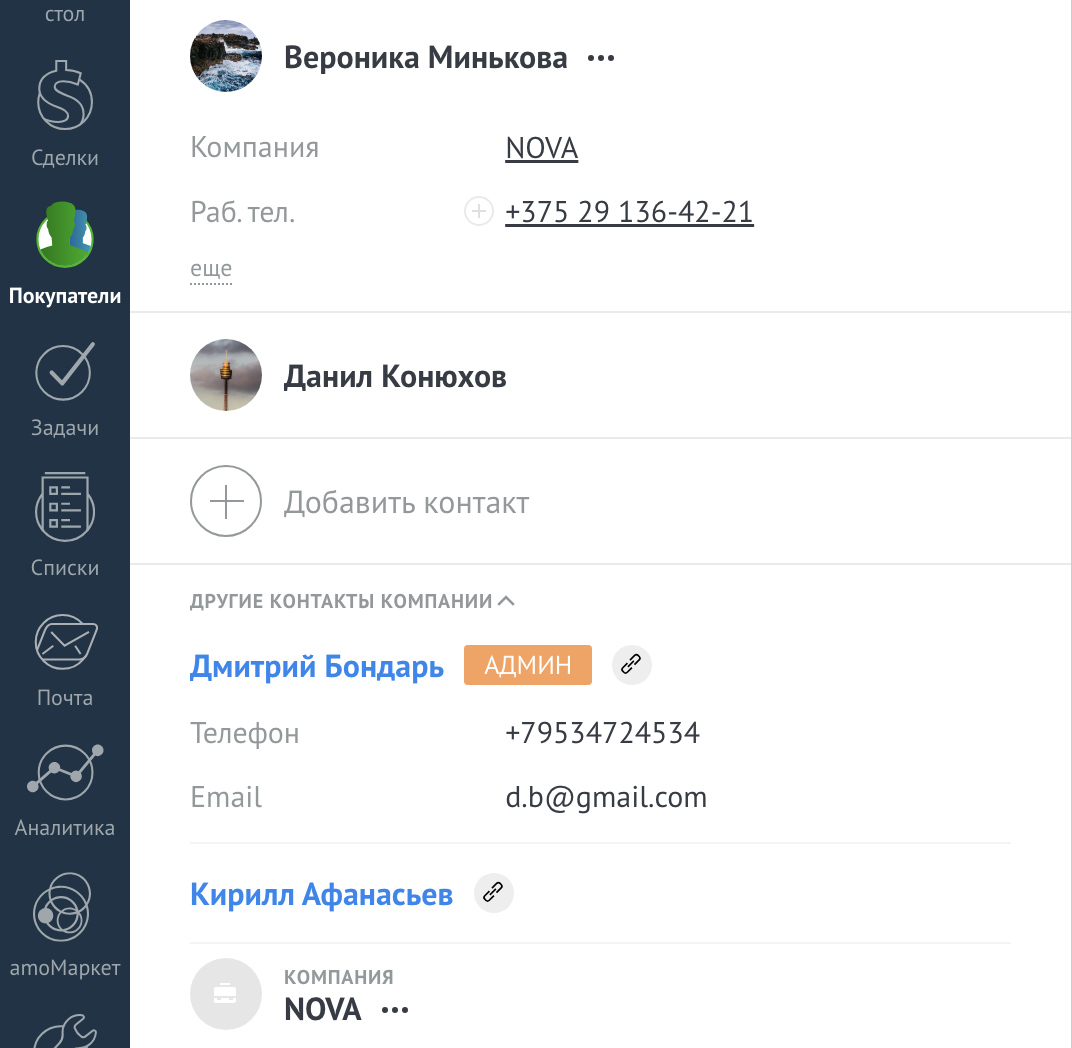
The widget displays all contacts of the related company in the deal card with the ability to quickly link them to the deal

Features

Displaying all company contacts in a deal
Quickly link a contact to a deal
Displaying phone and email contacts
Company administrators' mark

Installation and setup guide

Detailed guide for working with widget "All company contacts"

Widget description

The All Company Contacts widget automatically displays all contacts associated with the company directly in the transaction or customer card.

This allows you to see a complete picture of all contact persons of the company without the need to go to the company card.

How the widget works

The widget works according to the following principle:

  • Analyzes the company associated with the deal or buyer
  • Finds all contacts associated with this company
  • Displays them in a convenient list directly in the entity card
  • Shows even those contacts that were not directly attached to the current deal

The widget is especially useful when working with corporate clients, where one contract or project may affect several company contacts.

Widget setup

For the widget to work, you only need to install it. No additional settings are required.

The widget displays unattached company contacts in deal and customer entities

Widget in the deal card

How to use

To view all company contacts, you need to open the drop-down list in the widget

List of all company contacts

In the list you will see:

  • Contact name
  • Position (if specified)
  • Contact details (phone, email)
  • Ability to quickly navigate to a contact card

Widget Features

Key features of the widget:

  • Automatic operation - the widget does not require configuration and starts working immediately after installation
  • Display of all contacts - shows even those company contacts that are not linked to the current deal
  • User-friendly interface - compact display in the form of a drop-down list does not clutter the card
  • Quick access - clicking on a contact opens its card to view full information
  • Saving time - no need to go to the company card to view the list of contacts

Examples of use

The widget will be useful in the following situations:

  • Working with corporate clients - you see all the company employees with whom you can contact regarding the project
  • Escalation of issues - quickly find managers or other responsible persons from the company
  • Complex sales - you track all participants in the transaction on the client’s side
  • Client transfer - when the responsible manager changes, the new employee immediately sees all contacts

The widget is especially effective in the B2B segment, where one company may have several decision makers.

Advantages

  • Complete picture of communication - all information about company contacts in one place
  • Increased efficiency - fewer clicks to access the information you need
  • Improving customer service - you always know who else you can contact in the company
  • Free widget - no payment required, available to all users