After installing the widget, three lists will be added to the Lists section: Service, Works, Materials in which you need to fill in your data.
To add works/services/materials, go to the list and add elements to it.
Next, go to the lead in the Calculator tab

Next you need to fill in the tables
In the Works table you can change the price and quantity

In the Services table you can edit Price and Quantity
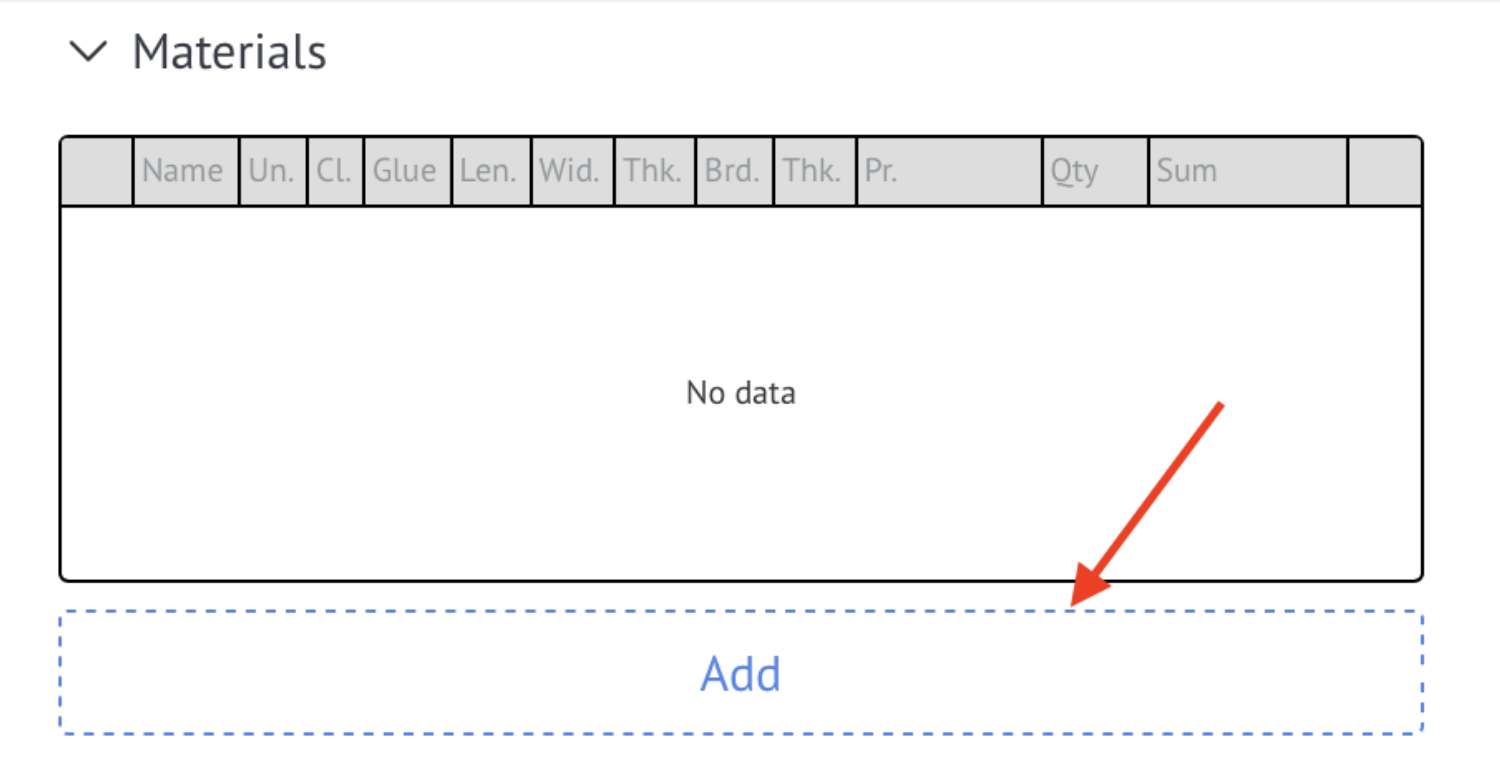
To add material, click Add
A modal window will open in which you can filter the materials and select the ones you need
After adding, you can change the price and quantity

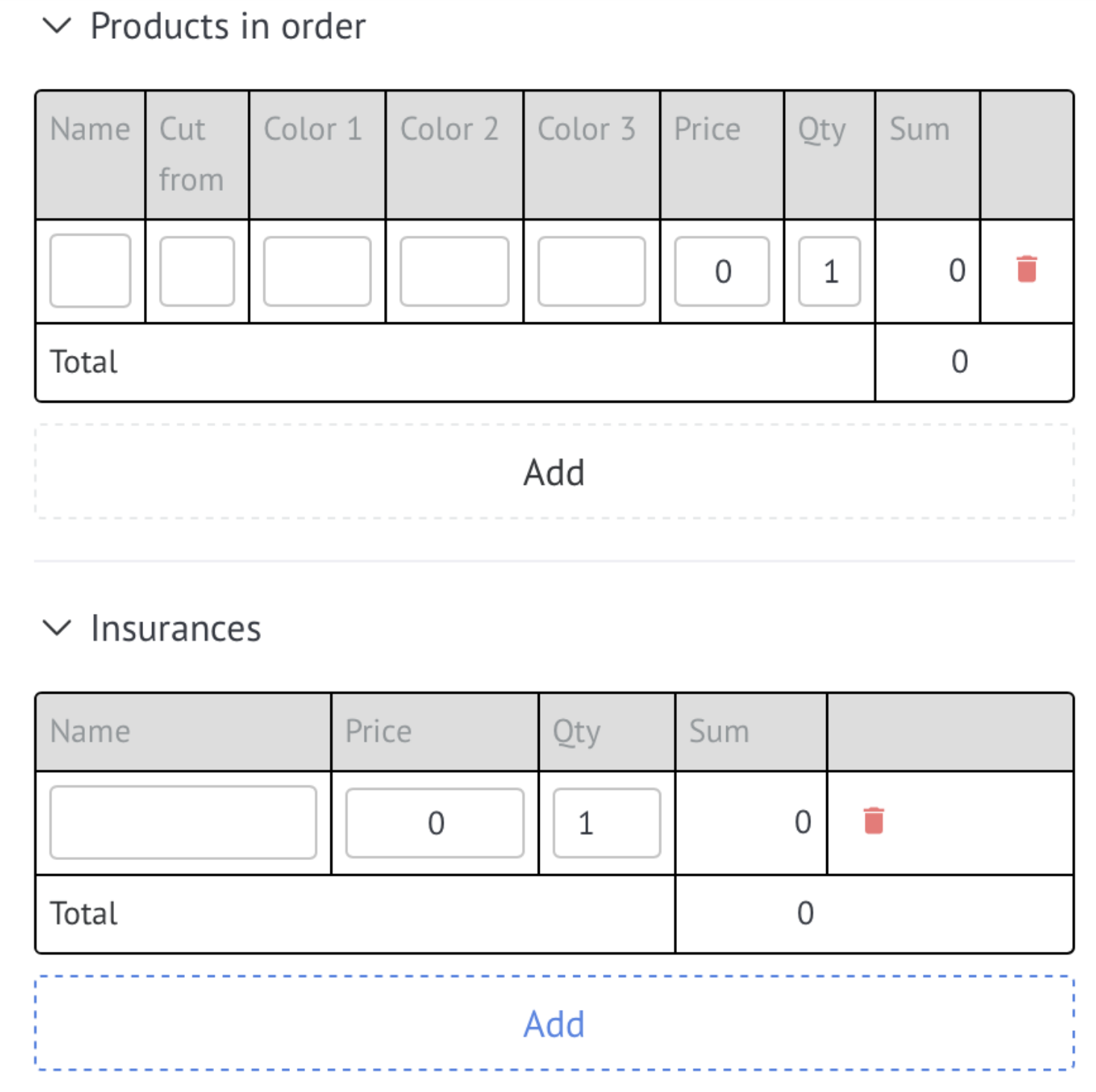
Next you need to fill out the tables Products included in the order and Insurance
If needed, enter a General discount — an amount in the account currency that is subtracted from the total cost. The "Total" line is recalculated immediately, and after saving, the discounted total is written to the lead's "Budget" field (the value is updated via the API, so it may appear with a delay of a few seconds).
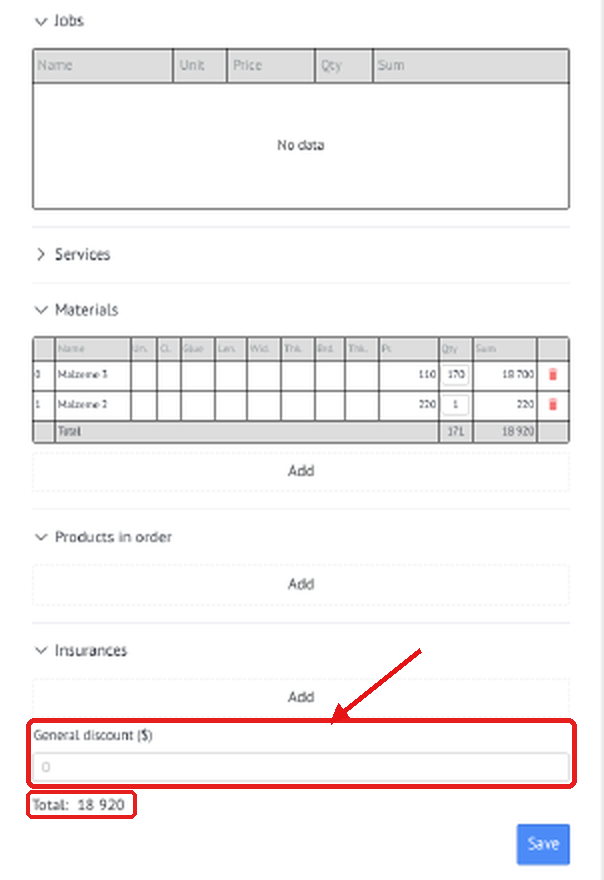
Next you can Save
Limitations of calculator editing
Stages of prohibiting editing for the manager - at selected stages, the calculator becomes available for viewing only. You cannot make changes to calculations and parameters.
Prohibition of editing the “Budget” field - after saving the calculator, the “Budget” field becomes unavailable for editing. You can change the budget value before saving the calculator.