Integrations

Integration with Asana in Kommo

Automate tasks through integration with Asana. Creating tasks in Asana from Kommo, synchronizing statuses between systems, two-way communication of leads and tasks.

Features

Automatic creation of tasks in Asana from Kommo
Synchronization of statuses between Kommo and Asana
Linking a lead to a task via a field
Multiple workspace support
Setting up mapping of sections and statuses
OAuth authorization in Asana
Using Kommo Variables in Tasks
Integration with Digital Pipeline and SalesBot

Installation and setup guide

Detailed guide for working with widget "Integration with Asana in Kommo"

Widget description

Asana integration with Kommo allows you to automate task creation in Asana based on events in Kommo and launch actions in Kommo when a task moves between Asana project sections.

  • Automatic creation of tasks - when a trigger or SalesBot is fired, a task is created in Asana with data from the lead
  • Reverse synchronization - when a task is moved to an Asana section, you can launch the configured SalesBot in Kommo
  • Two-way communication - the link to the task is saved in the lead, the link to the lead is saved in the task

Authorization

To get started, you need to log in to Asana via OAuth. This ensures your account is connected securely.

1. Open the widget settings in Kommo.

2. Click the “Log in to Asana” button.

3. In the window that opens, log into your Asana account and allow access.

4. After successful authorization, the status will change to "Authorized".

Authorization in Asana

Selecting a workspace

After authorization, select the Workspace in Asana with which the widget will work.

The drop-down list will display all Workspaces available to you. Select the one you need.

Selecting a workspace

Task link field

You can specify a text field in the Kommo lead where a link to the created task in Asana will be automatically saved.

1. Create a text field in Kommo lead settings (for example, "Link to Asana task").

2. In the widget settings, select this field in the "Lead field for Asana task link" section.

Task link field

Trigger setup

Add a "Create task in Asana" action to Digital Pipeline or SalesBot to automatically create tasks.

1. Go to pipeline settings → Digital Pipeline or SalesBot.

2. Add the “Create a task in Asana” action.

3. Specify the project and Asana section where to create the task.

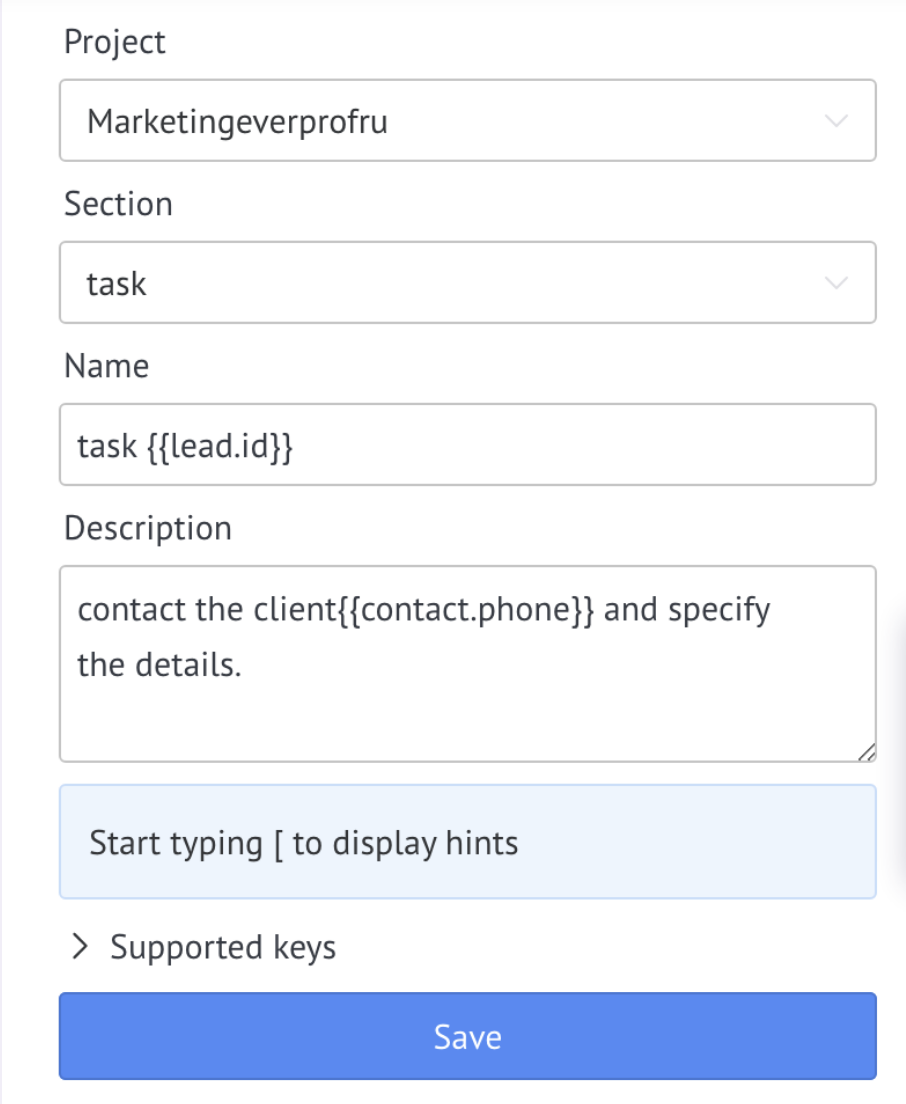
4. Fill in the title and description of the task using Kommo variables.

Filling in the title and description of a task with Kommo variables

Reverse Sync

Backward synchronization is a mechanism for two-way data exchange between Kommo and Asana. Unlike a one-way transfer (creating tasks in Asana from Kommo), this function allows you to perform actions in Kommo when the status in Asana changes.

How to set it up?

  • Go to pipeline settings
  • Click on +add trigger at the desired stage
  • Select +Salesbot
  • And create a new bot
  • In the list of bot actions, select Widgets and find Asana
Selecting the Asana widget in Salesbot
  • Click on the pencil - widget settings
  • Enter/select project name and section
Setting up a project and section
  • Enter the name with which the task will be created in Asana and its description
Task name and description
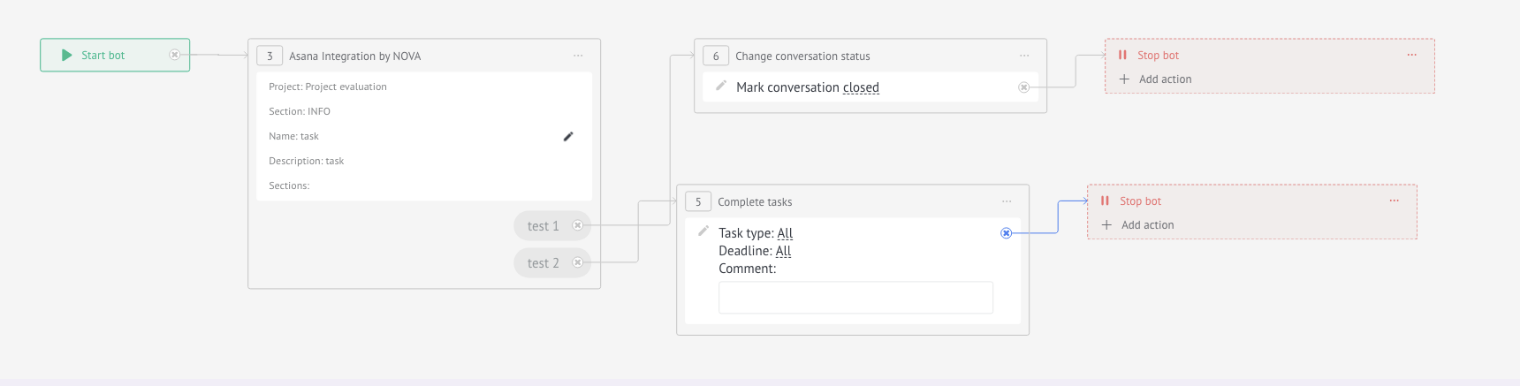
  • Next, if necessary, you need to add Salesbot
  • Salesbot will start after the task in Asana is at the specified stage
  • Click on +Create
Click on +Create
  • Select a stage in Asana
Select a stage in Asana
  • Select Salesbot
Select Salesbot
  • Click Save
  • If necessary, add another bot action and be sure to stop it
Stopping the bot
  • Save Salesbot and save pipeline settings

How does it work?

The task goes to the section specified in the exit trigger:

The task in Asana goes to the section

The trigger action is executed:

Executing a trigger action

Variable Substitution

You can use variables from Kommo leads, contacts, and companies in the task title and description. Variables will be automatically replaced with values ​​from CRM.

Сделка:
{{lead.id}} - ID сделки
{{lead.name}} - Название сделки
{{lead.price}} - Бюджет сделки
{{lead.cf_Название поля}} - Кастомное поле по названию
{{lead.cf_id_12345}} - Кастомное поле по ID

Контакт:
{{contact.name}} - Имя контакта
{{contact.phone}} - Телефон
{{contact.email}} - Email
{{contact.cf_Название поля}} - Кастомное поле контакта

Компания:
{{company.name}} - Название компании
{{company.cf_Название поля}} - Кастомное поле компании

Task name example:

{{lead.name}} - {{contact.name}} ({{lead.price}} ₽)

Result: "Application from the site - Ivan Petrov (150,000 ₽)"

Use cases

For the sales department

New lead → Task for manager in Asana → Closed task → Lead successfully completed

For production

Lead paid → Production task → Completed → Lead at the "Delivery" stage

For technical support

Customer request → Technical support issue → Resolved → Lead closed

For approvals

Lead at the “Contract” stage → Task to the lawyer in Asana → Agreed → Lead for payment

Frequently asked questions

  • How many tasks can you create? - Without restrictions from the widget. Limits depend on your Asana plan.
  • Does it work with multiple projects? - Yes, you can specify any project and section in the trigger settings. For different stages of the pipeline, you can configure the creation of tasks in different projects.
  • What happens if you delete a task in Asana? - The connection with the lead will remain in the field (if configured), but status synchronization for this task will stop.
  • Is it possible to create subtasks? - In the current version, only main tasks are created. Subtasks are planned in future updates.
  • How does lead definition work during synchronization? - For reverse synchronization, the widget uses the link between the task and the previously created record. In some task search scenarios, the custom field “Kommo” may also be used.

Data transfer information

ℹ️The servers of this service (Asana) are located outside the Russian Federation. If you process personal data of citizens of the Russian Federation, we recommend that you ensure compliance with the requirements of Federal Law No. 152-FZ “On Personal Data” regarding cross-border data transfer.