Artificial intelligence

AI Call Analysis in Kommo

AI Call Analysis is a modern widget for Kommo that automates the process of analyzing telephone conversations using artificial intelligence. The system turns ordinary call recordings into valuable business insights.

Features

Automatic call transcription
Saving time for managers
Reducing the risk of losing agreements
Analysis by custom questions
Saving results in a card
AI model selection

Installation and setup guide

Detailed guide for working with widget "AI Call Analysis in Kommo"

Widget setup

In order to start working with the agent, we need to write instructions for it; for this we need to go to the widget settings
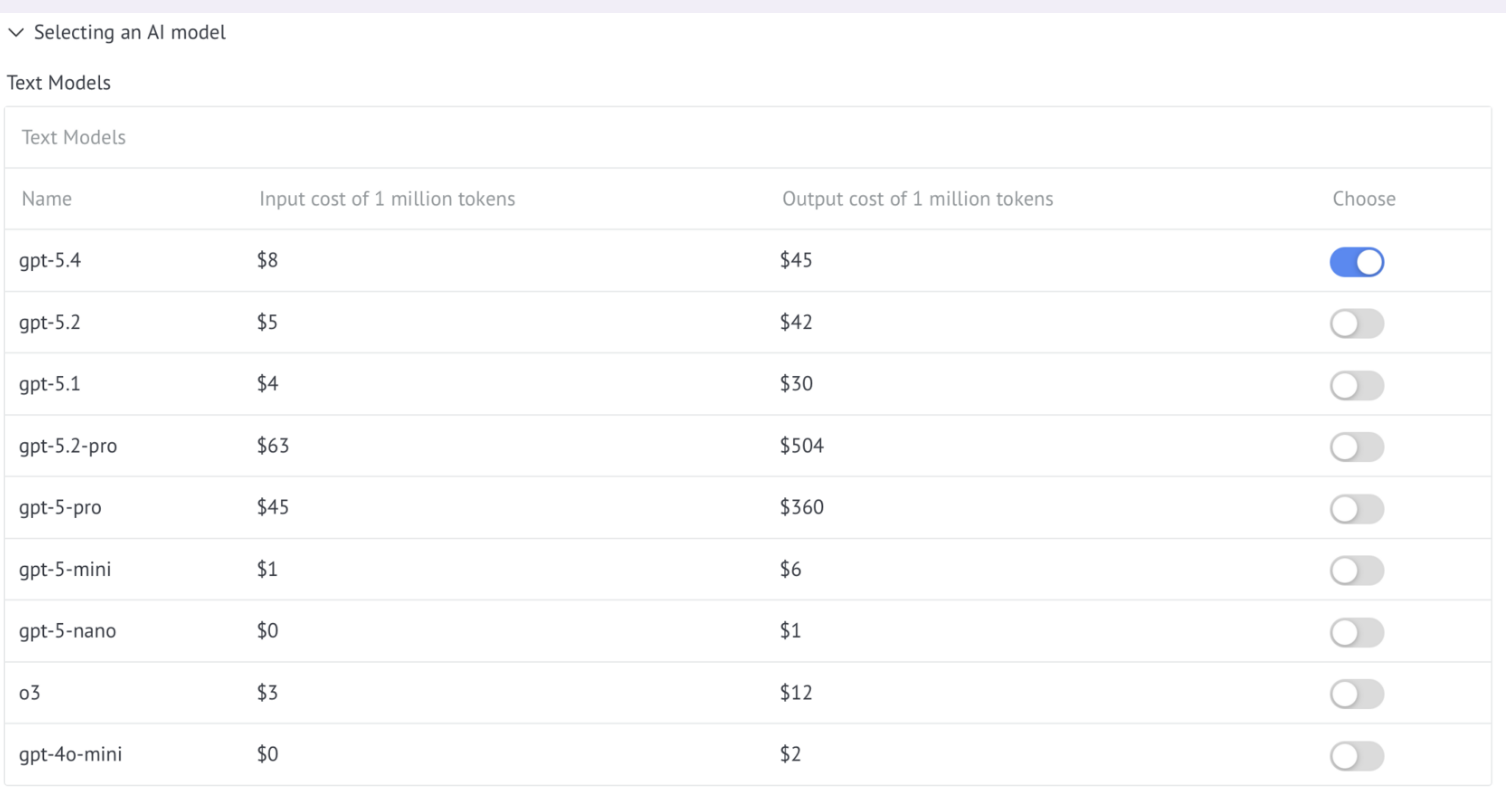
First you need to select an AI model

Next, select which calls to process: incoming/outgoing

Next, select the lead statuses in which the widget will work

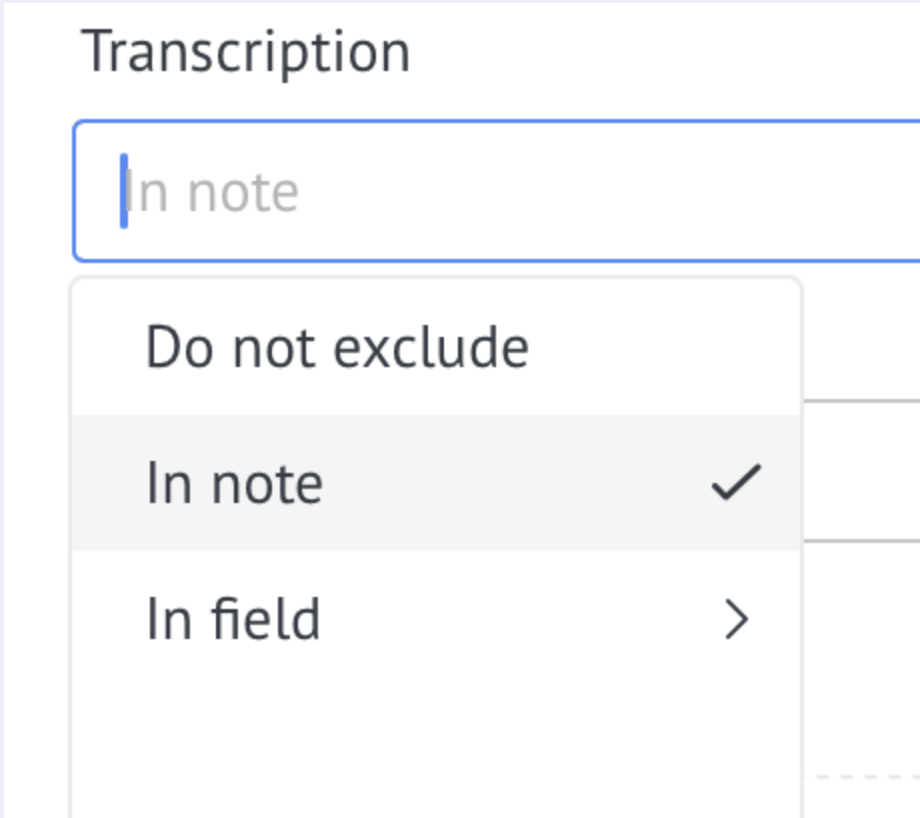
Next, select where to record the transcription:

  • in a CRM custom field;
  • in a note/activity feed;
  • do not do

Choosing where to record the transcription

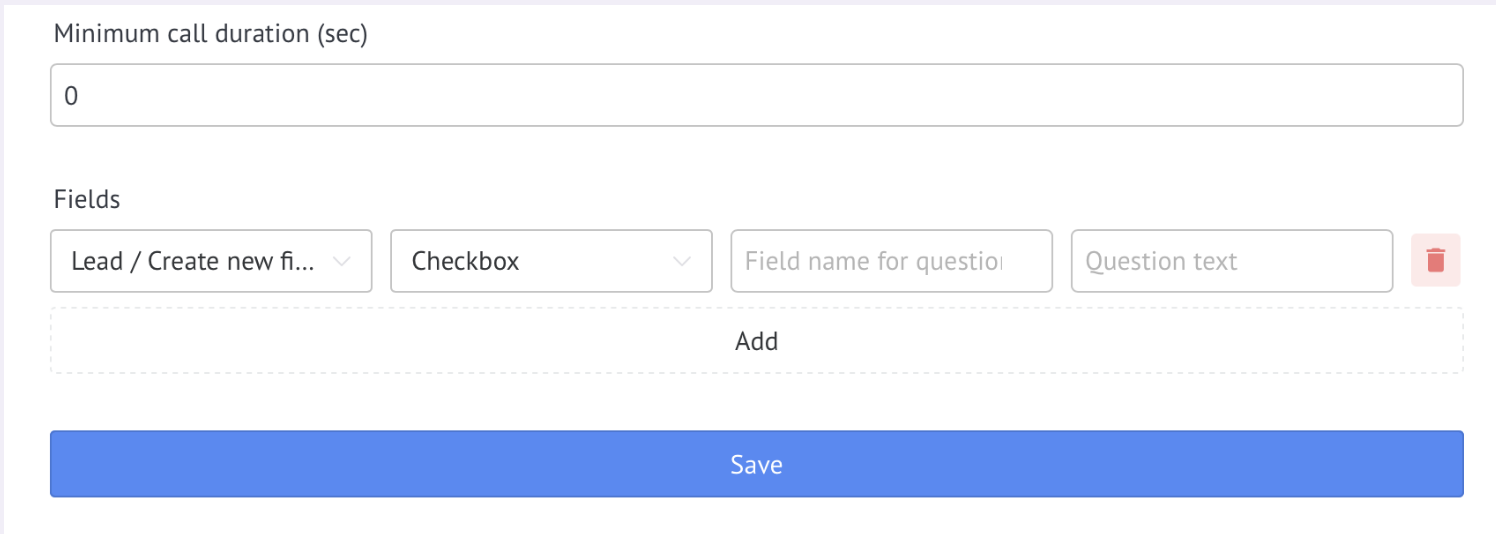
Next, enter the minimum call time for processing

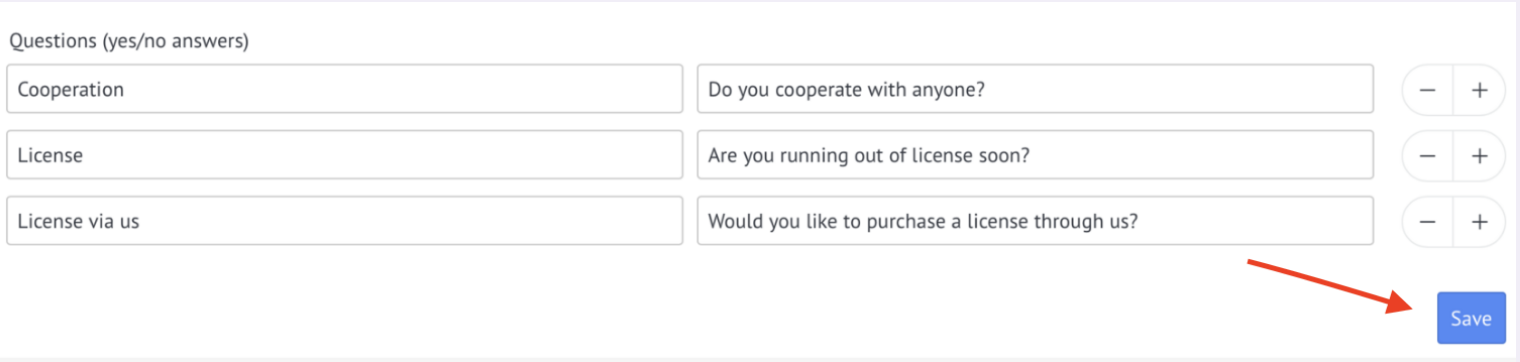
Next you need to enter the name of the field for the question (this field will be created automatically in the lead on the “Call Analysis” tab)
And enter the text of the question

Or you can create a field in which you want to record the answer in the settings.
Select “Create field”
Selecting the Create Field option

Select the type of field you want to create
Selecting a Field Type

Next, enter the name of the field and the question the answer to which you want to place in this field

After adding all fields, you need to save the settings

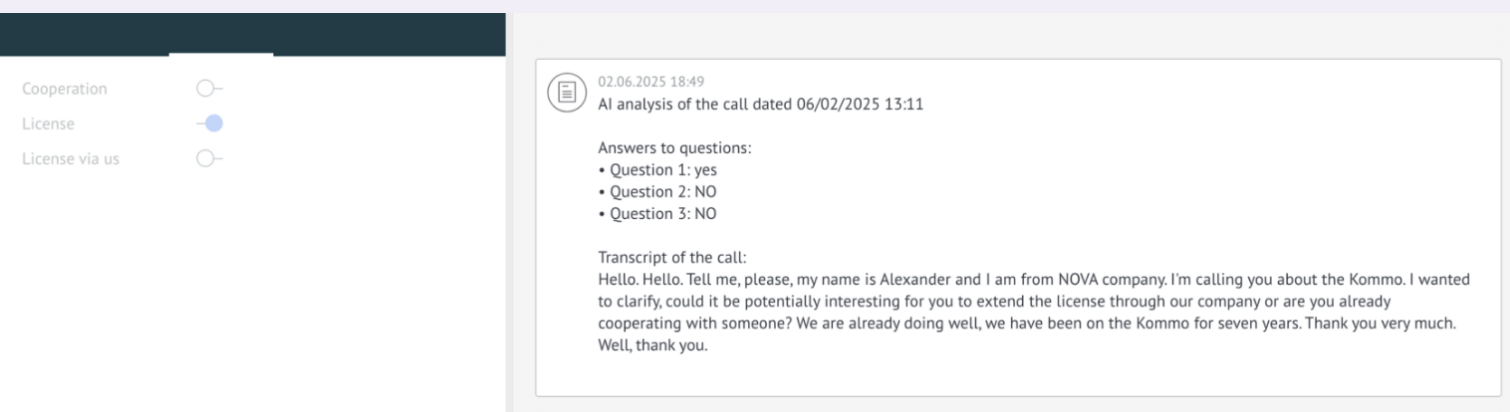
After the conversation ends, the widget will add a text transcript of the call, analyze the answers and in the tab indicate whether the interlocutor answered positively or negatively

You can process past calls. To do this, you need to specify the period for which you need to process calls
Automatic call transcription using DP and Salesbot

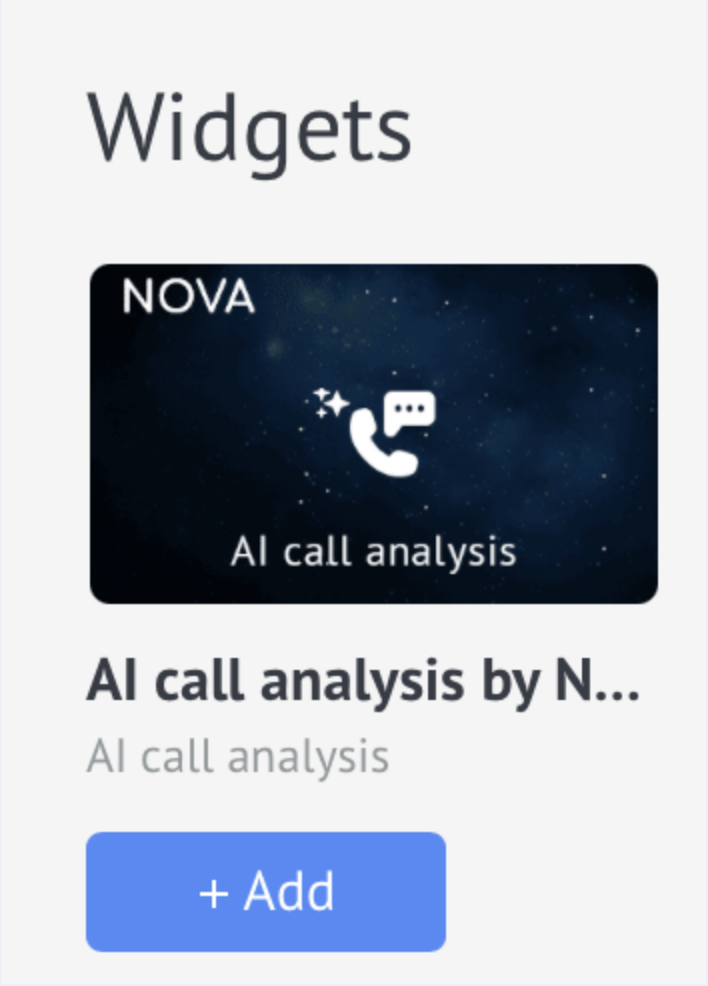
The widget allows you to transcribe calls when Digital Pipeline triggers or Salesbot blocks are triggered

Setup in Digital Pipeline

1. Create a trigger in Digital Pipeline

2. In actions, select the “AI call analysis” widget

Selecting an AI call analysis widget in Digital Pipeline

3. Click on edit (pencil icon)

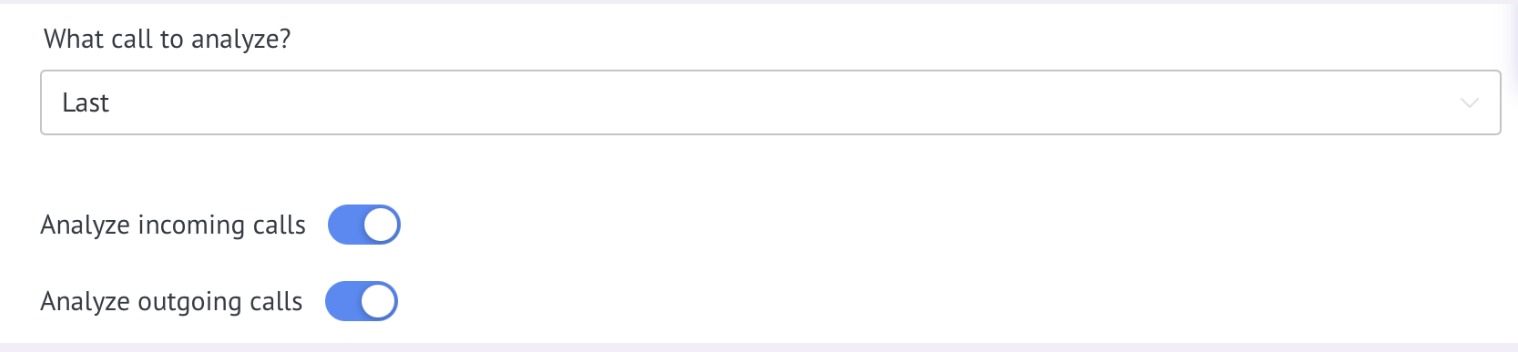
4. Select which call you want to analyze

Selecting a call for analysis

5. Enable call type checkboxes

Call type checkboxes

6. Choose where the transcription will take place or not do it

Selecting a Transcription Option

7. Set the minimum call duration

8. Next, you need to enter the name of the field for the question (this field will be created automatically in the lead on the “Call Analysis” tab), or you can create a field in which you want to record the answer in the settings. Select Create Field and enter your question text.

Setting up a field for a question

Setup in Salesbot

1. Add the “AI call analysis” block to the Salesbot script

2. Set up the block as described above

3. Set up transitions based on results