Artificial intelligence

AI Agent in Kommo

AI Agent is an assistant that automates routine tasks and helps your sales team work more efficiently. Using artificial intelligence technologies, the widget takes care of processing incoming requests and qualifying transactions according to specified parameters.

Features

Automatic greeting of clients
Lead Pre-Qualification
Redirecting difficult questions
Filling out transaction fields
Knowledge Database Management
Integration with Telegram

Installation and setup guide

Detailed guide for working with widget "AI Agent in Kommo"

Widget setup

In order to start working with the agent, we need to write instructions for it, for this we need to go to the widget settings
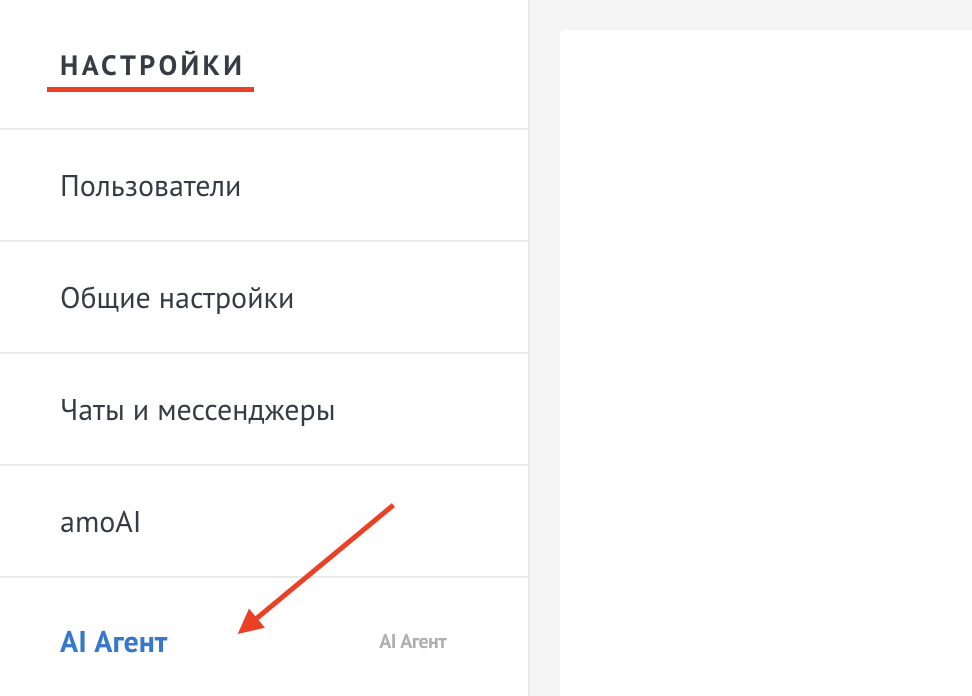
Widget settings structure

The widget settings are divided into several sections for convenience:

1. Basic Settings

  • Knowledge base management - button to open the knowledge base management interface (adding, editing, importing documents)
  • AI Model Selection - Select a model to generate responses. Various models are available with different prices and quality of answers
  • Add web search support - enable so that the agent can search for relevant information on the Internet and follow links from instructions

2. Agent behavior

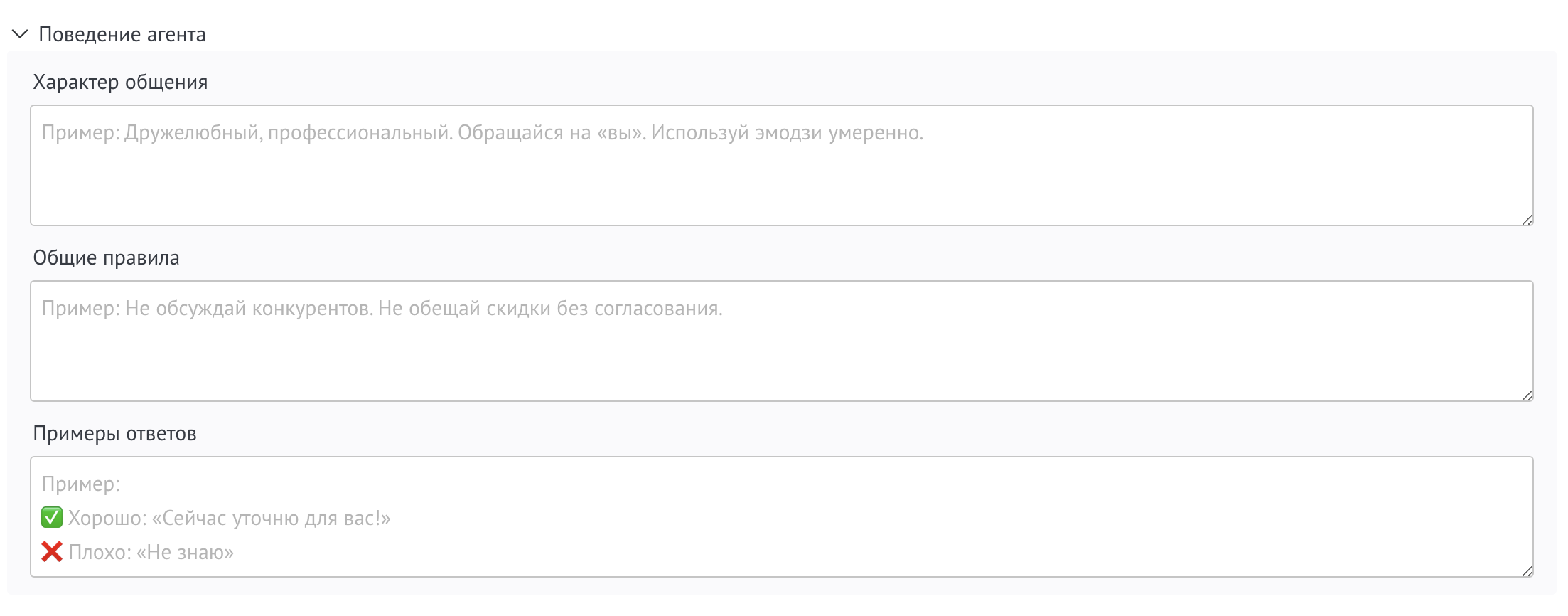
  • Character of Communication - Describe the agent's tone and communication style. Example: "Friendly and professional. Address yourself as 'You'. Use emoji sparingly."
  • General Rules - specify the rules for all dialogs. Example: “Don’t discuss competitors. Don’t promise discounts without approval. Always check the client’s budget.”
  • Response Examples - Add examples of how the agent should respond. Example: "✅ Good: 'Now I'll clarify for you!' ❌ Bad: 'I don't know'"

3. Instructions

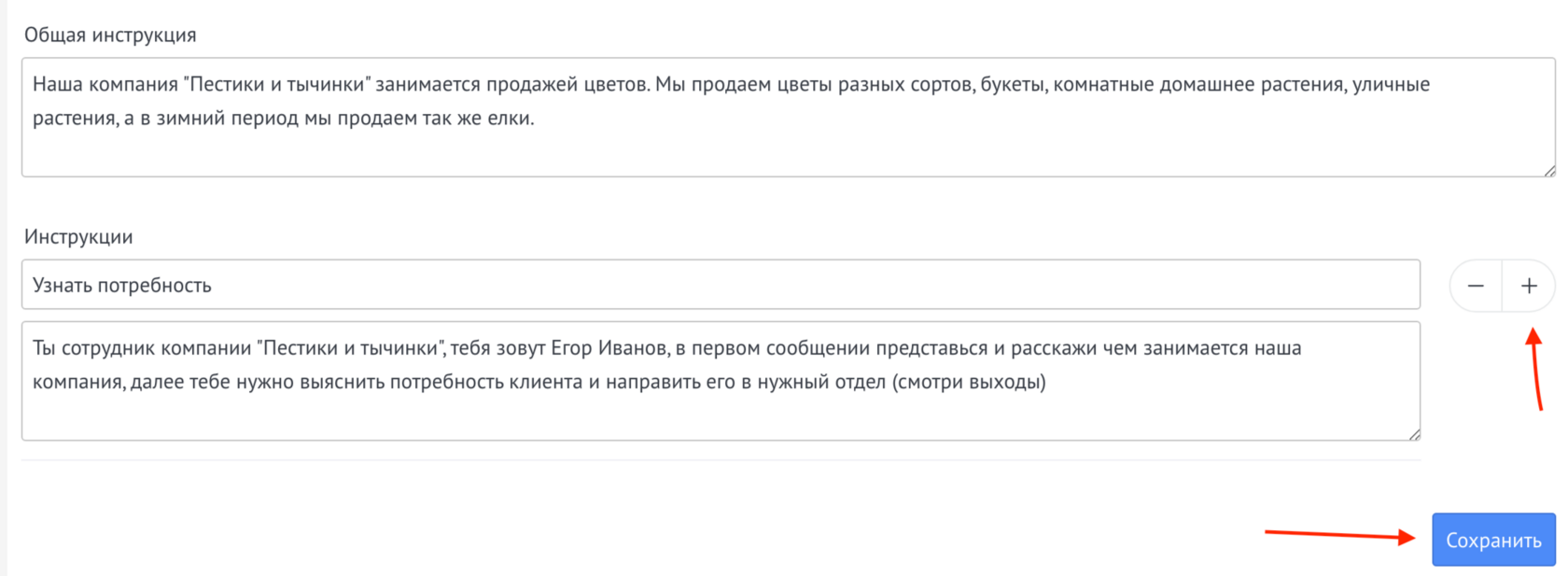
In the general instructions you mustwrite general information for the agent, for example, what your company does, what city you are in and what products it offers

Additional instructions must indicate specific actions for the agent. Each instruction consists of a title and instruction text. These instructions can be selected in the trigger settings for reuse in different scenarios

  • Example of instructions for sales: Title: “Working with objections”, Text: “If the client says it’s expensive, find out his budget and offer alternative options”
  • Example of instructions for support: Title: “Technical problems”, Text: “In case of technical problems, collect information: what exactly does not work, when the problem started, what actions the client took”

4. AI Consultant for Telegram

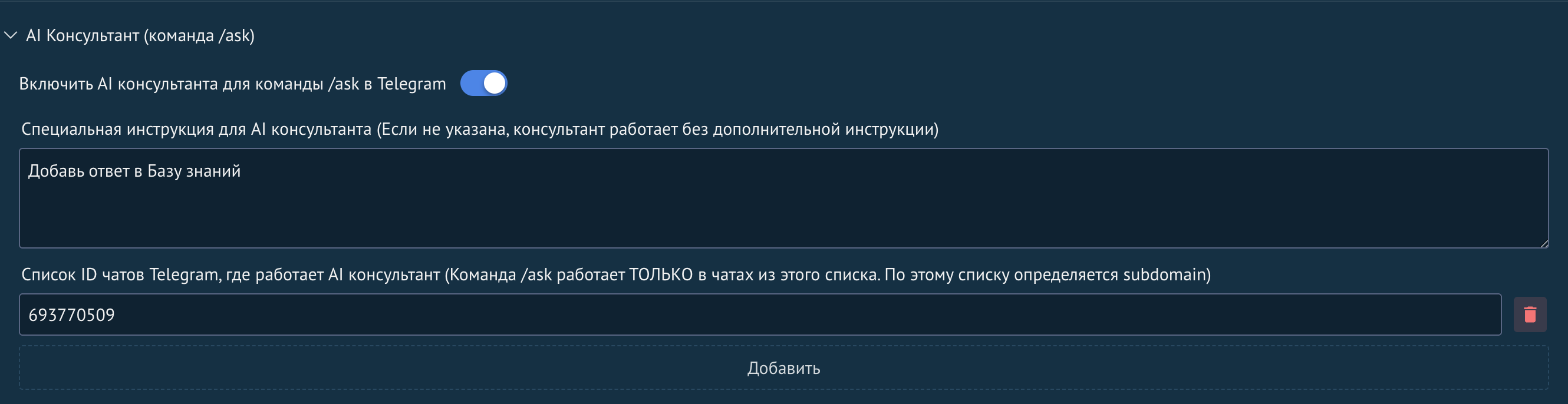
  • Enable AI consultant - activates the /ask command in Telegram to advise your team on the knowledge base
  • Инструкция для консультанта — специальная инструкция, которая определяет как консультант должен помогать команде. Если не указана, работает без дополнительной инструкции
  • Telegram chat IDs - list of chat IDs where the consultant will work. The /ask command works ONLY in chats from this list

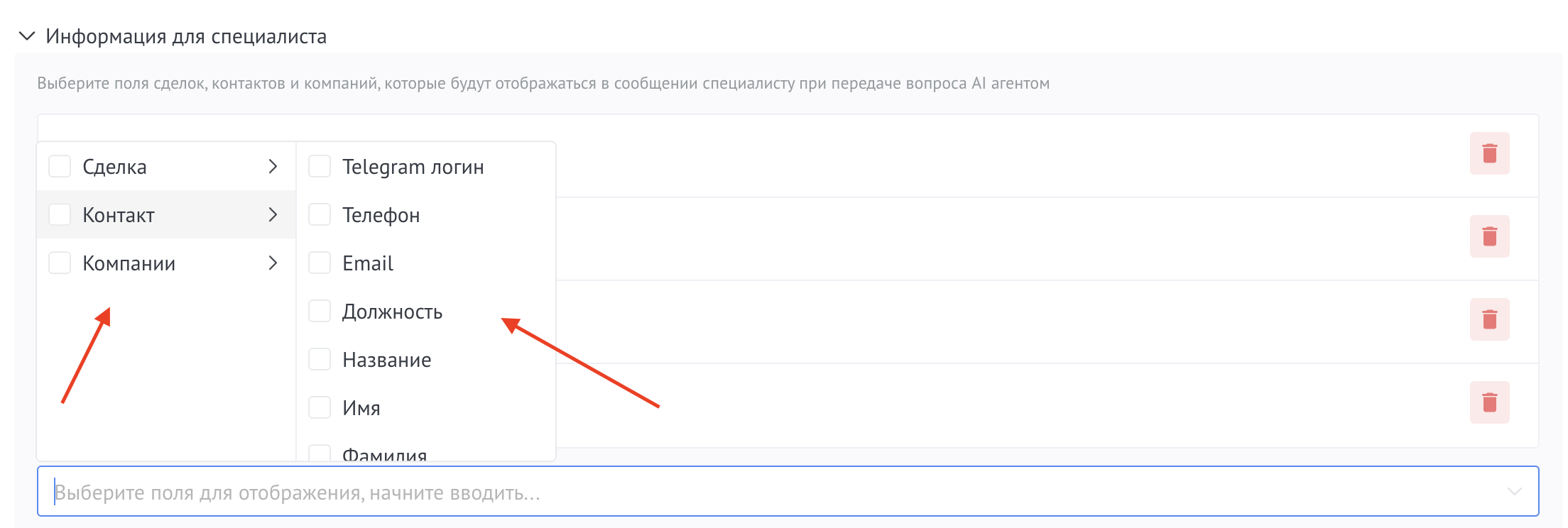
5. Information for specialist

  • Select the fields from deals, contacts and companies that will be shown to the specialist when submitting a question
  • Example: select “Phone”, “Email”, “Transaction Budget”, “Source” - this information will help the specialist quickly understand the context
  • If you do not select fields, the specialist will see only standard information

If necessary, you can add many instructions for the agent
After finishing writing the instructions, you need save the settings
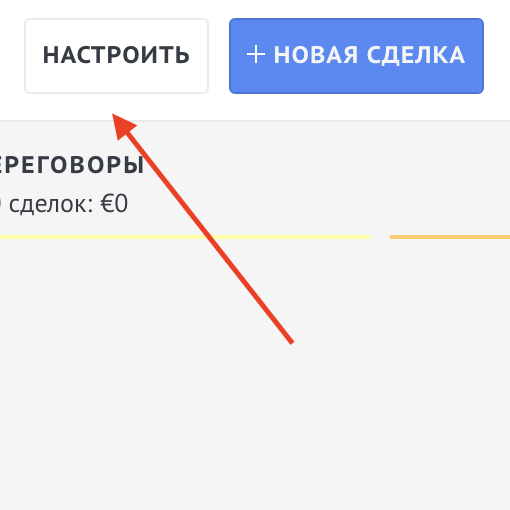
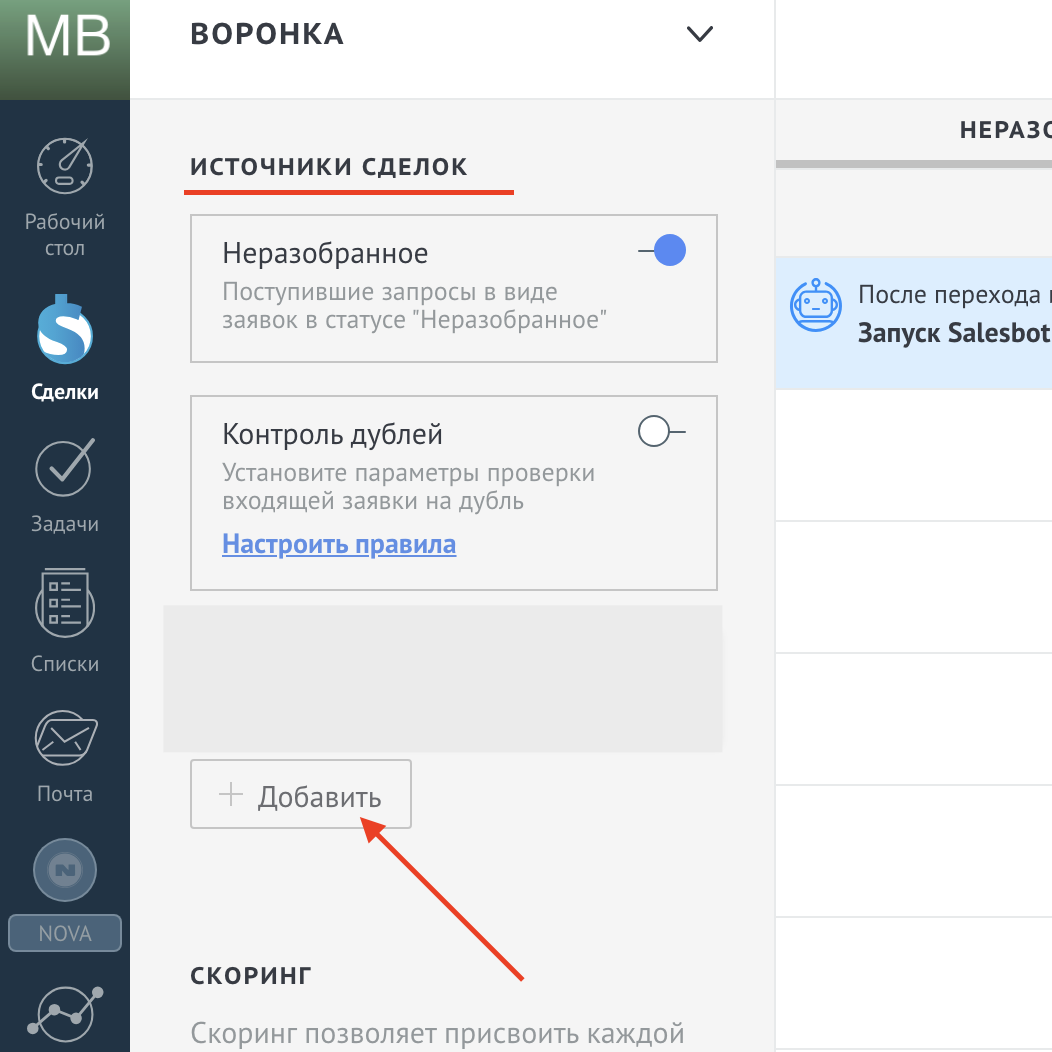
Next you need to go to funnel settings and add a deal source
Next you need to create a bot:

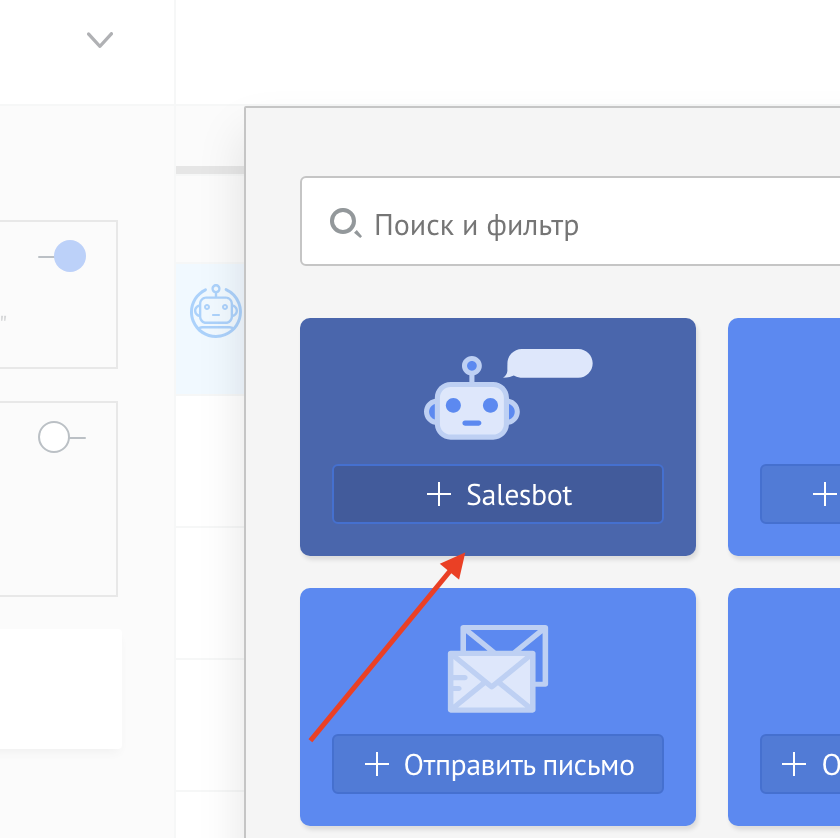
  • at the required stage, click +Add trigger
  • +Salesbot
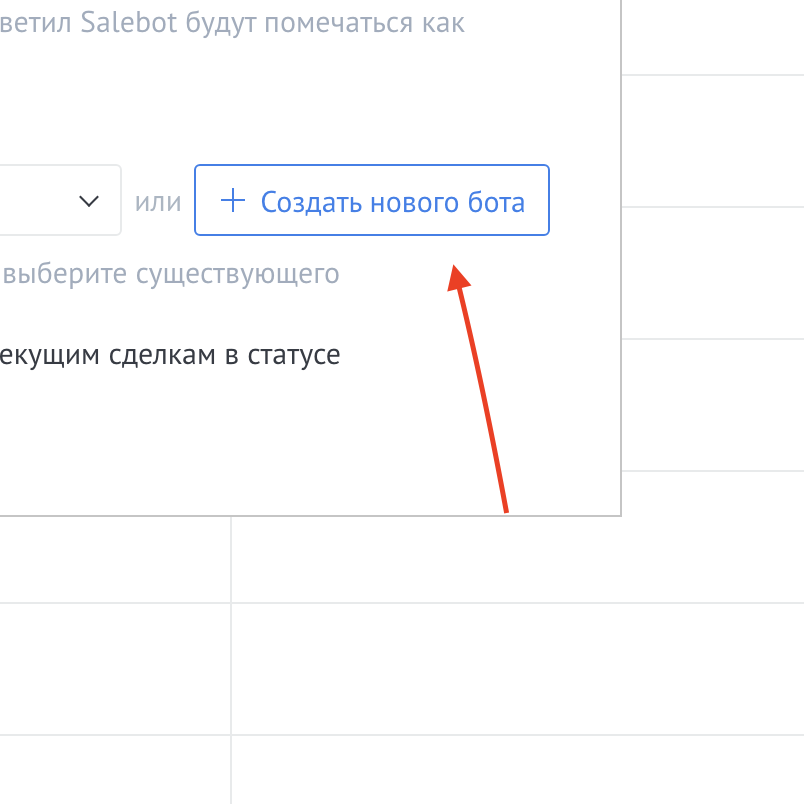
  • In the trigger settings, click +Create a new bot

In the bot editing window, select Widgets
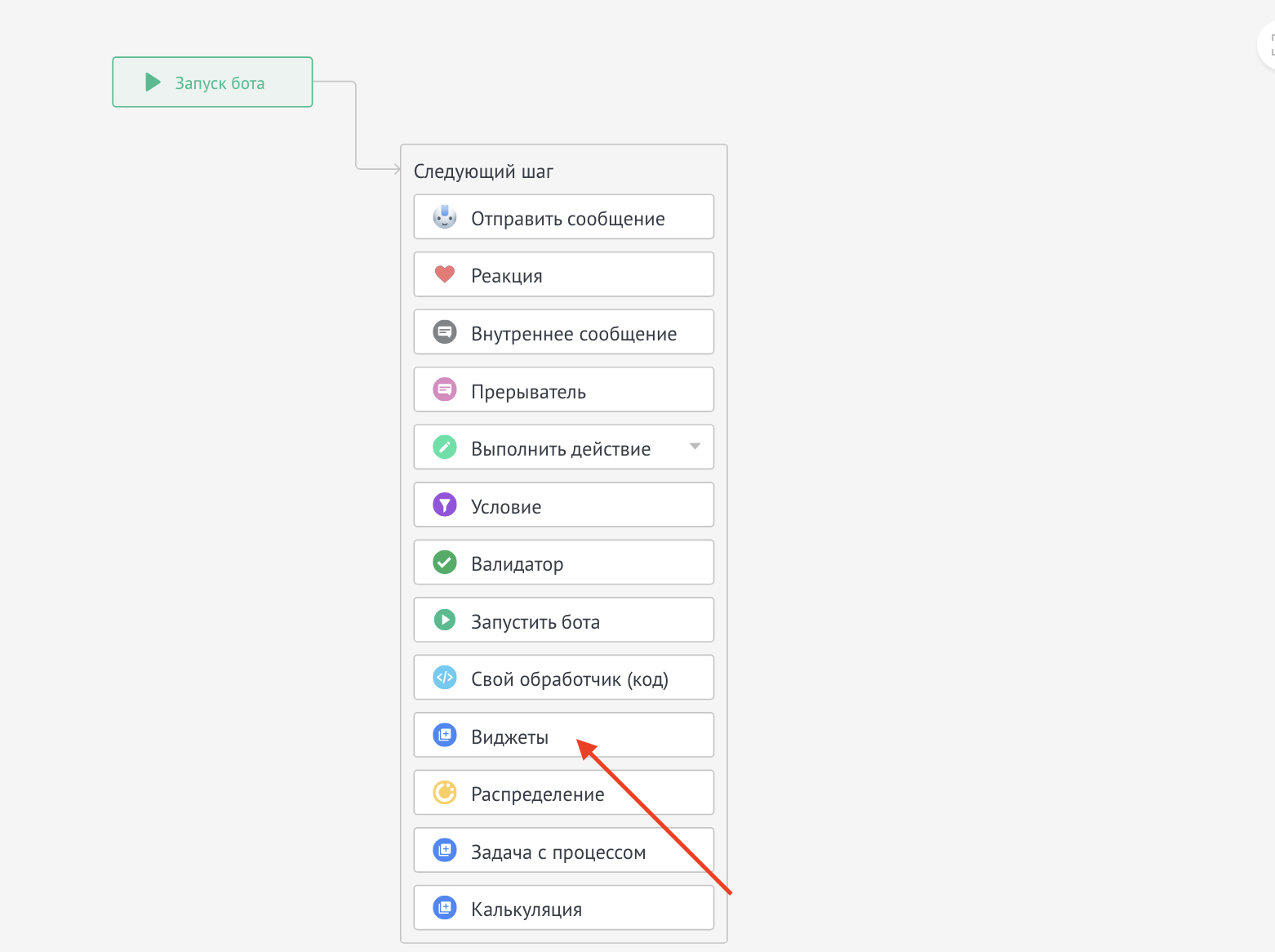
Select AI agent
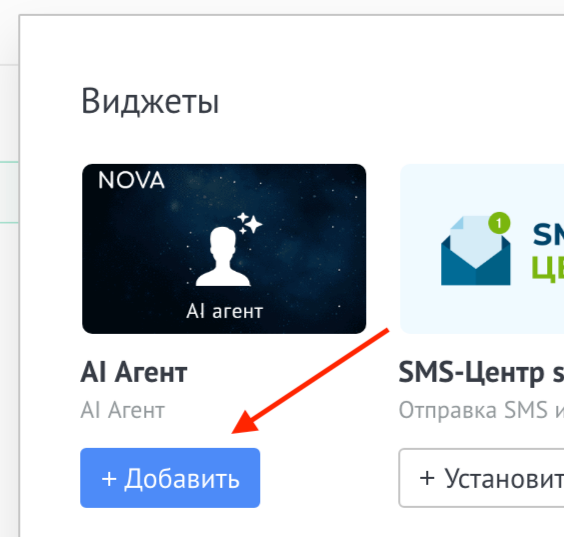
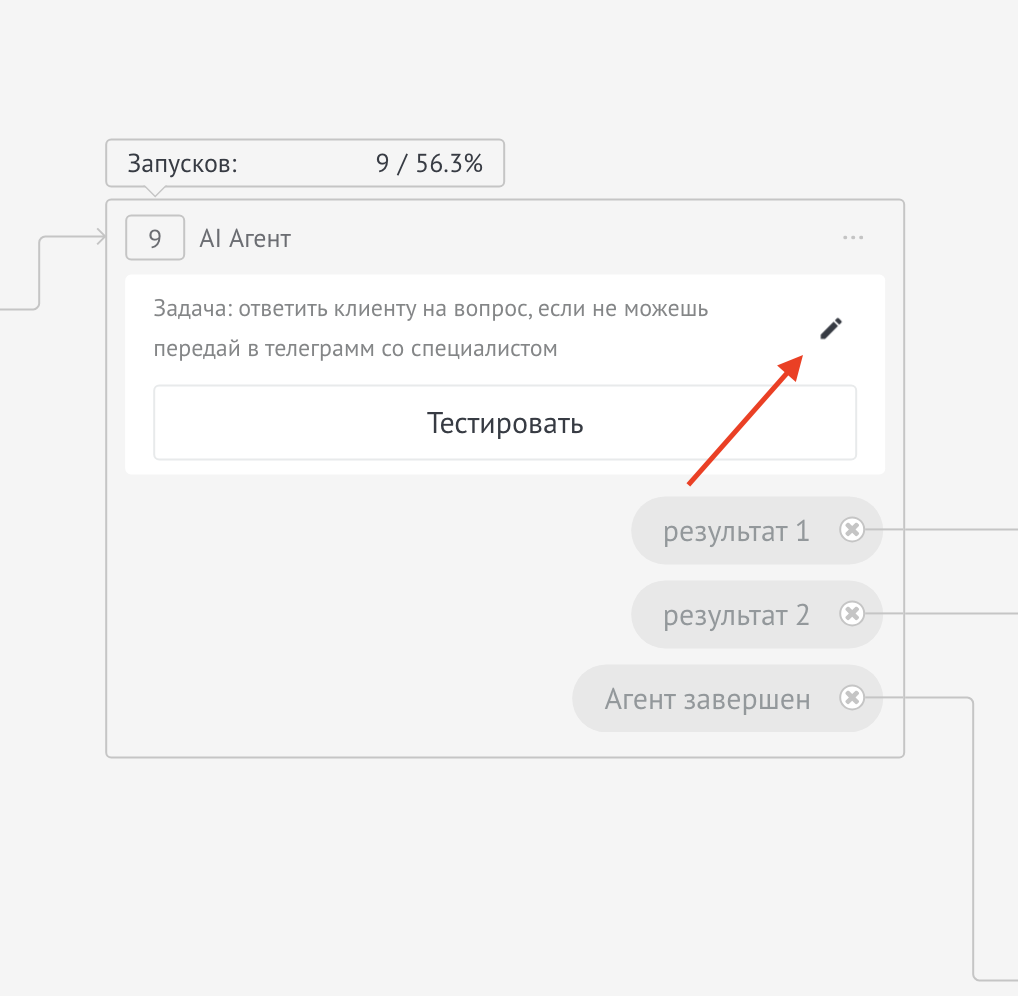
Next click on the button edit
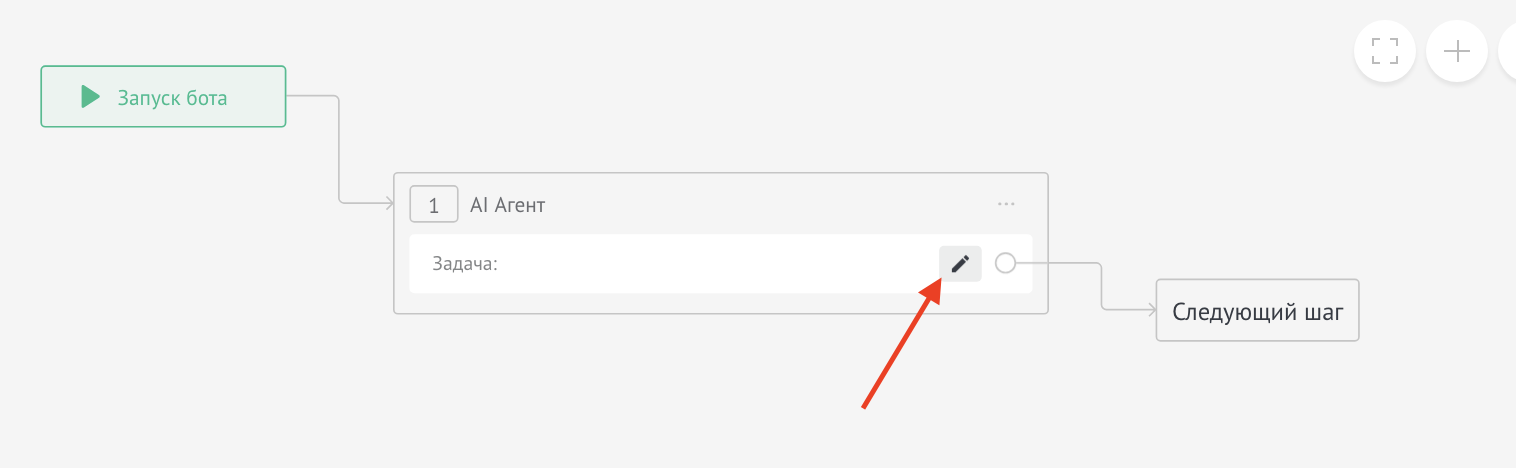
Configuring trigger fields

The following fields are available in the trigger settings:

  • Task is the main field. Describe the task the agent must perform during a conversation with a customer. Example: "Ask the client about their budget, timing, and product requirements. After collecting information, go to the 'qualified' exit"
  • Agent should not respond - If you enable this option, the agent will only select an output (trigger) without sending responses to the client. Useful for automatic routing without communication

Section "Role and rules" (optional settings):

  • Role - Define the agent's role in this specific scenario. Example: "You are a sales manager who helps a client choose the appropriate tariff"
  • Scenario Rules - Specify specific rules for this scenario. Example: "Do not offer discounts of more than 10% without approval. Be sure to specify the delivery city"
  • Templates - you can use prepared templates and change them to suit your needs

Section "Additional settings":

  • Instructions - select one or more additional instructions from those created earlier in the widget settings. This allows you to reuse common instructions in different triggers
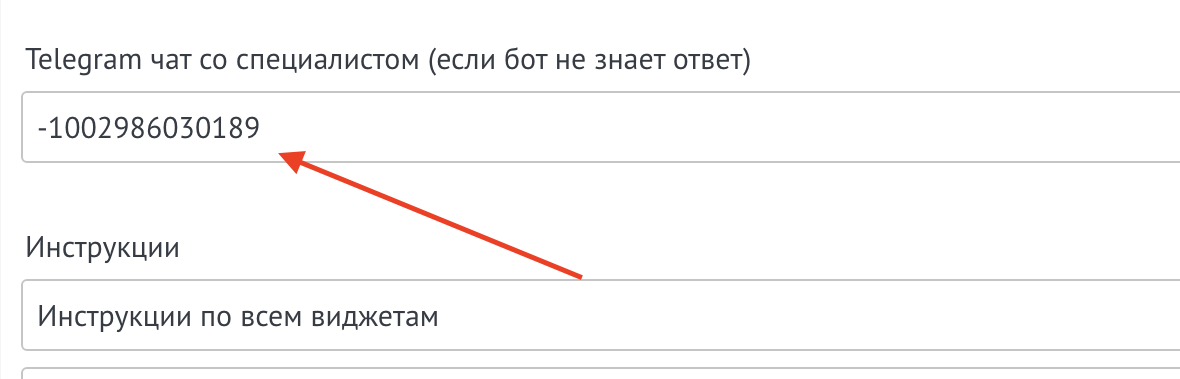
  • Telegram chat with a specialist - specify a link to the chat where the agent will send questions if he doesn’t know the answer. To get the chat ID use @nova_aiagent_bot

Section "Pass fields to agent":

  • Enable field transfer - activate so that the agent can see information from the deal, contact and company fields
  • If do not select specific fields, the agent will receive all non-empty custom fields + basic standard fields (title, budget, ID)
  • If you select specific fieldsthe agent will receive only the specified fields. Example: select "Contact Phone", "City", "Transaction Source"

Section “If there is no response from the client”:

  • Waiting time (minutes)—specify how many minutes to wait for the client to respond. Example: 60
  • Reminder instructions - what the agent should do if the client does not respond. Example: "Write: 'Good afternoon! I remind you that I am waiting for your answer on the issue of choosing a tariff. I'm ready to help!'"

Section "Fill in the fields":

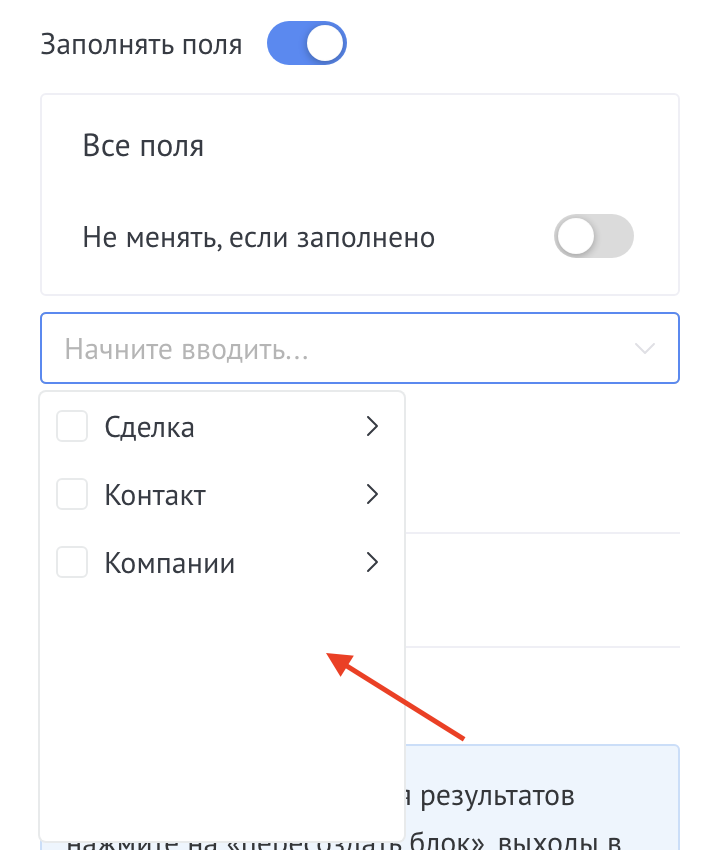
  • Enable Filling—the agent will automatically fill in the deal fields based on the client’s responses
  • By default, all available fields are filled in
  • You can select specific fields to fill out. Example: select "Budget", "Deadline", "Requirements"
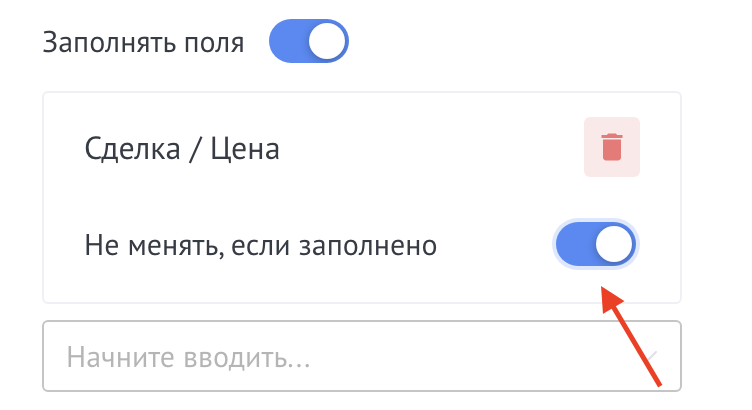
  • Do not change if filled in - enable for each field so as not to overwrite already filled values

Output triggers:

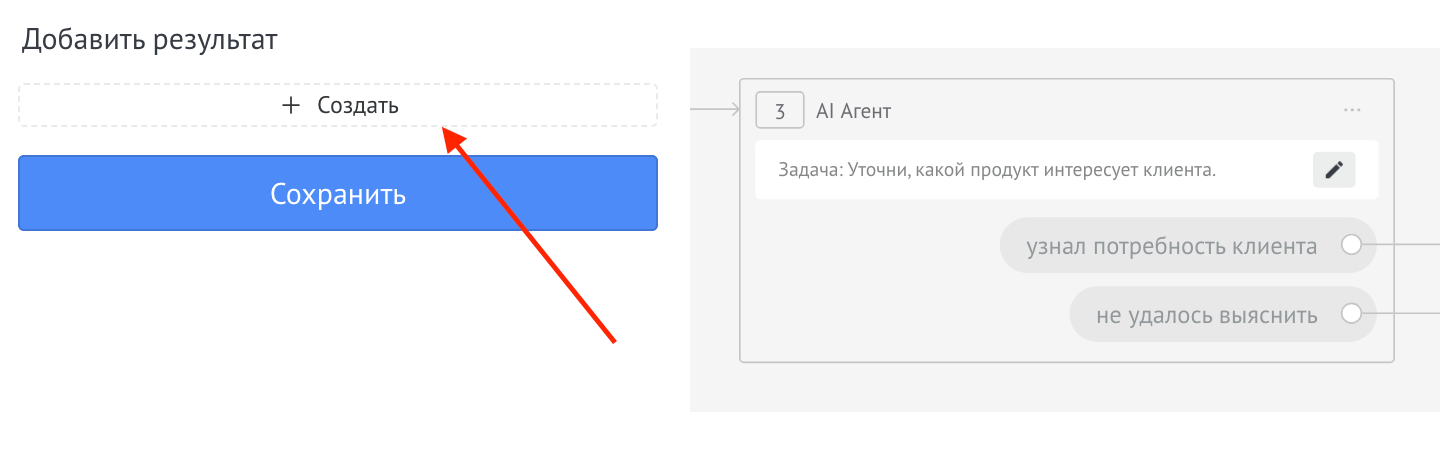
  • First, create outputs (the results of the agent). Example: “Qualified”, “Not targeted”, “Need manager’s advice”
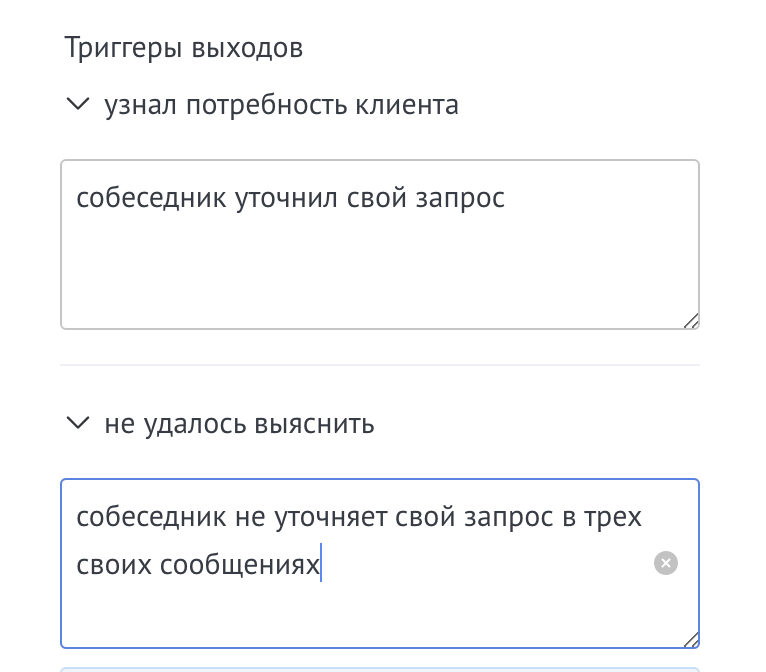
  • Then write a trigger condition for each output. Example for the “Qualified” exit: “The client named a budget above 50,000 rubles, indicated the deadlines and is ready for the meeting”
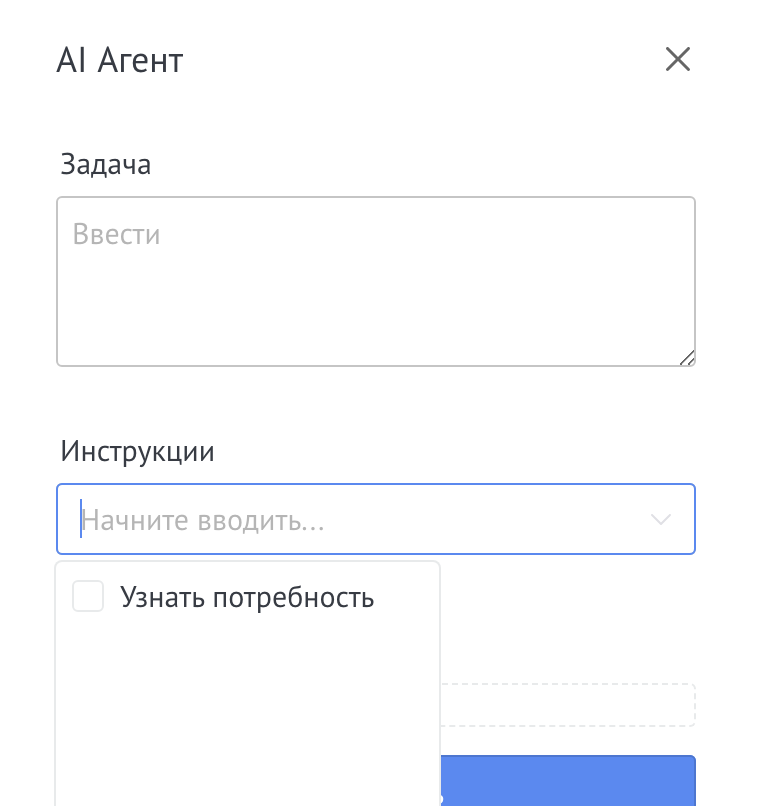
  • create action outputs
  • clickSave
  • again click on the edit button
  • enter exit triggers from the dialogue with the agent
  • clickSave

Fill in fields function
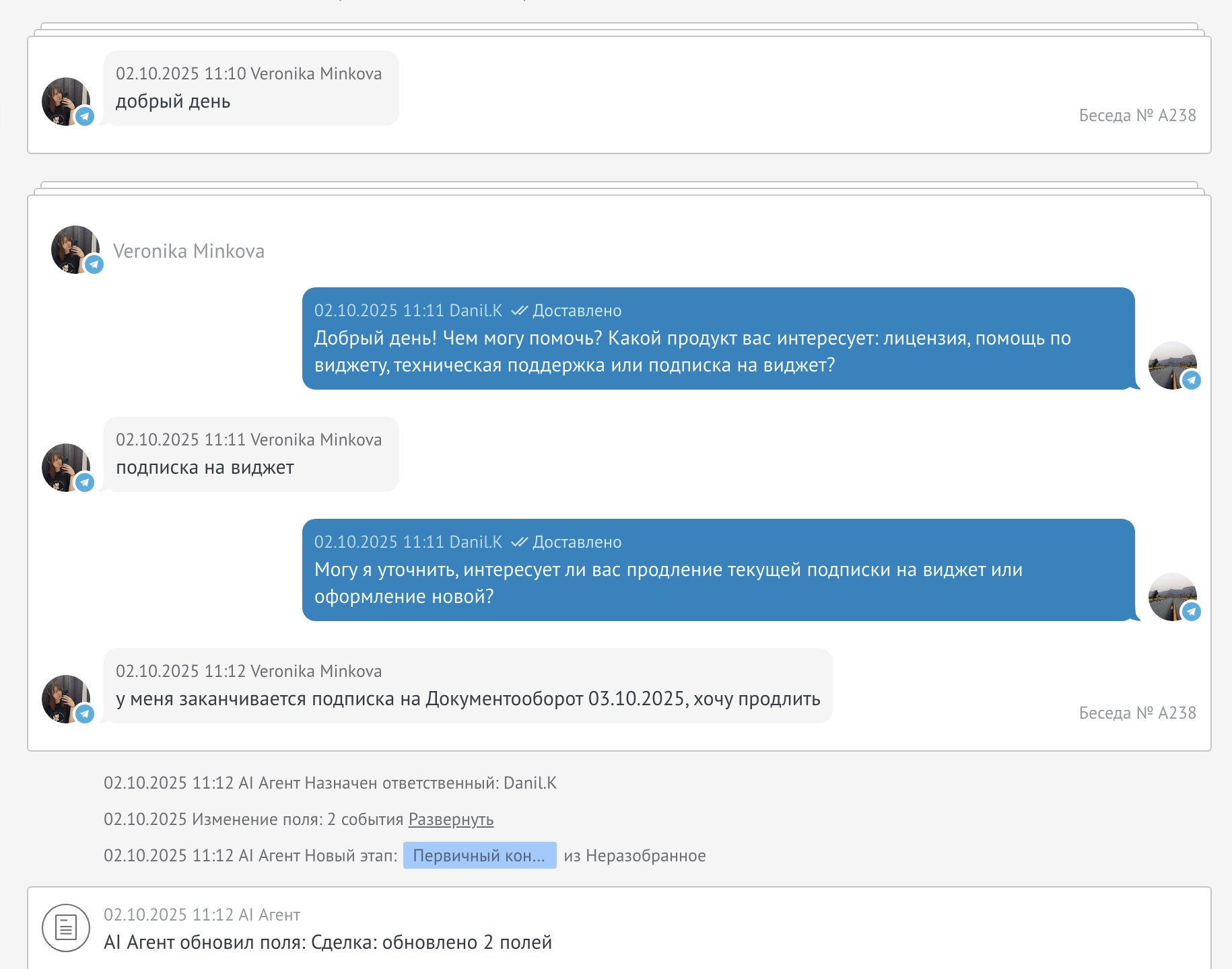
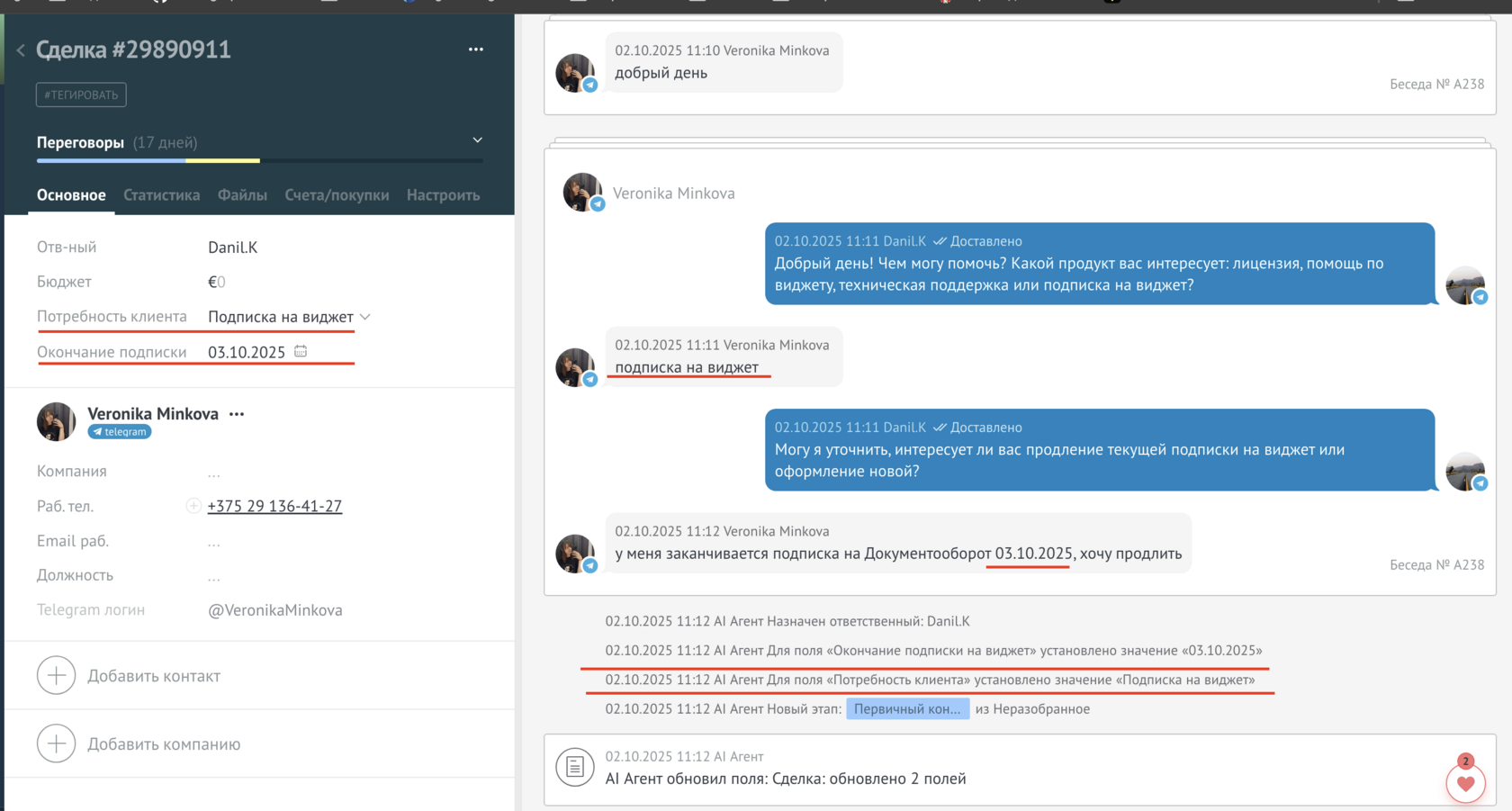
Based on client responses, the widget can automatically fill in transaction fields.

  • when enabled, all fields will be filled in by default
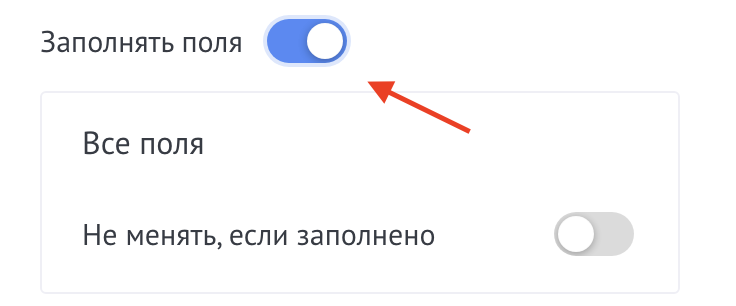
  • or select fields to fill in
  • ifthe field is filled inand its value does not need to be changed, then enable the checkbox “Do not change if filled in”
If an agent does not know the answer to a question, he can redirect the question to a chat with a specialist. In order to get a chat number you need to: Either add a bot to your chat with colleagues or technical support. In order to find out the chat number you need to: enter /start and send

  • in the Telegram search we look for @nova_aiagent_bot
  • click Run
  • get number
  • insert this number in the field
  • Marker for exclusion from the knowledge base: if you add [NO_KB] to a specialist’s answer, this answer will not be saved to the knowledge base. The token is not sent to the client.
  • Select actions that should be performed by the bot after the agent finishes communicating with the client
  • save Salesbot
  • save settings trigger
Agent behavior

Customizing agent behavior allows you to make communication with clients more natural and consistent with your company's style. Correctly setting these parameters helps the agent maintain the desired tone of communication and provide more relevant responses.

Nature of communication

Describe the tone in which an agent should communicate with clients. For example: “Friendly and informal”, “Professional and discreet”, “Energetic and motivating”. This field defines the agent's general communication style.

General rules

Specify the rules that the agent must adhere to when communicating. For example:

  • Always address yourself as "you"
  • Don't use jargon
  • Answer briefly and to the point
  • Use emoji in messages

Answer examples

Add specific examples of how an agent should answer common questions. This helps the agent better understand the desired communication style and response format. For example:

  • Question: "How much does it cost?" → Answer: “I’ll be happy to tell you about the prices! The cost depends on the package chosen...”
Agent behavior

Information for specialists

Select the fields of deals, contacts and companies that will be displayed in the message to the specialist when the question is submitted by the AI ​​agent

Information for specialists

Knowledge Base Management

The knowledge base is necessary so that the agent can answer questions about your products, services, etc. You can fill the knowledge base in three ways:

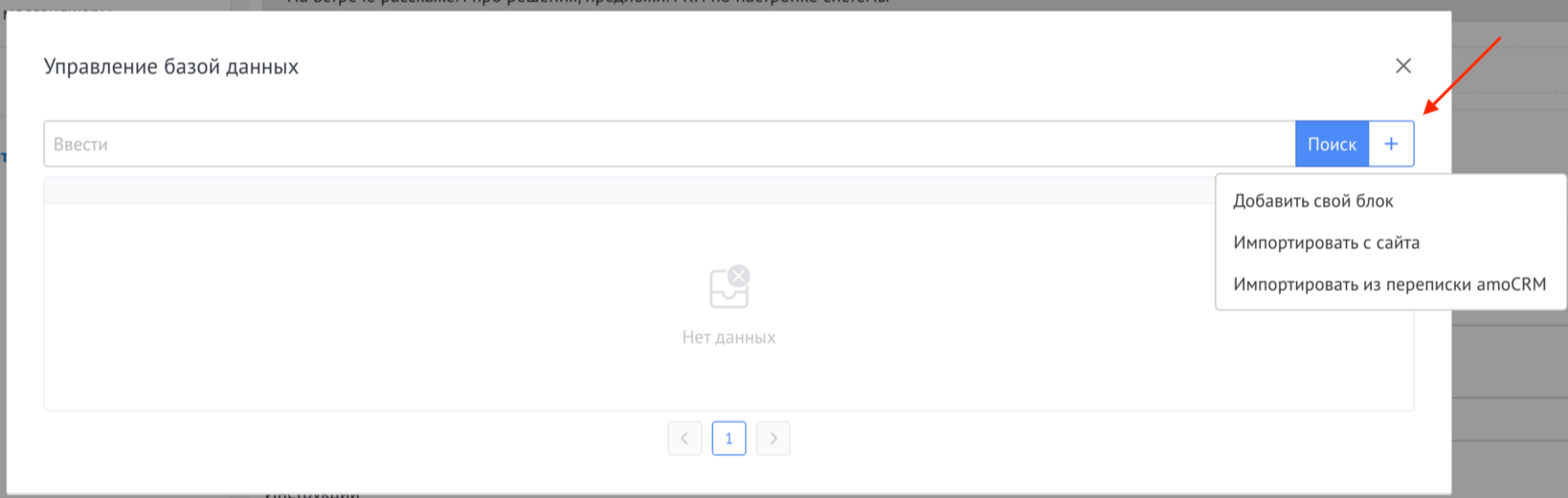
  • Add your own block - enter your own answer to the question
  • Import by URL - import information from a website, Google Docs, Google Sheets or Notion
  • Import from Kommo correspondence - import responses from correspondence with clients
Knowledge Base Management

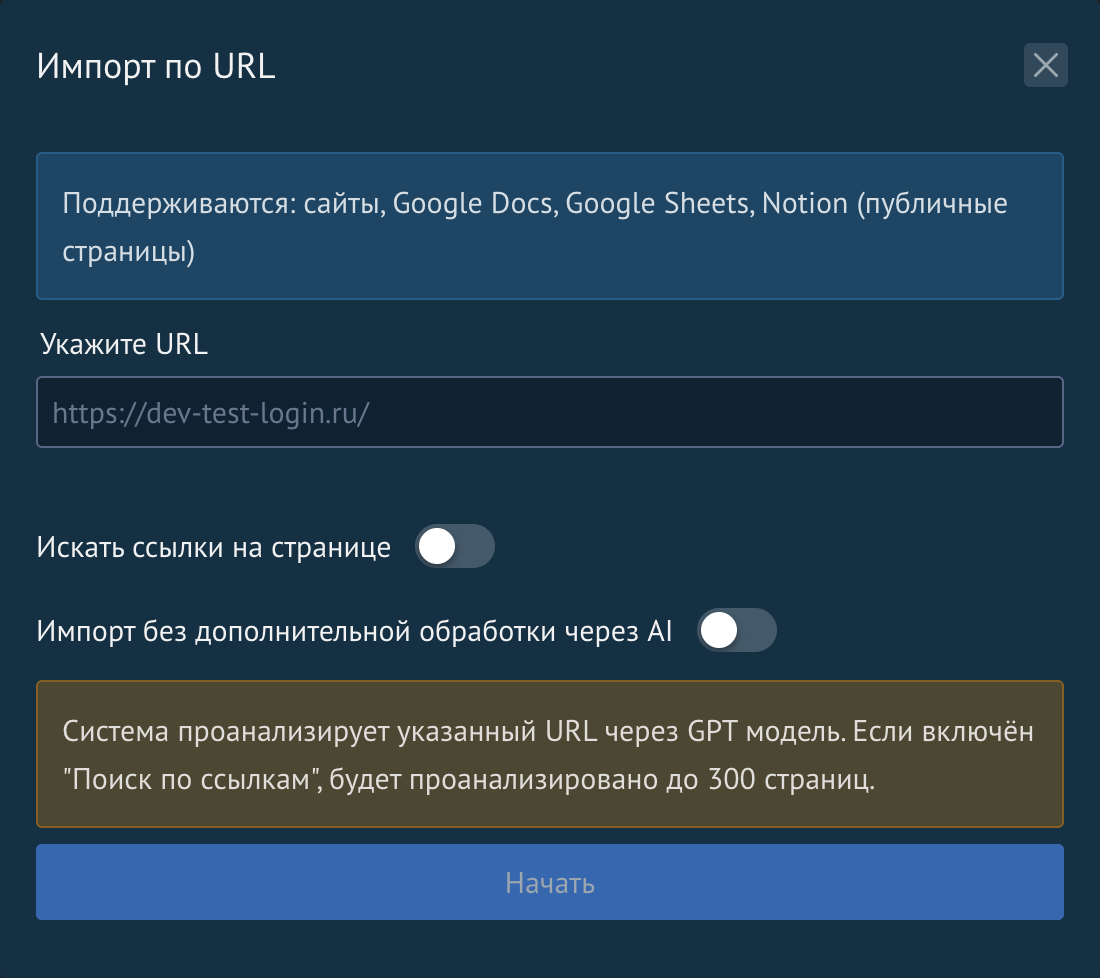
Import by URL

The widget supports importing information from various sources using the following link:

  • Websites - any public pages
  • Google Docs - documents with public access
  • Google Sheets - public spreadsheets
  • Notion - public pages

Import settings:

  • Search for links on a page - if enabled, the system will follow links and analyze up to 300 pages
  • Import without additional processing via AI - if enabled, the text is saved “as is” without structuring through LLM. Useful if you already have structured content
Import by URL

Background import

Large imports are performed in the background. You can track your progress in the task list:

  • Task status - pending, processing, completed, error, canceled
  • Progress - number of processed pages/dialogs out of the total
  • Cost - how much money was spent on imports
  • Number of blocks - how many knowledge blocks have been added to the database

The task list is updated automatically every 5 seconds. You canstopan active task orhidea completed one.

List of import tasks

Web search

The AI ​​agent can search for relevant information on the Internet if the knowledge base does not answer the client’s question.

To enable the feature, activate the "Add web search support" option in the widget settings. After this, the agent will be able to:

  • Search information on the Internet
  • Follow the links for details
  • Use the information found in your answers
Setting up web search

Obtaining information from external sources using a link

The AI ​​agent can automatically receive up-to-date information from external sources using the links provided in the instructions. This feature works when the "Add web search support" option is enabled.

How it works:

When an agent begins a dialogue with a client, he first follows the links in the instructions, obtains information from the pages, and then uses it to respond to the client. This allows the agent to always work with up-to-date data.

Use examples:

1. Receiving personal information via GET parameters

You can pass client data via GET parameters in a link. The agent will click on this link and receive personalized information.

Пример инструкции для бронирования отеля:

"Ты помогаешь клиенту забронировать номер в отеле.

Свободные даты и актуальные цены можно посмотреть по ссылке:
https://example.com/api/hotel/availability?room_type={поле_тип_номера}&dates=next_30_days

Используй эту информацию для ответа клиенту о доступных датах и ценах."

In this example, the agent will receive up-to-date information about available numbers before starting the conversation.

2. Triggering external actions via GET requests on exit

The agent can make a GET request when a specific output is triggered to automatically start processes on external systems.

Пример инструкции с запуском задачи:

"После успешного согласования услуги перейди к выходу 'создать_задачу'.

При выходе 'создать_задачу' перейди по ссылке:
https://example.com/api/tasks/create?deal_id={ID_сделки}&service={название_услуги}&client_phone={телефон_контакта}

Это автоматически создаст задачу в нашей системе управления."

3. Retrieving data from CRM or internal systems

Пример для проверки статуса заказа:

"Проверь статус заказа клиента по ссылке:
https://example.com/api/orders/status?client_id={ID_контакта}

Используй полученную информацию для ответа клиенту о статусе его заказа."

Advantages:

  • Up-to-date data - information is always fresh, no need to update the knowledge base
  • Personalization - each client receives information specific to their situation
  • Integration with external systems - you can launch actions in other services
  • Flexibility - easy to change logic on the API side without changing agent settings

External APIs

The External APIs feature allows you to connect external services and tools to agents to expand their capabilities. With its help, the agent can receive data from third-party systems and perform additional actions within scripts. General settings allow you to configure connections to external APIs once and use them in different SB triggers.

In each trigger, you choose which tools are available to the agent, which provides flexibility and control over its behavior.

Setting up external APIs

Open Settings and go to the “External APIs” section.

External APIs section in settings

Click on +Add tool

Add a tool

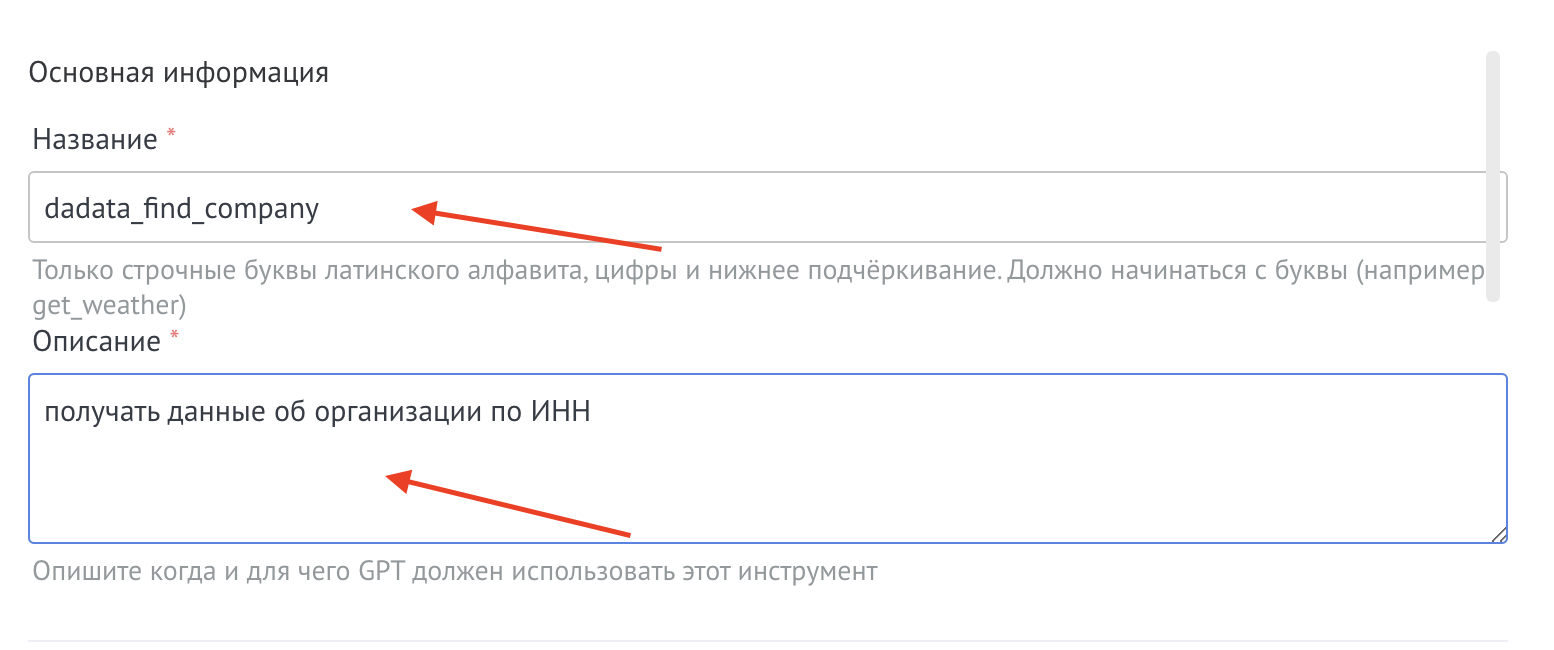
Enter Title and Description

Tool name and description

Add HTTP settings—defines what action will be performed when accessing an external API. Depending on the chosen method, the agent understands what exactly needs to be done with the data in the external service:

  • Method - specifies what exactly needs to be done when accessing an external API
  • URL is the address of the external service to which the system sends the request. It indicates exactly where to go to receive or transmit data
  • Timeout - sets the maximum time to wait for a response from the external API. If the service has not responded during this time, the request is automatically terminated

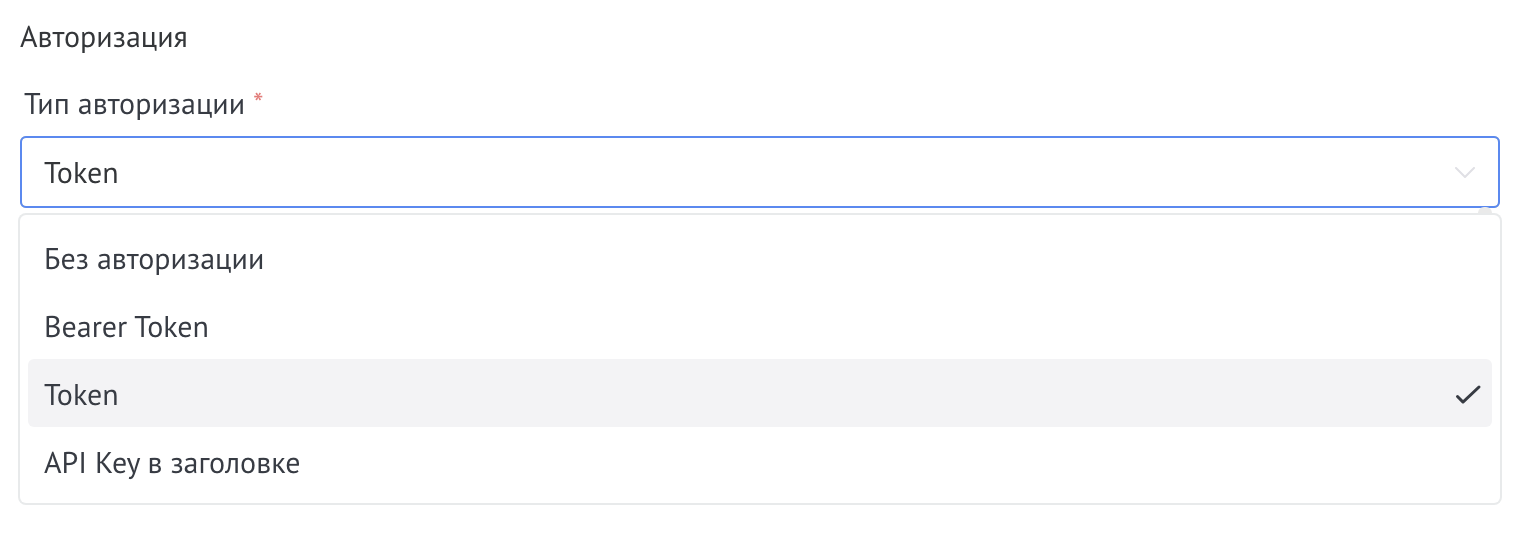
Next, select authorization method and enter the data

Authorization settings

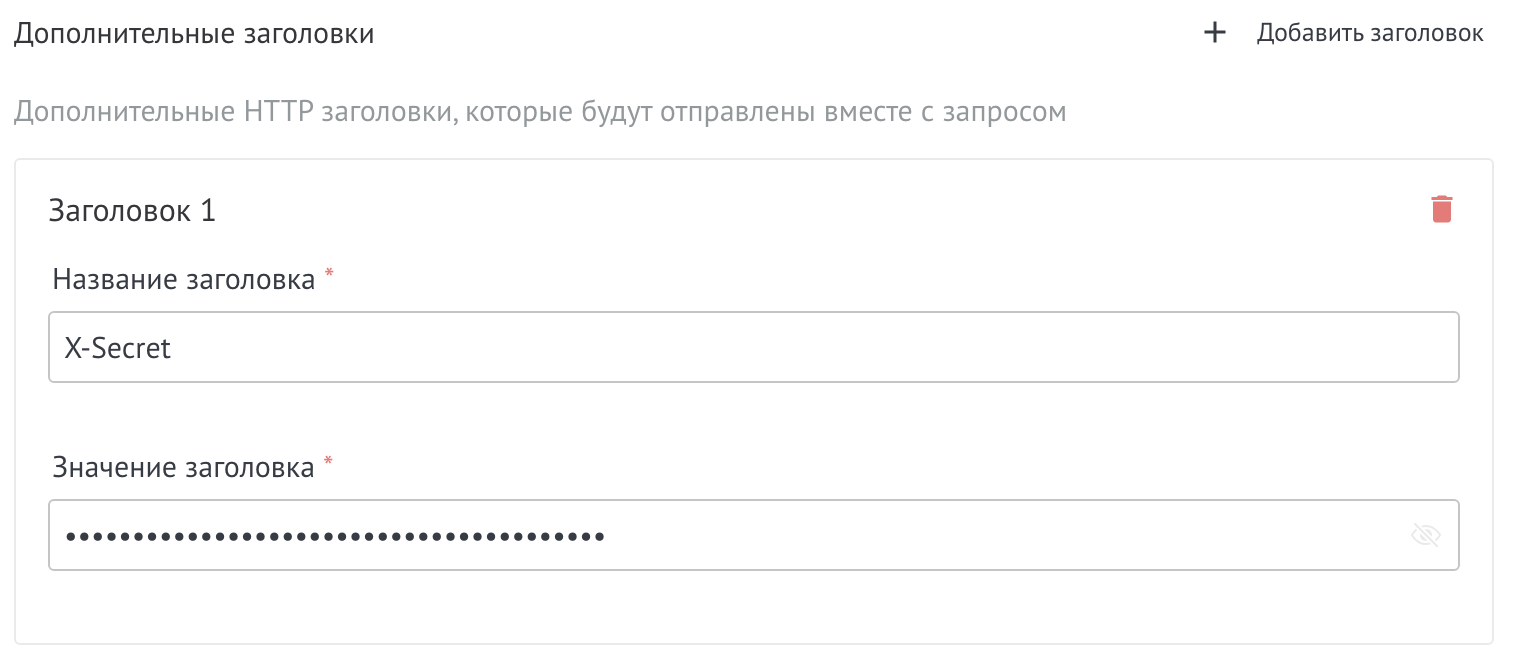
If necessary, enter additional headers - request settings that help the external API understand who is accessing and how to process the data

Additional Headings

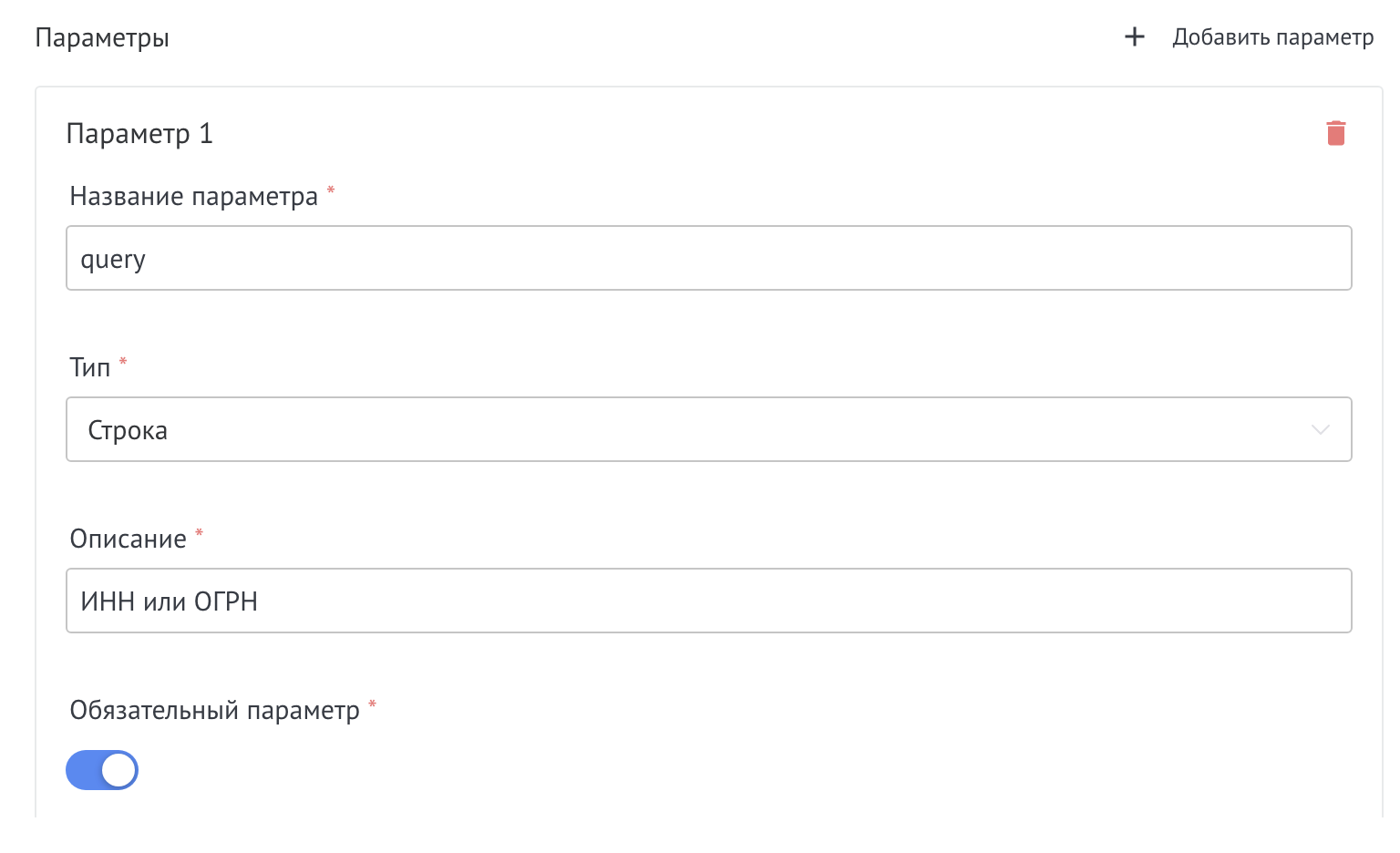
Add parameters - allow you to pass specific data that the request should work with to the external API

Request parameters

Save the tool API setting, add the desired quantity and Save the overall setting

Setting up the SB trigger

Go to the desired SB trigger and open its settings

SB trigger settings

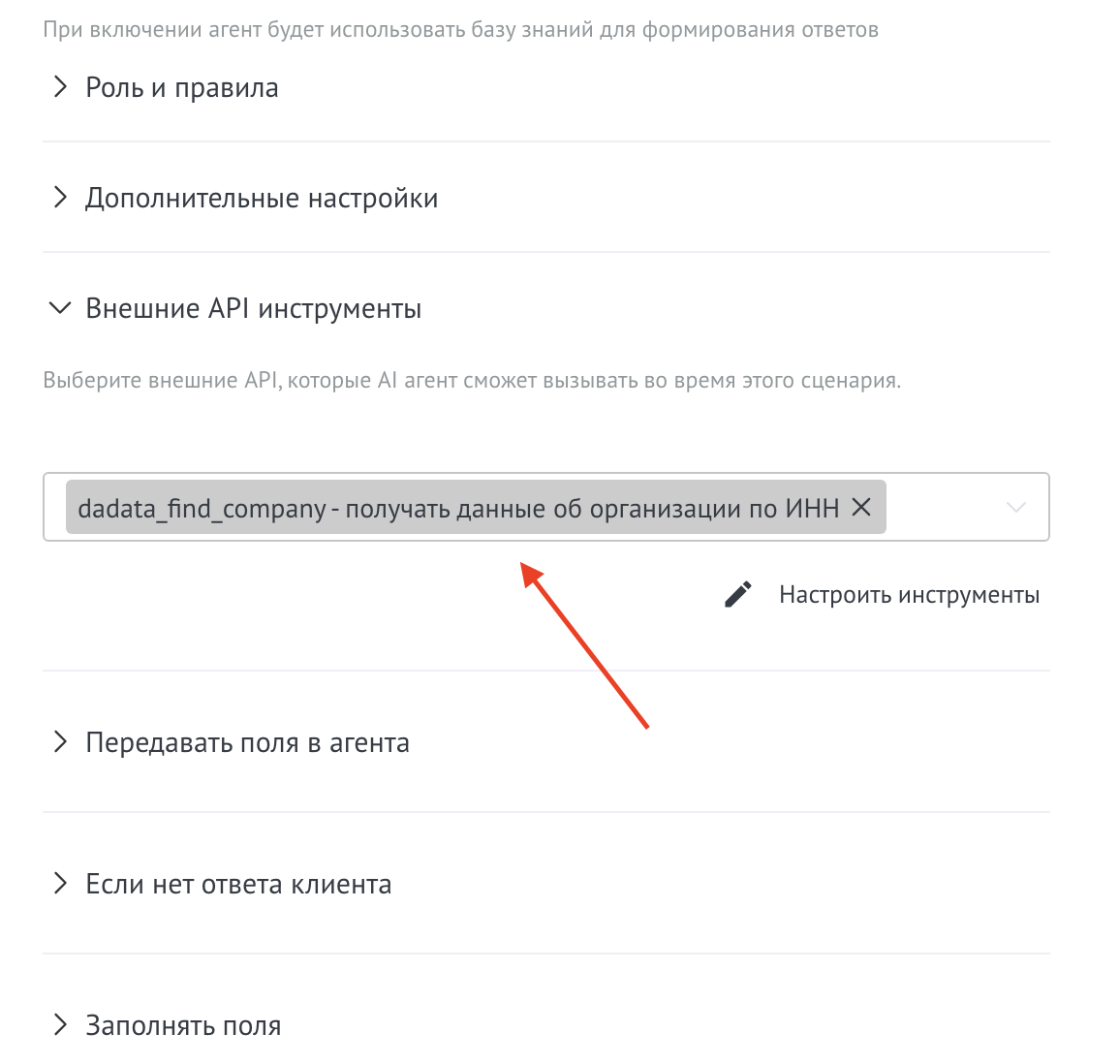
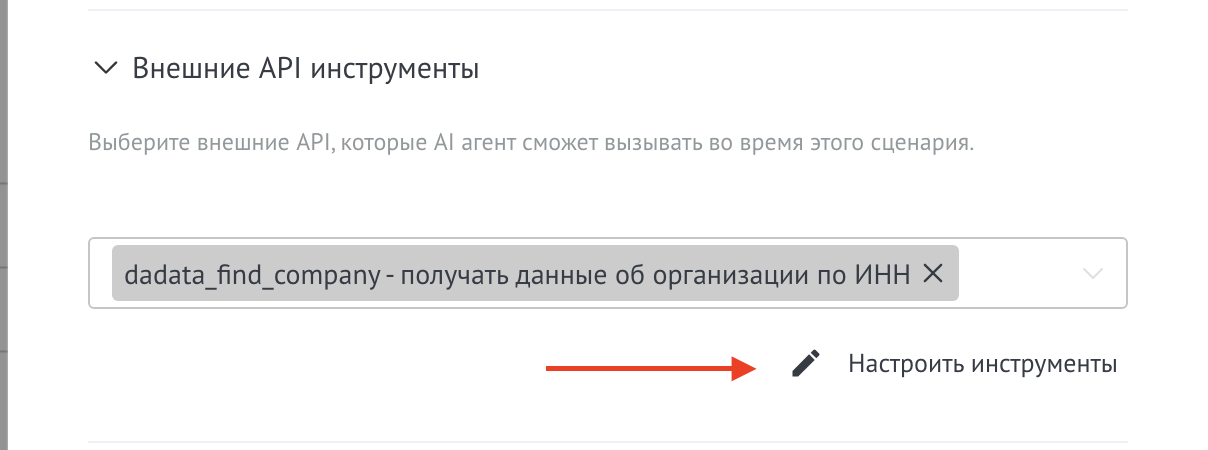
In a separate section of the trigger settings, select external APIs from the general list that should be connected to the agent within this scenario.

Selecting external APIs in a trigger

If you need to change the parameters of the selected API, click the Configure button next to the list. A modal window will open with the same settings as in the “External APIs” section in general settings. All changes will be applied immediately.

Setting up an API from a trigger

No specialist response

If an agent forwards a question to a specialist, but he does not respond within a specified time, the agent can automatically continue the conversation.

Settings:

  • No response within (minutes)—waiting time for a specialist response in minutes
  • Instructions if there is no response - what the agent should do if the specialist does not respond. For example: “Apologize and ask the client to wait” or “Offer to leave a contact for feedback”
Setting up when there is no response from a specialist

AI Consultant for Telegram

Activate the checkbox "Enable AI consultant for the /ask team in Telegram", write down instructions for the consultant and add a list of Telegram chat IDs

AI Consultant for Telegram

Opportunities:

  • Command /ask - you can use a consultant to test the knowledge base directly in Telegram chats
  • Command /remember text - using this command, the agent adds text to the knowledge base. Подходит для быстрого добавления новых знаний прямо через рабочие чаты

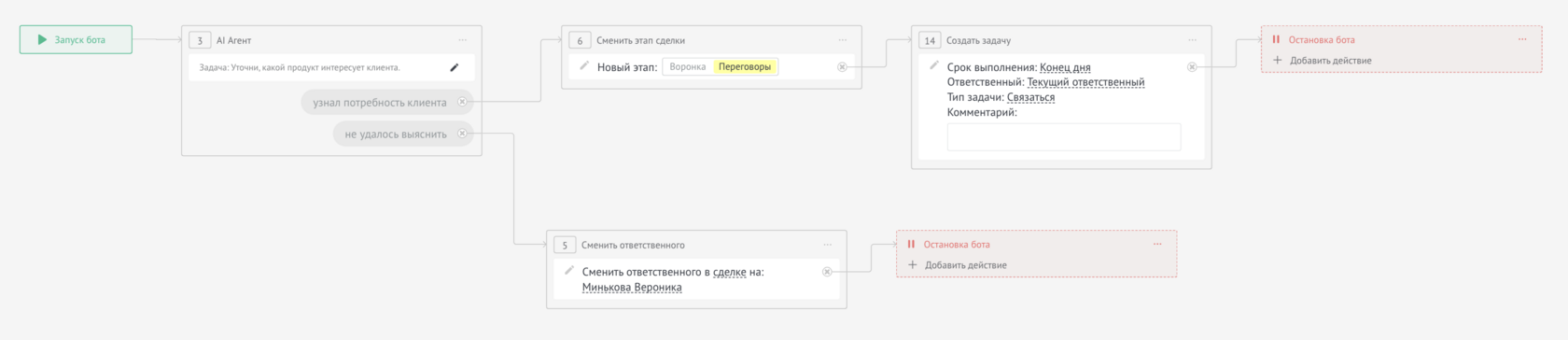
An example of how the widget works

Example of filling out fields